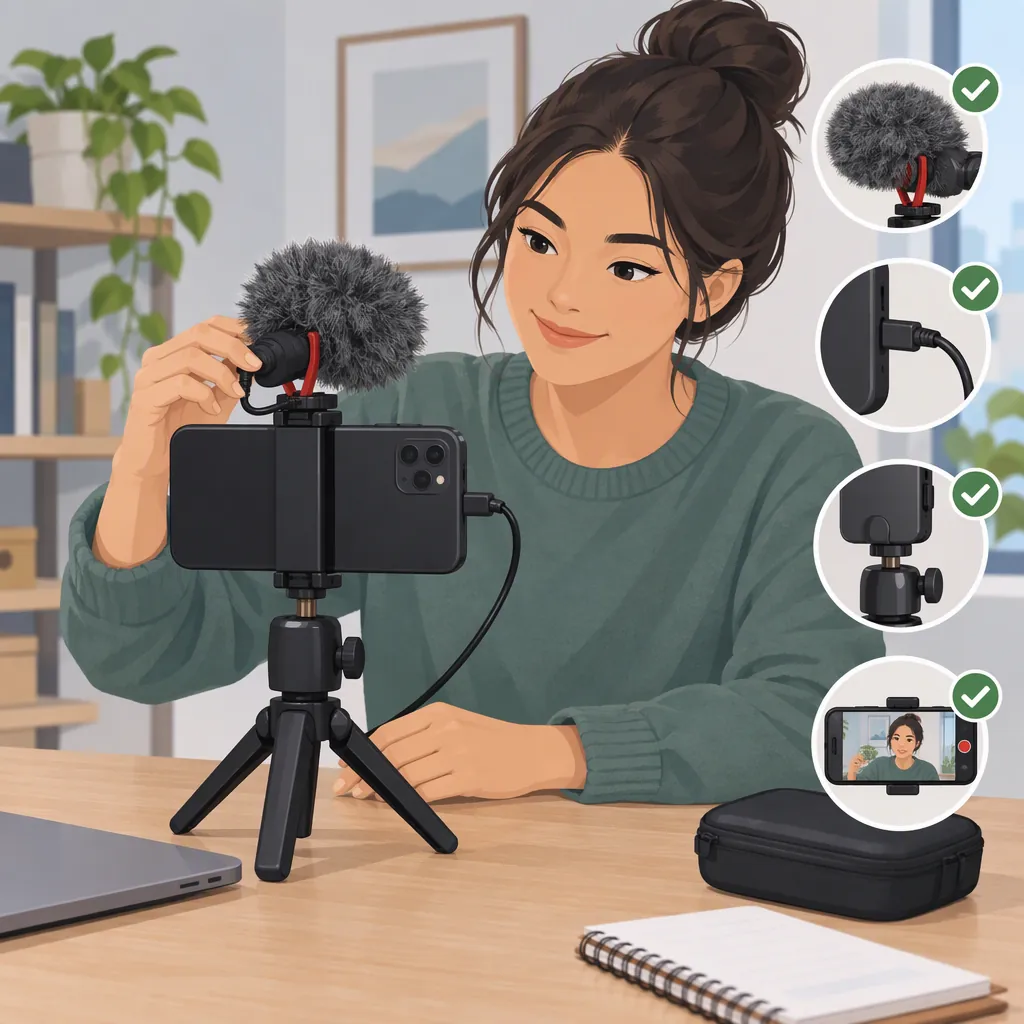
01Lm Microphone Vlog Kit: Identification and Setup Checks
For an 01LM microphone vlog kit, confirm the exact model, microphone connection, and recording-app input before making a full recording. The cited Daraz and Alibaba pages use KIT-01LM, but their available text does not establish a microphone connector specification or phone-by-phone compatibility. [c1] [c2]
| Evidence question | What the cited pages establish |
|---|---|
| Model name | Both listings use KIT-01LM. [c1] [c2] |
| Listed equipment | Daraz’s title names a tripod, microphone, and light; Alibaba’s title names a tripod, LED fill light, and shutter. These descriptions do not independently verify the contents of your package. [c1] [c2] |
| Microphone connection and compatibility | The available text does not establish which microphone connector or adapter works with a particular phone and recording app. [c1] [c2] |
| Audio performance | The listings do not provide independent audio-test evidence establishing sound quality, reliability, or universal compatibility. [c1] [c2] |
The steps below are general identification, recording, and mobile-editing checks—not a verified operating procedure or performance recommendation for a particular 01LM kit.
Identify the Kit and Its Connections
Compare the model printed on the packaging with the included instructions and any markings on the microphone. Record the components physically present rather than assuming every item named in a listing is included.
Keep similar model names separate. The cited Camolomall page describes KIT-01S, not KIT-01LM; its connection notes and adapter specifications should not be applied to an 01LM kit without documentation confirming the match. [c3]
What to Observe Before Connecting Anything
With the equipment disconnected, inspect each end of the microphone cable, any adapter, and any separate receiver.
| Item | Details to record |
|---|---|
| Round audio plug | Note whether it is labeled 3.5 mm. Count the visible insulating rings separating the metal sections, and photograph the plug if the labeling is unclear. |
| Phone-facing connector | Record whether it is labeled USB-C, Lightning, or another type. Note its shape and any model or part number rather than guessing from appearance alone. |
| Separate receiver, if present | Record its model, phone-facing connector, switches, indicator labels, and any pairing or power instructions. |
| Adapter | Record its model and both connection ends. Look for documentation explicitly describing microphone-input support, not just headphone output or charging. |
| Microphone and cable labels | Copy model numbers, input/output labels, switch positions, and markings on both cable ends. |
| Phone and app | Record the exact phone model, available port, recording app, and app version where available. |
These observations are identification clues. Plug shape, insulating-ring count, or the presence of a receiver alone does not establish compatibility or verify the interface supplied with KIT-01LM.
When reading instructions, match the microphone or receiver model, cable arrangement, connector, adapter model, supported phone connection, power requirements, and app-input settings. If those fields do not match your equipment, leave the requirement unresolved.
Kit Identification Checklist
- Package model: __________
- Microphone and receiver models, if marked: __________
- Components physically present: __________
- Connector labels, shapes, and insulating-ring count: __________
- Cable and adapter models: __________
- Phone model and recording app: __________
- Matching instructions and relevant connection details: __________
- Details still unknown: __________
Check the Audio Path Before Recording
Make a Short Comparison Recording
- Confirm the documented connection. Check any required adapter, power source, switch position, or input setting. Do not force a connector or assume that physical fit means microphone-input support.
- Secure the setup. Position the phone and route the cable so it does not pull on the port.
- Check the recording app. Look for an audio-input selector or an indication of the active input. Select the intended input if the app provides that option.
- Record a connected sample. Speak a short sentence from your intended recording position. Include a brief pause so you can also listen for interruptions or unwanted noise.
- Record a disconnected sample. Stop recording before disconnecting the accessory, then repeat the same words from the same position without it.
- Listen to both saved files. Check whether the full sentence is audible, whether parts are missing, and whether either sample contains silence or interruptions.
- Record the input indication and result. An audible difference alone does not conclusively identify the active microphone.
Keep both recordings for comparison after any setup change.
Choose the Next Step from the Result
| Test result | Next step |
|---|---|
| No speech or a silent file | Check the connection, documented power requirements, app microphone permission, and any mute setting. Repeat the sample after making one change. |
| Speech is audible, but the app does not identify the input | Check the app’s external-input documentation. Where available, repeat the sample in a recording tool that explicitly identifies the input source. |
| Words are missing or audio cuts out | Inspect the cable and connector without forcing them. Check documented power requirements, change one part of the setup at a time, and repeat the same sentence. |
| The app identifies the intended external input and the sentence is recorded | Record the exact phone, app, connection, adapter, and settings. Proceed to the framing and export test. |
| The input source remains unclear | Mark it unknown rather than assuming the external microphone is active. Resolve the uncertainty before relying on it for a full take. |
A successful result applies to the tested combination and settings; it does not establish compatibility with other phones or apps.
Rehearse the Mobile Frame and Crop
Choose the intended final frame first: portrait, landscape, or square. Set up the phone for that frame where practical, then record a brief rehearsal containing the gestures, movement, and objects you expect to include.
Open the rehearsal in your editor and apply the intended crop. Check:
- Headroom: The top of the head stays inside the frame during normal movement.
- Hands and gestures: Important actions do not disappear at the edges.
- Demonstration objects: The parts viewers need to see remain visible.
- Captions: Planned text does not cover important details or fall outside the frame.
- Equipment: Cables, microphone supports, and other unwanted items are not visible.
If you need more than one output shape, preview each separately. A composition checked in portrait should not be assumed to work in landscape or square.
For a fixed shot, confirm that the support is secure before stepping away. If you move the microphone, reposition the phone, or adjust a light, repeat the rehearsal and review both picture and sound.
Review a Test Export
Before the full take, export a short rehearsal using the settings intended for the finished video. Play the exported file—not just the editor preview—and check the crop, captions, speech, and any silence or interruptions throughout the sample.
Keep the original recording separate from the export. If a problem appears, compare the two:
- Problem present in the original: Return to the recording setup and repeat the audio or framing check.
- Original is acceptable, but export is not: Review the edit and export settings before changing the microphone connection.
- Cause remains unclear: Record the issue, change one part of the workflow, and retest the same sample.
Combined Recording and Export Log
| Item to record | Your result |
|---|---|
| Phone, app, and app version | __________ |
| Microphone or receiver model | __________ |
| Connector, cable, and adapter | __________ |
| Documented power and input settings | __________ |
| Input shown by the app, if available | __________ |
| Connected sample: speech, silence, or interruptions | __________ |
| Disconnected sample result | __________ |
| Input status: confirmed / unknown / not working | __________ |
| Intended output shape and framing adjustments | __________ |
| Original recording saved separately | yes / no |
| Export settings | __________ |
| Exported crop, captions, and speech checked | __________ |
| Issue found in original, export, or both | __________ |
| Single change made and retest result | __________ |
Status definitions for this log:
- Confirmed: In this phone, app, and connection combination, the app explicitly identifies the intended input and the sample records speech. This does not confirm the kit’s overall compatibility or performance.
- Unknown: The active input source cannot be established, even if speech is audible.
- Not working: This test did not produce the expected recording result. It does not, by itself, mean the microphone is damaged.
FAQ
Is Kit-01lm the Same as Kit-01s?
The cited pages do not establish that they are the same product: Daraz and Alibaba use KIT-01LM, while Camolomall uses KIT-01S. Keep their specifications separate unless matching documentation confirms otherwise. [c1] [c2] [c3]
Which Adapter Does an 01Lm Microphone Need?
The cited KIT-01LM text does not establish a required adapter. Match the actual microphone connector, phone port, and adapter’s documented microphone-input support. Camolomall’s KIT-01S adapter notes do not resolve this question for KIT-01LM. [c1] [c2] [c3]
Does the 01Lm Name Confirm a Wireless Microphone?
No. The available KIT-01LM listing text does not verify a wireless microphone connection. Check the actual microphone, any separate receiver, and matching instructions rather than inferring the connection from the kit name. [c1] [c2]
Can I Identify Compatibility by Counting the Rings on an Audio Plug?
Use the ring count as a detail to match against documentation, not as a compatibility verdict. Also match the cable, adapter, phone, and recording-app requirements. The cited KIT-01LM pages do not provide the connection specification needed to settle compatibility. [c1] [c2]
What If My App Records Speech but Does Not Show the Active Microphone?
Save the connected and disconnected samples, check the app’s external-input documentation, and use a tool that explicitly identifies the input where available. If the source remains unclear, mark it unknown. Audible differences alone are not conclusive proof, and the cited KIT-01LM listings do not resolve app-specific input support. [c1] [c2]