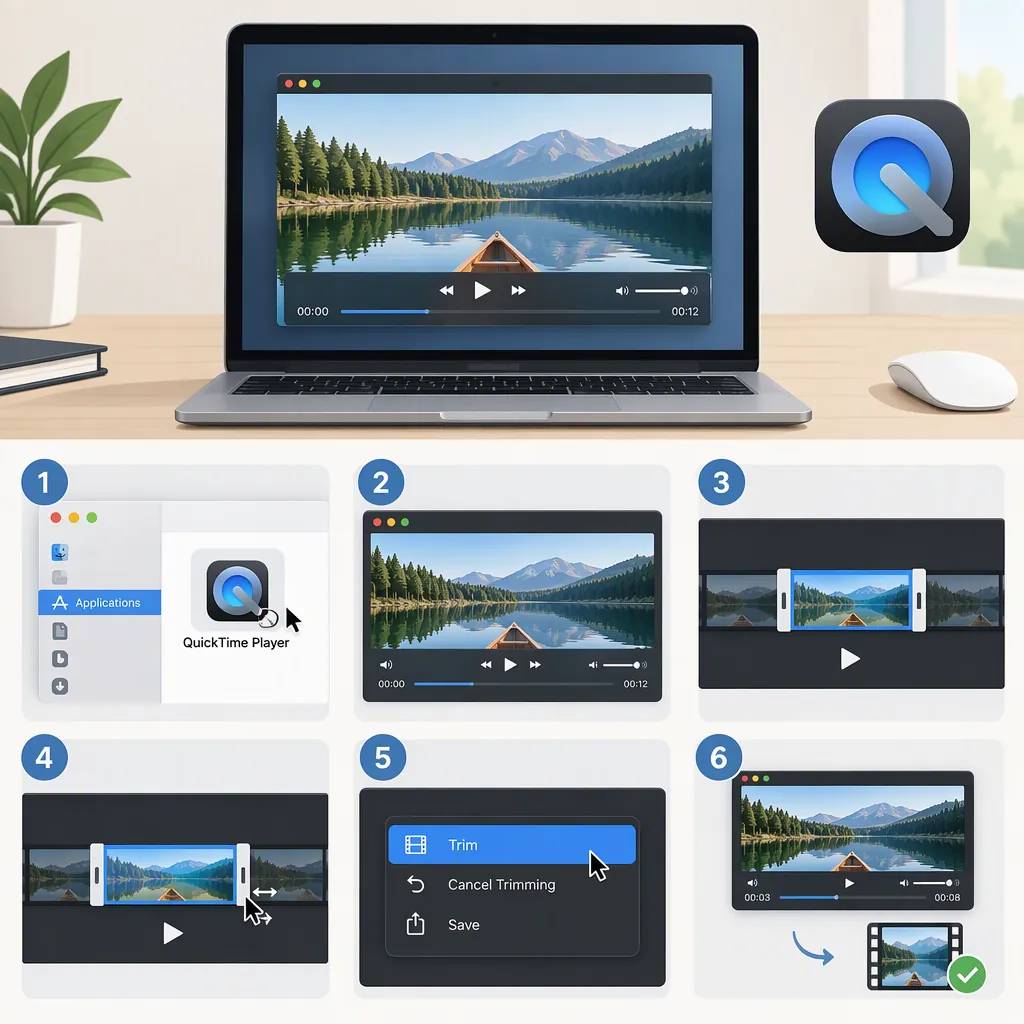
How to Cut a Video Shorter on Mac with Quicktime Player
To shorten a video on Mac, open it in QuickTime Player and choose Edit > Trim. Drag the yellow handles to mark the portion you want to keep, then click Trim. Anything outside the handles is trimmed away. For finer control, click and hold a handle to see individual frames. [qt-trim]
Trim the Beginning or End of a Video
For this task, “cut” means shortening a video by selecting the portion to keep—not cropping its picture or dividing it into separate files.
Apple documents the following workflow in QuickTime Player: [qt-trim]
- Open the movie you want to shorten in QuickTime Player.
- Choose Edit > Trim.
- Drag the left yellow handle to set the start of the portion you want to keep.
- Drag the right yellow handle to set its end.
- Click Trim.
The portion between the yellow handles stays; the areas outside them are trimmed away. Check that the handles surround the footage you want before confirming. [qt-trim]
Trim Checklist
- Open the movie in QuickTime Player.
- Choose Edit > Trim.
- Set the start and end with the yellow handles.
- Confirm that the wanted footage is between the handles.
- Click Trim. [qt-trim]
Refine the Start and End Points
For a more precise edit, click and hold a yellow trimming handle. Apple says this reveals individual frames of the clip, helping you refine the boundary. [qt-trim]
As an editing check, review both boundaries: does the clip begin before the action or speech you need, and does it end after that moment finishes? Leaving a little breathing room can be preferable to cutting into a word or movement.
Boundary Review Checklist
- Check the first moment you intend to keep.
- Check the last moment you intend to keep.
- Click and hold a trimming handle to inspect individual frames. [qt-trim]
- Adjust the boundary if it cuts into wanted speech or action.
Trim a Clip in an Already Split Movie
If your movie has already been split into clips, Apple documents a separate entry point for trimming an individual clip: [qt-trim]
- Choose View > Show Clips in QuickTime Player.
- Double-click the clip you want to shorten.
- Drag the yellow handles around the portion you want to keep.
- Click Trim.
This procedure assumes that the movie is already split. The supplied trimming reference does not provide the steps for creating those splits, so this article does not extend it into a middle-section removal tutorial.
Existing-Clip Trim Checklist
- Confirm that the movie is already split into clips.
- Choose View > Show Clips.
- Double-click the target clip.
- Select the wanted portion with the yellow handles.
- Click Trim. [qt-trim]
Check the Result and Keep the Original
As a precaution, keep an untouched copy of the original video before editing. After trimming, review the beginning and end of the result and confirm that you retained the intended footage.
The supplied Apple reference documents trimming controls, but it does not establish save or export steps, supported file formats, output quality, or file-size changes. Those details are outside this article’s verified scope. [qt-trim]
Result Review Checklist
- Keep an untouched original as a precaution.
- Review the beginning of the shortened video.
- Review the end of the shortened video.
- Confirm that no wanted footage was excluded.
- Check save or export behavior separately; it is not documented in the supplied trimming reference.
FAQ
Which Part of the Video Do the Yellow Handles Keep?
The portion between the yellow handles is kept. The areas outside the handles are trimmed away when you click Trim. [qt-trim]
How Can I Make the Trim More Precise?
Click and hold a yellow trimming handle to see individual frames, then refine the start or end boundary. Apple documents this for both movie trimming and clip trimming. [qt-trim]
Can I Trim Just One Clip in a Split Movie?
Yes. For an already split movie, choose View > Show Clips, double-click the clip, adjust its yellow handles, and click Trim. [qt-trim]
Will Trimming Change Video Quality or File Size?
The supplied trimming reference does not establish quality or file-size effects. It explains how to select and trim footage, so no specific output-quality or size claim is made here. [qt-trim]