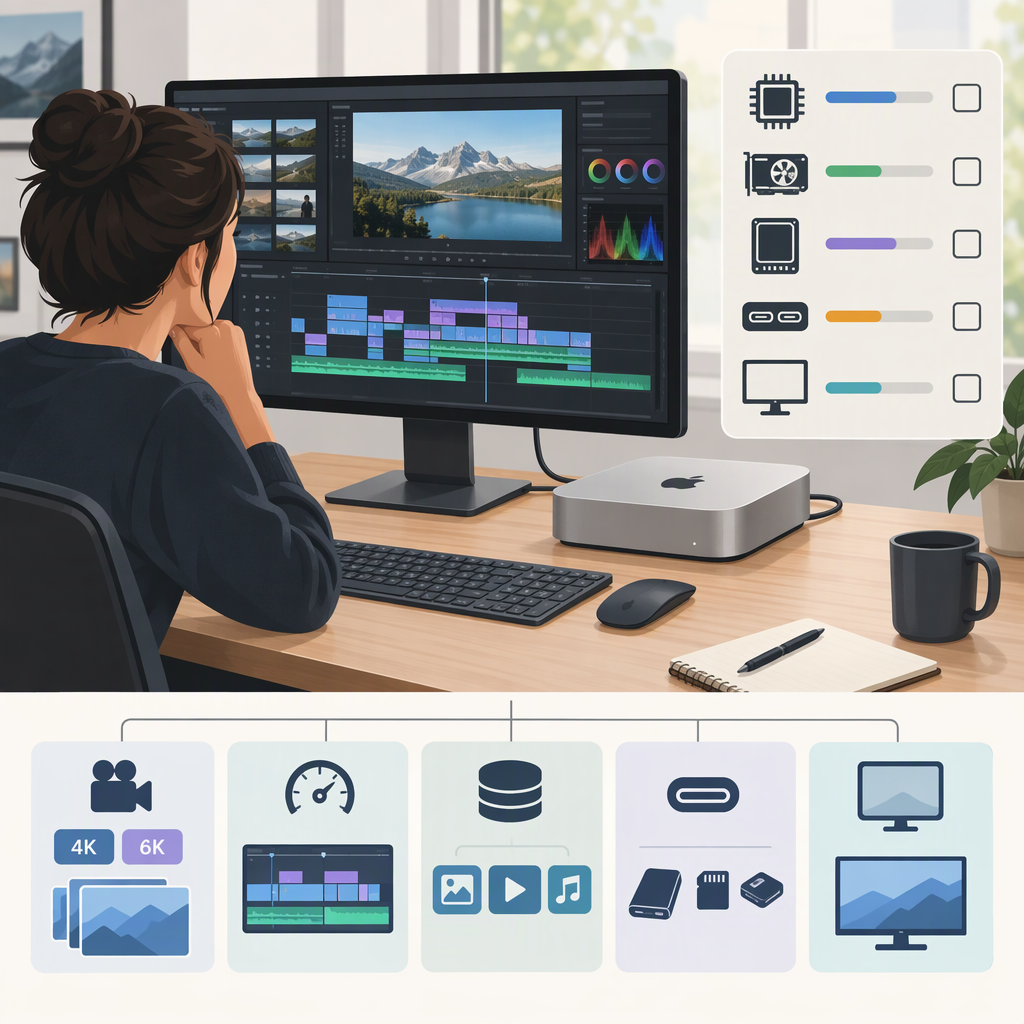
Mac Mini for Video Editing: How to Decide What You Need
A Mac mini is worth considering only if the exact configuration you’re evaluating meets your editing software’s current requirements and fits your workflow and desktop setup. This guide doesn’t rate or recommend a particular model. Instead, it gives you a way to check the relevant facts before deciding—without treating a spec sheet as proof of editing performance.
Start with Your Editing Workload
Write down what you actually edit and how you expect the work to feel in use. These details help you identify what to verify; they don’t establish that a computer will perform a certain way.
- Software and version: List each editing app and the version you plan to use. Requirements can differ by app and version. For example, Adobe’s Premiere system-requirements page separates minimum and recommended requirements and identifies the version it applies to; consult the page for the version you intend to run. (helpx.adobe.com)
- Footage: Note the resolution and codec of your source media. Include the most demanding footage you routinely handle, not just an occasional easy-to-edit clip.
- Timeline: Record how many video streams you commonly use at once, and whether your projects include complex timelines, effects, color work, or motion graphics.
- What “works well” means to you: Decide what matters: for example, responsive playback while editing, acceptable export times, or comfortably handling a particular project. Those are goals to investigate—not claims about a Mac mini.
Example worksheet: A creator might write, “Premiere, version ___; source footage ___; simultaneous streams ___; typical effects ___; playback expectation ___.” Then they can compare that specific setup with the current requirements for the matching software version and seek evidence relevant to the exact computer configuration and workload. The worksheet is a planning example, not a test result.
Compare Configurations Against Your Needs and Budget
Don’t choose by a chip name or one headline specification alone. Compare the exact configurations you’re considering and check the current software requirements for your app and version. Depending on what the manufacturer offers for the particular model, the details to investigate may include:
- Processor and graphics options: Check the exact configuration details and the software’s stated requirements. If you need to know how a workload performs, look for evidence that actually tests that model with comparable software, footage, and project complexity. Requirements alone don’t establish performance.
- Memory: Compare the amount available in each exact configuration with your application’s current requirements and the demands of your projects. Don’t assume memory can be changed after purchase; verify that point in official documentation for the exact model.
- Internal storage: Estimate the space you need for applications, active projects, cache or scratch files, and any media you want kept on the computer. Check the configuration details rather than assuming storage can be expanded internally.
- Total budget: Compare the configurations and any necessary peripherals or storage as one planned setup. No current price or “best value” conclusion is established here.
Apple’s technical-specifications page is one place to check the details for the exact Mac mini configuration under consideration. Confirm that the page corresponds to the model you intend to buy; don’t infer one configuration’s details from another. (apple.com)
A practical comparison table can keep the decision grounded:
| What to compare | What to write down | What it helps you decide |
|---|---|---|
| Editing app and version | App name and version | Which current software requirements apply |
| Typical and demanding projects | Footage, streams, effects, timeline complexity | Which workload needs require further investigation |
| Exact configurations | Processor/graphics options, memory, and storage as documented | Whether each option meets the requirements you’ve identified |
| Setup needs | Displays, peripherals, connections, and media storage | What must be checked—and budgeted for—alongside the computer |
| Purchase budget | Computer plus required setup items | Whether the complete setup fits your budget |
Include the Rest of Your Editing Setup
A computer can meet an application’s requirements and still not fit the setup you want. Before deciding, list the display or displays you plan to use, input devices, media or project storage, and the connections required by your existing equipment. Then check each item against documentation for the exact configuration. This guide doesn’t establish display support, port availability, connection behavior, or storage performance for any model.
If you rely on external media or project storage, include it in both your workflow plan and your budget. Think through where active projects and media will live, and how you will back up work. These are planning considerations, not claims about a particular storage device or computer.
Before You Buy: A Verification Checklist
- Identify the editing application and version you plan to run; read its current requirements for that version.
- Write down your usual footage, timeline complexity, effects, and playback or export expectations.
- Compare each exact configuration with those requirements. Treat requirements as compatibility information, not as proof of real-world performance.
- If performance is important, look for evidence using the same model, software version, and a workload similar to yours. Don’t treat an unrelated benchmark or an illustrative example as a test of your workflow.
- Verify memory, storage, upgradeability, display support, and connections in documentation for the exact model and configuration. Don’t assume these details are shared across models.
- Add any required display, input devices, external storage, and other setup items to your budget.
- If portability or another kind of setup matters more than a desktop arrangement, compare computer categories using those needs—but don’t assume an alternative is better without evidence relevant to your workflow.
Bottom line: Use your software requirements and real project details to narrow the questions, then verify the exact configuration and complete setup you’re considering. Without current, model-specific evidence for your workflow, this guide doesn’t establish that any Mac mini is suitable, faster, or better value for video editing.