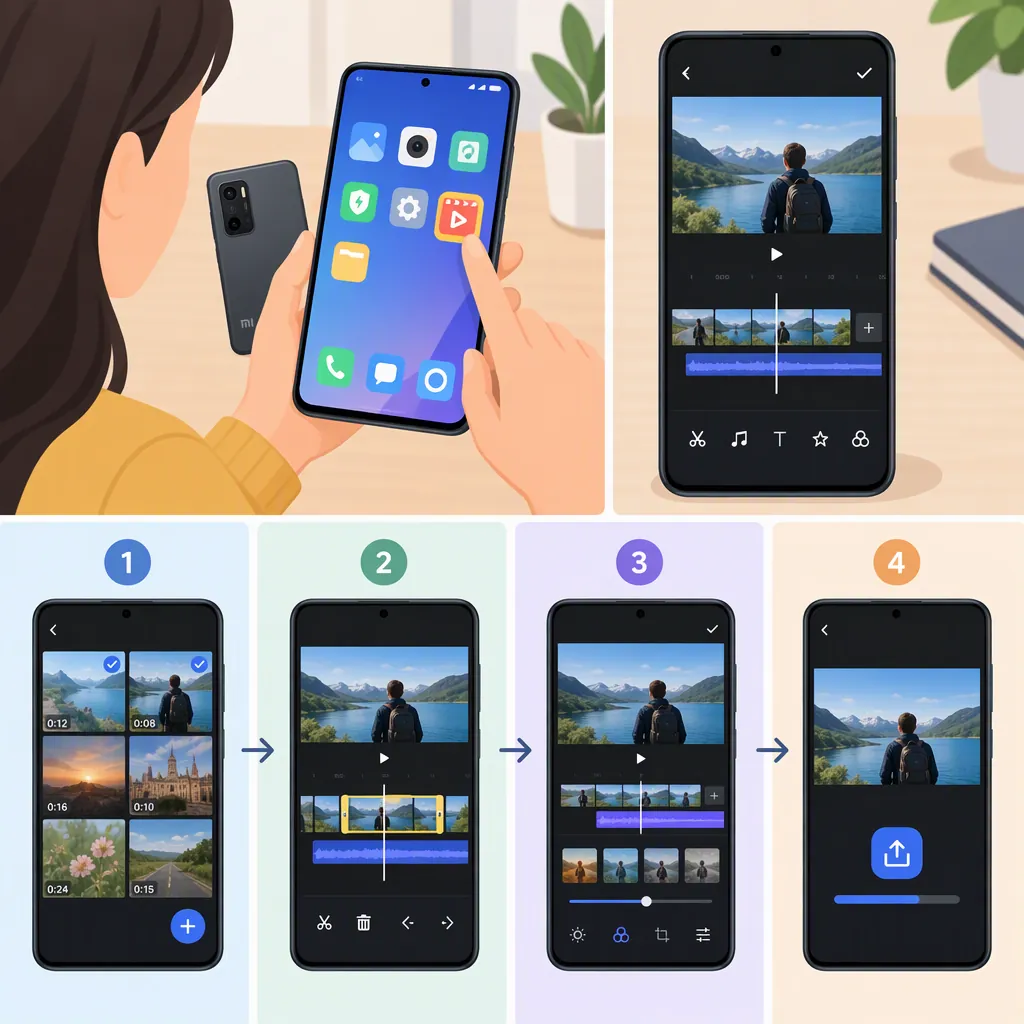
How to Edit Video on a Mi Phone Using Gallery
Open Gallery on your Mi or Xiaomi phone, select a video, and tap Edit or the scissors icon. Trim the clip, use any available text, filter, or audio tools, then preview and save. Controls vary by model and software version. Xiaomi specifically documents captions, aspect-ratio adjustment, and speed controls for the Xiaomi 14T Pro; do not assume every Mi phone has these tools. [xiaomi-14t-editor] [xiaomi-gallery-guide]
Open the Video Editor in Gallery
Start with the video already stored on your phone:
- Open Gallery.
- Select the video you want to edit.
- Look for Edit or a scissors icon.
- Tap it to open the editing controls.
Xiaomi’s instructions for the Xiaomi 14T Pro use the scissors icon. The broader third-party guide describes an Edit button and notes that options vary by device model and MIUI version. Treat these as alternative entry points, not identical interfaces on every phone. [xiaomi-14t-editor] [xiaomi-gallery-guide]
Before making changes, consider keeping a separate copy of an important recording. The provided sources describe saving edits but do not establish whether every version preserves the original automatically.
Trim the Start and End of Your Video
For a simple edit, begin by removing unwanted footage at the beginning or end:
- Find the timeline and its trim handles or sliders.
- Move the starting handle to the first moment you want to keep.
- Move the ending handle to the last moment you want to keep.
- Apply the trim using the control shown in your editor.
- Play the result to check that the opening and ending are not cut too early.
The third-party guide describes timeline sliders and a Trim control, while Xiaomi confirms trimming support on the 14T Pro. The exact confirmation button may differ on your phone. [xiaomi-gallery-guide] [xiaomi-14t-editor]
These steps address shortening a clip at its ends. The supplied sources do not establish a universal workflow for cutting a segment from the middle or joining multiple clips across all Mi phones.
Add Text, Filters, and Audio Where Available
After trimming, check which tools your editor actually displays:
- Text or captions: If available, enter a short label and adjust its appearance and timing using the controls shown. Preview it to check readability.
- Filters: Apply a filter if you want a different look, then compare the result with the unfiltered footage.
- Audio: If an Audio control is present, check whether it offers original-sound volume adjustment or background music. Preview speech with any music before saving.
The third-party guide describes text overlays, filters, and basic audio adjustments. Xiaomi’s 14T Pro support page confirms filters and captions but does not document audio controls. Audio availability should therefore be checked on the phone rather than assumed. [xiaomi-gallery-guide] [xiaomi-14t-editor]
For a straightforward edit, use only the changes needed to make the clip clear. You do not need to add an effect simply because the editor offers it.
Check for Speed and Aspect-Ratio Controls
If you want to change playback speed or the video’s framing, look for those controls in the editor. Xiaomi explicitly lists speed and aspect-ratio adjustments for the Xiaomi 14T Pro. [xiaomi-14t-editor]
When an aspect-ratio control is available, preview the result and check whether important subjects or text remain visible. When changing speed, play the edited section before saving to judge the timing.
Do not interpret a missing control as proof that the editor is broken. The third-party guide broadly describes speed control as a limitation, but that statement does not apply to the 14T Pro features documented by Xiaomi. The evidence supports a model-specific answer, not one feature list for every Mi phone. [xiaomi-gallery-guide] [xiaomi-14t-editor]
Save, Review, and Handle Missing Tools
Preview the complete edit, then tap Save. Both provided guides describe saving the edited video to the phone. Open the saved result and check the picture, text, sound, and duration before sharing it. [xiaomi-14t-editor] [xiaomi-gallery-guide]
If tools or effects are missing, the third-party guide suggests checking for a Gallery update, restarting the phone, and reconnecting to the internet for effects that require loading. These are troubleshooting suggestions, not guarantees that an unavailable feature will appear. [xiaomi-gallery-guide]
Avoid clearing Gallery app data as a first step. The supplied sources do not explain the consequences for your specific device or configuration.
Evidence limitation: The official source covers the Xiaomi 14T Pro only. The broader source is a third-party software vendor’s guide, not a Xiaomi compatibility list. Neither establishes exact controls or export settings for every Mi, Redmi, or POCO model.
Before-Saving Checklist
- Play the edited video from beginning to end.
- Check the first and last frames after trimming.
- Check that text is readable and appears at the intended time.
- Listen to speech and any added music.
- Check framing if you changed the aspect ratio.
- Tap Save, then open and review the saved result.
- Confirm that an important original recording is still available before deleting anything.
FAQ
Do I Need Another App to Edit a Video on a Mi Phone?
Start by checking Gallery for Edit or a scissors icon. The provided guides describe a built-in editing workflow, so a separate app is not required for the documented basic edits when those controls are available on your phone. Tool availability varies by model and software version. [xiaomi-14t-editor] [xiaomi-gallery-guide]
Can I Change Video Speed in Xiaomi Gallery?
Xiaomi confirms playback-speed control in the Xiaomi 14T Pro video editor. The supplied evidence does not confirm it for every Mi phone, so check the tools displayed on your device. [xiaomi-14t-editor]
Why Does an Effect Need an Internet Connection?
The third-party guide says some filters or effects may need an internet connection to load or function. This does not establish that every editing action requires internet access, and behavior may differ by device and software version. [xiaomi-gallery-guide]
Will Saving Keep My Original Video?
The provided guides say to tap Save, but they do not establish whether every editor version saves a separate copy or changes the existing file. Keep a separate copy of an important recording before editing, and review the saved result afterward. [xiaomi-14t-editor] [xiaomi-gallery-guide]
Sources
-
[xiaomi-14t-editor] How to use Video editor on the Xiaomi 14T Pro?
-
[xiaomi-gallery-guide] Edit Your Videos With Built-in Xiaomi Video Editor | Beginner's Guide