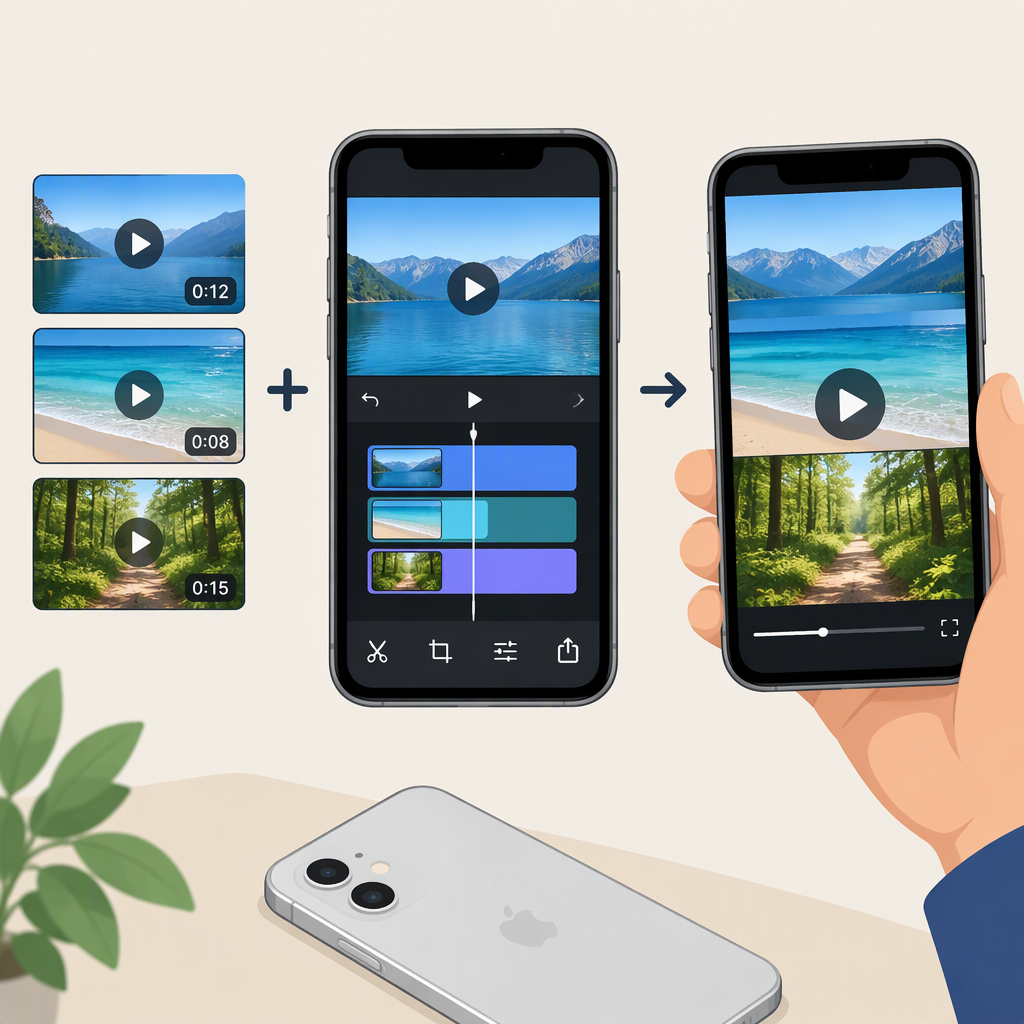
How to Combine Videos into One on iPhone
How to Combine Videos into One on iPhone
A straightforward way to join clips on iPhone is to use iMovie. You’ll need the app and access to your photo library. In iMovie, create a Movie project, add your clips, arrange them in the order you want, preview the sequence, then save the finished video to Photos. (support.apple.com)
Join and Arrange the Clips
- Open iMovie. If you’re already in a project, tap Projects to return to the project browser.
- Tap Start New Project, then Movie.
- Select the videos you want to join from your library, then tap Create Movie. The selected clips appear in the project timeline. (support.apple.com)
- Check the timeline order. To move a clip, touch and hold it until it lifts, drag it to the position you want, and release. For example, to make clip B play before clip A, drag B to the left of A. (support.apple.com)
- To add another clip later, move the playhead (the white vertical line) to the spot where you want it, tap Add Media, then Video. Select the clip and add it to the project. iMovie places it before or after the existing clip nearest the playhead, so check its position afterward. (support.apple.com)
- Tap Play to preview the sequence. Watch the joins as well as the beginning and end; rearrange clips if they’re out of order. (support.apple.com)
Optional: iMovie uses a dissolve transition by default between clips. If you want a direct cut instead, tap the transition icon between two clips and choose None. (support.apple.com)
Save and Check the Finished Video
When the sequence looks right, tap Done if you’re still editing. In the project screen, tap Share, choose Share Video, then Save Video. The finished video is saved to your photo library. (support.apple.com)
Open Photos and play the saved video to confirm it’s one file and the clips appear in the intended order. If you want the video somewhere other than your photo library, iMovie’s sharing options also include Save to Files. (support.apple.com)