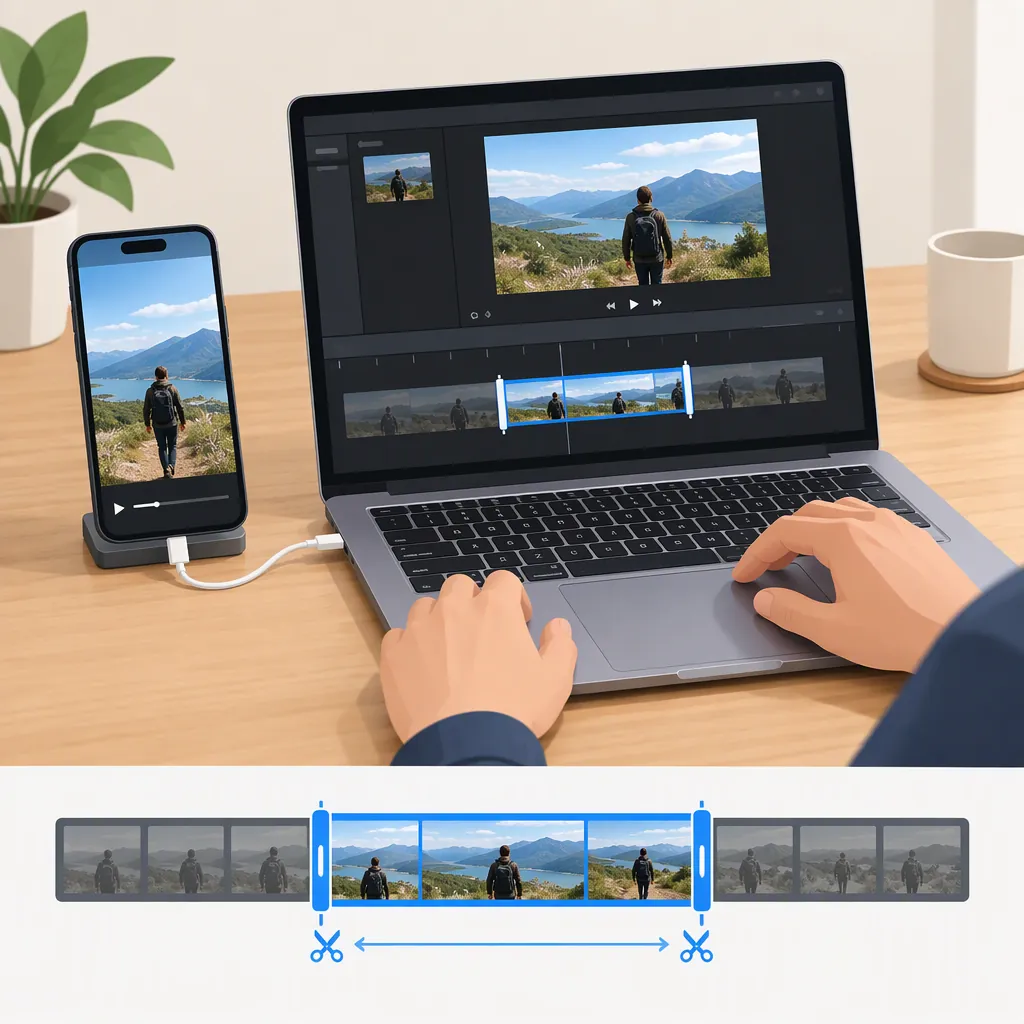
How to Edit iPhone Video on Mac: Trim with Quicktime Player
For a basic edit to an iPhone video on your Mac, open the video in QuickTime Player, choose Edit > Trim, and drag the yellow handles around the portion you want to keep. Click Trim to apply the cut. For more precise boundaries, click and hold a handle to see individual frames. [apple-trim]
This workflow is for removing unwanted footage from the beginning or end, or keeping one continuous section of a recording. It starts with a video file already available on your Mac that QuickTime Player can open. Transfer, saving, and export procedures are not covered by the cited trimming instructions.
Check That You Are Ready to Start
Before trimming:
- Locate the video on your Mac. If it is still only on your iPhone, complete the transfer first. This guide does not document a transfer method.
- Open it in QuickTime Player. Opening the movie is the first step in Apple’s trimming procedure. If you cannot open it, resolve that before continuing; the cited instructions do not provide compatibility troubleshooting. [apple-trim]
- Keep an untouched copy. Work with a separate copy so you retain the original footage.
- Watch the recording. Identify the first and last moments you want to keep.
For speech, aim to preserve complete words and sentences. For movement, keep enough footage for the action to begin and finish naturally. These are editing recommendations, not required software settings.
Decide Whether Trimming Is Enough
| What you want to change | Suitable next step |
|---|---|
| Remove setup time at the beginning | Move the opening trim handle forward. |
| Remove extra footage at the end | Move the closing trim handle backward. |
| Keep one continuous section of a longer video | Place both handles around that section. |
| Trim a clip in a movie that is already split | Use the individual-clip procedure below. |
| Remove footage in the middle while preserving both sides | Consult instructions for splitting and rearranging clips. |
| Combine recordings, add text, or adjust color | Use instructions that specifically cover those editing tasks. |
A single whole-movie trim keeps the range between the yellow handles and removes the footage outside it. It does not selectively remove an interruption inside that range. [apple-trim]
Apple’s QuickTime Player guide lists Split a movie into clips, Rearrange movie clips, and Add a movie or clip as separate topics. The trimming page does not explain those operations. [apple-trim]
Trim Your iPhone Video in Quicktime Player
- Open the video in QuickTime Player on your Mac.
- Choose Edit > Trim.
- Drag the left yellow handle to the beginning of the section you want to keep.
- Drag the right yellow handle to the end of that section. The footage outside the handles will be trimmed away.
- Refine the boundaries. Click and hold either handle to see individual frames.
- Click Trim to apply the edit. [apple-trim]
For example, if a recording includes a pause before someone speaks and several seconds after they finish, place the handles just before the first complete phrase and after the final phrase. Avoid placing a boundary midway through a word or an important movement.
Trim an Individual Clip in an Already-Split Movie
If your movie has already been split into clips, use Apple’s clip-trimming procedure:
- Choose View > Show Clips.
- Double-click the clip you want to trim.
- Drag the yellow handles around the portion of that clip you want to keep.
- For finer control, click and hold a handle to see individual frames.
- Click Trim. [apple-trim]
These steps assume the clips already exist. They do not explain how to split the movie.
Review the Cut
After trimming, watch the retained footage and check:
- Opening: Is the first word or action complete?
- Ending: Does the final sentence or movement finish?
- Content: Is everything you intended to keep still present?
- Pacing: Have you removed the unwanted pause without making the cut feel abrupt?
Check both sound and picture. A visually suitable boundary can still cut into a spoken word.
Find the Save or Export Instructions
The trimming procedure ends at clicking Trim; it does not explain how to finish the output file. Do not treat that step as confirmation that a separate edited file has been created.
To locate the next instructions:
- Open the Apple QuickTime Player guide.
- Open its Table of Contents.
- Locate Save or rename a recording or Share or export your movies. The latter includes Share your movies and Export movies.
- Consult the relevant topic for the finishing procedure. These topics appear in the guide’s navigation, but their steps are not included in the cited trimming page. [apple-trim]
When completing that procedure, note the output filename and location. Then reopen the saved or exported file and check its beginning and end. Keep the original separately until you are satisfied.
Trimming alone does not establish the output resolution, file size, or sharing format.
FAQ
How Do I Make a Precise Cut Without Losing the Start of a Word?
In Edit > Trim, click and hold a yellow handle to see individual frames, then refine the boundary before clicking Trim. [apple-trim] As a separate review step, listen to the opening and ending to check for clipped syllables.
Can I Remove Something from the Middle While Keeping the Beginning and End?
Not with one whole-movie trim: that operation retains the section between the yellow handles and removes the footage outside them. Apple’s guide lists splitting and rearranging clips as separate topics for further editing. [apple-trim]
Can I Trim One Clip Instead of the Entire Movie?
Yes, if the movie is already split into clips. Choose View > Show Clips, double-click the clip, adjust the yellow handles, and click Trim. [apple-trim]
Where Are the Instructions for Saving or Exporting Afterward?
Open the Apple QuickTime Player guide and locate Save or rename a recording or Share or export your movies in its table of contents. Those are separate topics; the trimming instructions do not supply the save or export steps. [apple-trim]