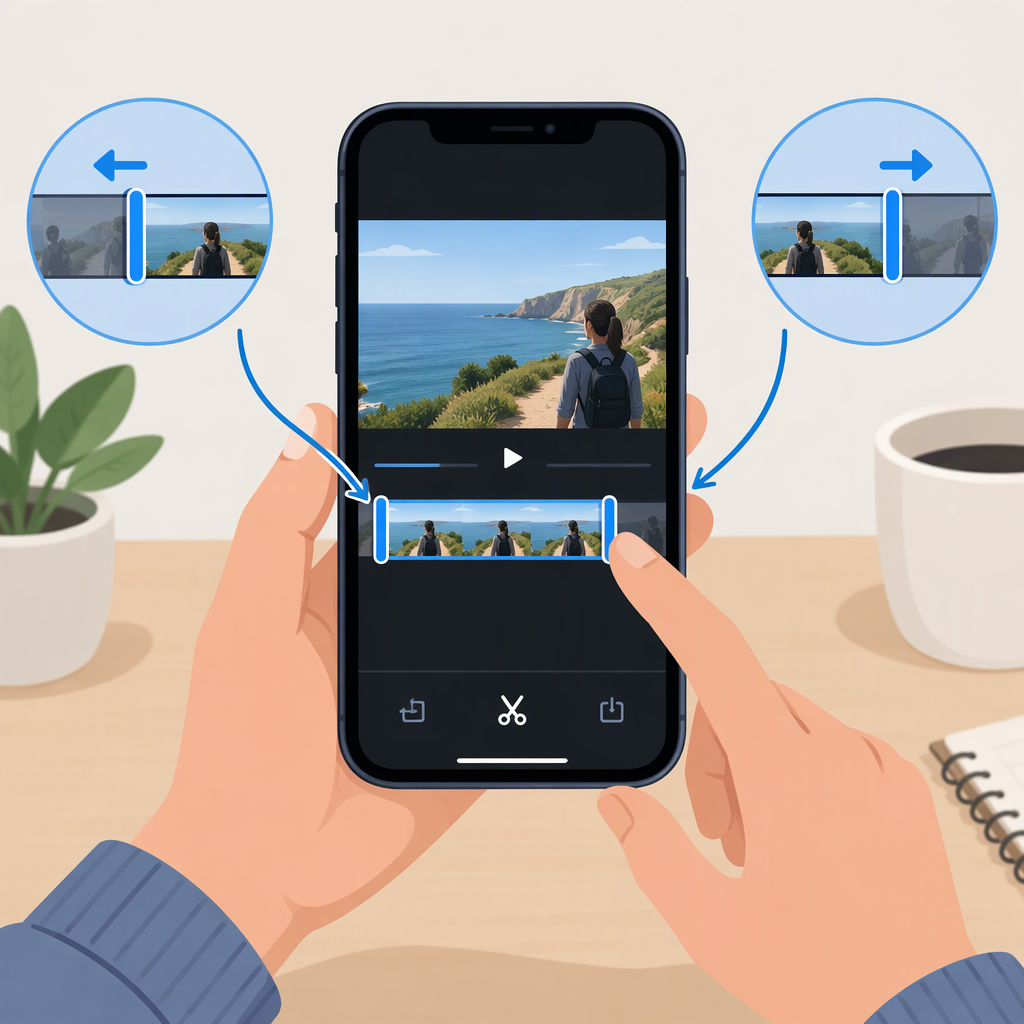
How to Cut Videos on iPhone: Trim the Beginning or End
Quick Answer
To shorten the beginning or end of a video on iPhone, open it in Photos, tap Edit, drag the trim handles at either end of the timeline, and preview the result. Tap Done, then choose Save Video or Save Video as New Clip. To remove a section from the middle, use a video editor such as iMovie to split the clip around that section. (support.apple.com)
Trim the Beginning or End in Photos
Apple’s iPhone and iPad instructions use these Photos controls; they don’t specify a particular iOS version. Button placement or appearance may vary by version.
- Open Photos and tap the video you want to shorten.
- Tap Edit.
- On the video timeline, drag the handle at the left end inward to cut the beginning, or the handle at the right end inward to cut the ending. Dragging both handles trims both ends.
- Tap Play to preview the shortened video. Adjust the handles if needed.
- Tap Done, then choose how to save the edit. (support.apple.com)
The result should play from your adjusted start point to your adjusted end point. Trimming the ends changes the clip’s start and stop times; it doesn’t cut out a passage from the middle.
What Happens to the Original?
- Save Video saves the trimmed version.
- Save Video as New Clip keeps the original and adds a separate trimmed clip to your library.
- If you want to undo a trim, open the edited video in Photos, tap Edit, tap Revert, then tap Revert to Original. (support.apple.com)
If keeping the untrimmed clip as a separate library item matters, choose Save Video as New Clip. Apple notes that reverting edits to a video made with that option won’t restore its original length; the separate original is the one to keep untouched. (support.apple.com)
Need to Remove a Section from the Middle?
Photos’ trim handles adjust the beginning and end. For a middle cut, Apple documents splitting clips in iMovie: position the playhead at a cut point, select the clip, tap the actions button, then tap Split. Split once at each boundary of the unwanted passage, then remove that section from the project. (support.apple.com)
For simply shortening a clip, Photos is the more direct route. Use iMovie when you need to divide a clip into sections or remove a passage from the middle.