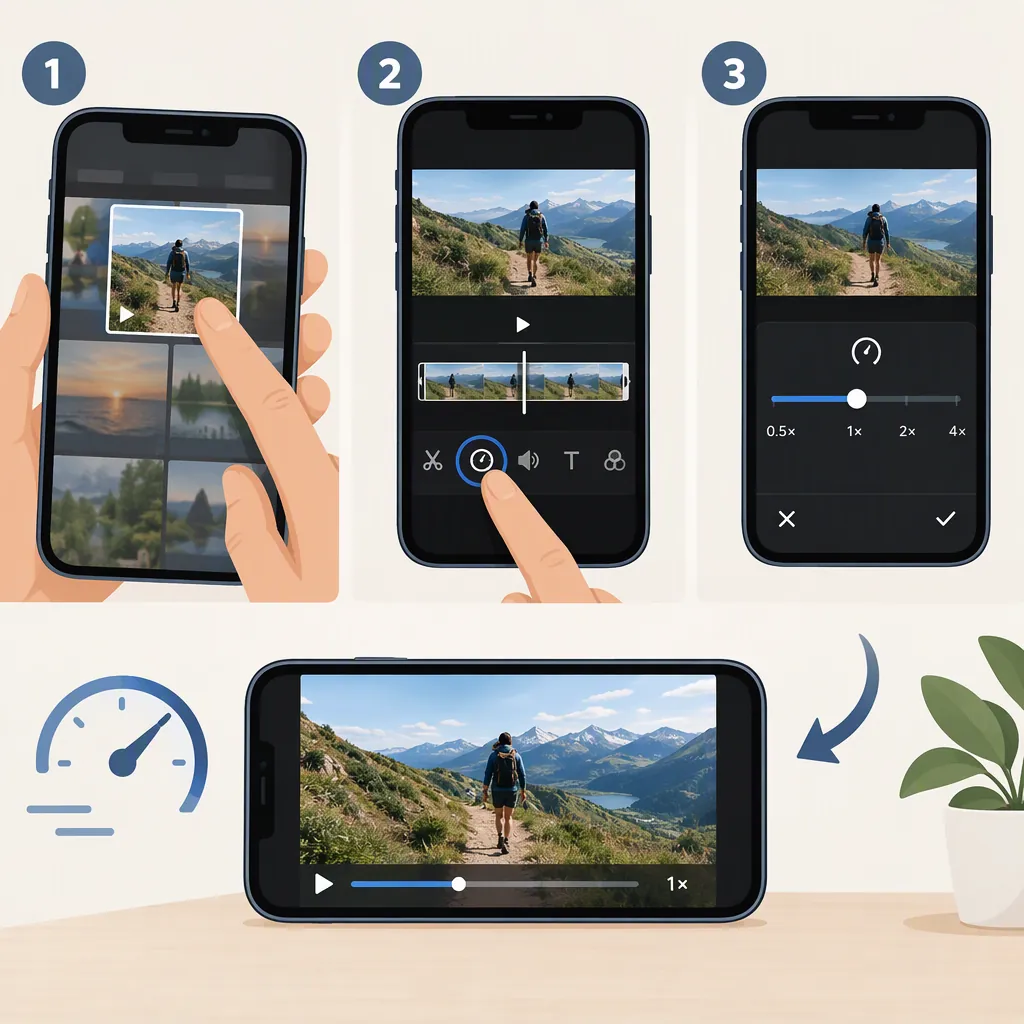
How to Edit Video Speed on iPhone
To edit video speed on iPhone, match the method to your clip. Photos can slow down supported high-frame-rate videos and adjust the slow-motion section of Slo-mo recordings. Apple’s iPhone User Guide documents these controls, but not general acceleration of ordinary videos. [apple-speed] To make an ordinary video faster—or slower when Photos does not offer a speed control—use an editor with playback-speed settings. CapCut’s publisher-authored guide provides one example. [capcut-speed]
Choose the Right Speed-Editing Method
- Slow down supported high-frame-rate footage: Use the playback-speed control in Photos. Available options depend on the format in which the video was captured. [apple-speed]
- Change where a Slo-mo recording slows down: Drag the black vertical bars beneath the frame viewer in Photos. [apple-speed]
- Speed up an ordinary video: Use an editor’s speed control and select a rate above normal speed. [capcut-speed]
- Slow down an ordinary video without a Photos speed control: Use an editor’s speed control and select a rate below normal speed. CapCut’s guide documents both slower and faster rates under Normal Speed. This does not establish that ordinary footage will look as smooth as high-frame-rate slow motion. [capcut-speed]
Trimming is not the same as changing speed. Trimming changes where a clip starts and stops; speed editing changes how quickly it plays. Apple documents these as separate controls. [apple-speed]
Slow Down a Supported Video in Photos
For a high-frame-rate video that supports playback-speed editing:
- Open Photos on your iPhone.
- Open the video and enter editing mode.
- Select Video.
- Open the playback-speed control.
- Choose an available playback speed. [apple-speed]
Support and interface note: Apple says the available speeds depend on the captured video format. Its guide also has an iOS version selector, so check the instructions for your installed version rather than expecting identical controls for every device or clip. [apple-speed]
Preview the result before finishing the edit. If Photos does not offer a suitable speed setting for your clip, use the editor workflow below to choose a slower rate. [capcut-speed]
Adjust Where a Slo-Mo Video Slows Down
For a video recorded in Slo-mo mode:
- Open the recording in Photos.
- Enter editing mode.
- Find the black vertical bars beneath the frame viewer.
- Drag those bars to set the portion that plays in slow motion. [apple-speed]
These bars set the slow-motion section. To trim the clip’s beginning or ending instead, drag either end of the frame viewer. [apple-speed]
Play through the transitions into and out of slow motion. Place the slowed section around the action you want viewers to inspect, then preview it again before finishing.
Speed up or Slow Down an Ordinary Video in an Editor
Use an editor with a playback-speed control when you need faster playback or a slowdown that Photos does not offer. The steps below follow CapCut’s publisher-authored guide; they are a workflow example, not an independent recommendation. [capcut-speed]
- Import the video. Open CapCut, go to Edit → New Video, and select the recording from your gallery. [capcut-speed]
- Select the clip. Tap the video clip in the timeline. [capcut-speed]
- Open the speed controls. Choose Edit → Speed → Normal Speed. [capcut-speed]
- Set the rate. Choose a rate above 1× to speed up the clip or below 1× to slow it down. CapCut’s guide documents Normal Speed adjustments in both directions. [capcut-speed]
- Preview the edit. Check whether the action remains understandable and whether the audio works at the new speed.
- Choose export settings. The guide identifies AI UHD in the top-right corner as the control for resolution, frame rate, and saving format. Check the labels and options in your installed version. [capcut-speed]
- Export the video. Tap Export, then open the saved file to check the result. [capcut-speed]
Optional: Change Speed Across the Clip
If you want the rate to vary rather than remain constant, CapCut’s guide describes Curve Speed for accelerating or decelerating different portions of a clip. [capcut-speed]
Before using it, decide which moments should stay at normal speed and which need a change. Preview each transition rather than judging only the fastest or slowest section.
Menu labels and available settings can differ by version. This example does not guarantee pricing, availability, privacy practices, or output quality.
Check the Finished Speed Edit
Use this checklist before treating the edit as complete:
- Keep an unchanged source copy before experimenting.
- Preview the beginning, middle, and end.
- Check whether important actions remain understandable.
- Listen to speech and other audio after the speed change.
- Review transitions between normal and altered speed.
- Open the exported file and confirm the intended timing.
For a large speed change, consider whether the whole recording needs it or only a repetitive section. Judge the saved result, not just the editing preview.
FAQ
Can Photos Speed up an Ordinary iPhone Video?
Apple’s iPhone User Guide documents slowing supported high-frame-rate footage and adjusting Slo-mo timing; it does not document general acceleration of ordinary recordings. For faster playback, the CapCut guide describes an editor workflow using Normal Speed. [apple-speed] [capcut-speed]
How Do I Slow Down a Normal Video If Photos Has No Speed Control?
Use an editor that supports rates below normal speed. In the CapCut example, import the video, select its timeline clip, open Edit → Speed → Normal Speed, and choose a rate below 1× before exporting. The guide documents slower playback, but does not establish equivalent smoothness to high-frame-rate slow motion. [capcut-speed]
Why Do Different Videos Show Different Speed Options in Photos?
Apple says playback-speed options depend on the format in which the video was captured. Its documented slowdown feature applies to high-frame-rate footage, so the same choices should not be expected for every recording. [apple-speed]
Which Controls Change the Slow-Motion Section Rather than Trim the Video?
For Slo-mo recordings, drag the black vertical bars beneath the frame viewer to change the slow-motion section. To trim the beginning or ending, drag either end of the frame viewer instead. [apple-speed]
What Is the Difference Between Normal Speed and Curve Speed?
In CapCut’s guide, Normal Speed sets a playback rate for the selected clip, while Curve Speed varies the rate across different portions of it. Use the latter when you want acceleration or deceleration within the clip rather than one constant rate. [capcut-speed]