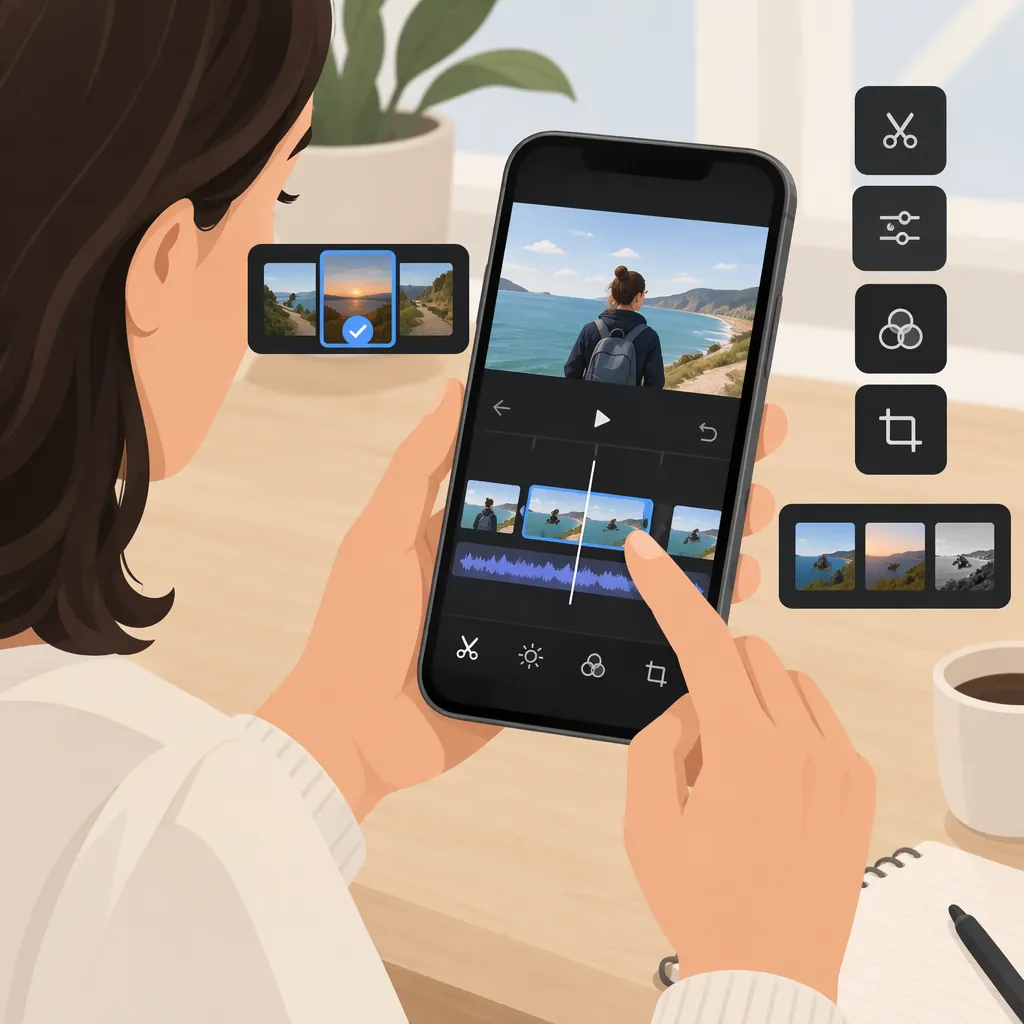
iPhone Video Editor: How to Choose and Edit on Your Phone
An iPhone video editor is an app for modifying video on your phone—for example, removing unwanted sections, arranging clips, or adding effects. [c1] Choose an editor by checking whether it works with your device and footage, supports the cuts, audio, and text you need, and exports a file that meets your destination’s requirements. Test a short project through export before starting a longer edit.
Start with the Edit You Need
Before comparing apps, define the project. A simple sequence may need only trimming, reordering, and export; a more involved edit may require separate audio tracks, captions, or overlays. Treat these as functions to check, not features every editor necessarily includes.
Use this brief to identify your requirements:
| Project detail | What to record |
|---|---|
| Purpose | What should the viewer understand or see? |
| Footage | Which clips and photos belong in the finished video? |
| Audio | Do you need original sound, narration, music, or a combination? |
| Text | Do you need titles, captions for speech, or both? |
| Destination | Where will the finished video be viewed? |
| Output requirements | Required aspect ratio, resolution, frame rate, and file type |
| Device | Your iPhone model and installed iOS version |
| Budget | The acceptable total cost to complete and export the project |
Check the destination’s current requirements rather than assuming one export setting works everywhere. Aspect ratio describes the frame’s shape, resolution its pixel dimensions, frame rate the number of frames per second, and file type the saved file format. Record the requirements that apply to your intended use.
Compare iPhone Video Editors with a Small Test
Use the same representative footage when evaluating editors. Include the kinds of files you plan to edit—not just an easy sample that differs from your real project.
First check the current app listing against your iPhone and iOS version. Then, if you can test the editor under acceptable terms, import a few clips, trim and reorder them, add the audio or text you need, and export. Inspect the saved file, not only the editing preview.
| Check | What to test or record |
|---|---|
| Device compatibility | Does the current listing support your iPhone and installed iOS version? |
| Footage import | Do your representative clips and photos import, display, and play correctly? |
| Editing controls | Can you select clips, adjust their start and end points, and change their order? |
| Audio | Can you place and adjust the speech, music, or other sound your project needs? |
| Text | Can you create the required titles or captions and read them in the export? |
| Framing | Can you keep important subjects visible in the intended aspect ratio? |
| Export settings | Are the required aspect ratio, resolution, frame rate, and file type available? |
| Export restrictions | Is the saved video subject to a watermark, duration limit, or paid step? |
| Cost | What must you pay to finish this project, and do any trial or renewal terms apply? |
| Privacy | What media access and data handling are disclosed? |
Do not equate a free download with an unrestricted workflow. The App Store listing for Clips - Video Editor by Video Bakery Ltd. labels the download as free with in-app purchases and includes subscription terms. Its privacy information is developer-reported and explicitly not verified by Apple. [c3] This is an example of why purchase and privacy checks matter, not a recommendation or a conclusion about every editor. Check the current listing and purchase screen before agreeing to any charges.
Sample Test Record
- Editor and version: ____
- iPhone model and iOS version: ____
- Representative files imported successfully: ____
- Required editing operations completed: ____
- Export aspect ratio / resolution / frame rate / file type: ____
- Watermark or other restrictions: ____
- Total cost and renewal terms: ____
- Problems visible or audible in the saved file: ____
Favor the editor that completes your required tasks under acceptable cost and privacy terms, rather than the one with the longest feature list.
Follow a Simple iPhone Editing Workflow
This is a suggested workflow, not an app-specific tutorial. Control names, gestures, and available functions vary. Look for the relevant operation in your editor rather than expecting identical buttons.
- Choose and import footage. Keep the original files. Create a project and import the clips needed for your brief. Check that each clip displays and plays correctly before building the sequence.
- Arrange the clips. Place them in the intended order using the editor’s reorder control. Watch the sequence once to check that viewers can understand the subject and progression.
- Trim the start and end points. Select a clip and use its trim controls to remove unwanted material at either end. If you need to remove something in the middle, check whether the editor provides a split or equivalent operation. Replay across each cut to confirm that necessary action or speech remains.
- Check framing. Set or verify the intended output shape. Where crop or positioning controls are available, use them to keep important subjects visible. Watch moving subjects through the whole clip, not just its first frame.
- Balance audio. Listen to speech and background sound together. If separate volume controls are available, lower competing sound until the spoken message is clear. Replay every place where narration or music begins and ends.
- Add necessary text. Keep titles concise. Check captions against the spoken words, adjust their timing, and preview them at a readable size on the iPhone screen. Confirm that text does not cover important action.
- Use effects selectively. Add a transition or visual adjustment only when it helps the sequence. Replay the surrounding clips to see whether the effect distracts from the message.
- Export and inspect. Choose settings that meet the destination’s requirements, save the file, and watch it from beginning to end. Check the exported framing, text, sound, and final frame.
For music, use material whose permissions cover your intended use. Do not treat availability inside an editor as proof that every publication use is permitted.
Example: Build a Short Three-Clip Video
The following is an illustrative exercise, not a tested result or a claim about any particular app. Suppose you have three clips showing a plant being repotted, a short narration, and optional background music.
| Stage | Example action | How to judge the result |
|---|---|---|
| Sequence | Put the plant before repotting first, the repotting action second, and the finished plant last. | Can a viewer follow the process without an explanation of the clip order? |
| Trim | Remove the camera setup at the start of the first clip and the pause after the final action. Use the trim controls to locate the first and last useful moments. | Do the cuts preserve the action and avoid cutting off words? |
| Refine a cut | Replay the end of one clip and the beginning of the next. Adjust either boundary if the change feels abrupt or omits a necessary step. | Is the progression understandable? |
| Frame | Preview all three clips in the intended output shape. If positioning is supported, adjust any clip where the pot or hands are cut off. | Do important subjects remain visible throughout the movement? |
| Narration | Place the narration so each explanation accompanies the relevant action, if the editor supports audio positioning. | Does the viewer hear the explanation while seeing the corresponding step? |
| Music | Add permitted music only if needed. Lower its volume while listening to the narration and music together. | Can you understand every spoken word without straining? |
| Text | Add a brief opening title and check any captions against the narration. | Is the text accurate, readable, and on screen long enough to read? |
| Export | Save using the recorded destination requirements and play the saved file. | Does the export preserve the framing, timing, and audio you reviewed? |
If an editor cannot perform a required operation, note that in your comparison record. Avoid building a larger project around an unverified capability.
Review the Finished Export
A successful save is only one part of the check. Review the actual file against the project brief.
- The clip order communicates the intended message.
- Trims and cuts preserve necessary action and context.
- Important subjects remain visible throughout each clip.
- Speech is understandable alongside other sound.
- Titles and captions are accurate, readable, and timed appropriately.
- Music permissions cover the intended use.
- Aspect ratio, resolution, frame rate, and file type meet the destination requirements.
- Any watermark or export restriction is acceptable.
- The ending is intentional, with no unwanted extra footage.
- The saved video has been watched from beginning to end.
If something is wrong, return to the project, adjust it, and inspect a new export before treating the edit as finished.
How to Interpret App Recommendations
The references here support basic guidance, not a current, comprehensive app ranking. Evergreen Lane presents its author’s personal favorites and assessments; Pinnacle combines a general editing overview with desktop-software promotion. [c2] [c1] Developer descriptions and individual reviews on the Clips App Store page are not treated here as independently verified performance results. [c3] Check current compatibility, pricing, and export options, then use a representative project to evaluate whether an editor suits your needs.
FAQ
What Is an iPhone Video Editor?
It is an app for editing video on an iPhone, including operations such as removing sections, arranging footage, and adding effects. [c1] The specific controls available depend on the app, so check your project’s requirements before choosing one.
Which iPhone Video Editor Is Best?
There is no verified best editor established by these references. Evergreen Lane’s recommendations are explicitly personal favorites, not a controlled comparison. [c2] Compare candidates using your own representative footage, required operations, and a completed export.
Does a Free Download Mean Editing Is Free?
Not necessarily. Clips - Video Editor by Video Bakery Ltd. is listed as a free download with in-app purchases and subscription terms. [c3] Before starting, check which editing and export functions require payment and whether a trial renews automatically.
What Should I Test Before Starting a Long Edit?
Check device and iOS compatibility in the current listing, then test representative footage through import, trimming, reordering, audio, text, and export. Record whether the saved file meets your destination’s requirements and whether any restrictions or charges apply.
Which Export Settings Should I Use?
Use the aspect ratio, resolution, frame rate, and file type required by the intended destination. Avoid assuming a universal preset is correct. Confirm that your editor offers the needed settings, then inspect the saved video for framing, readability, and sound.