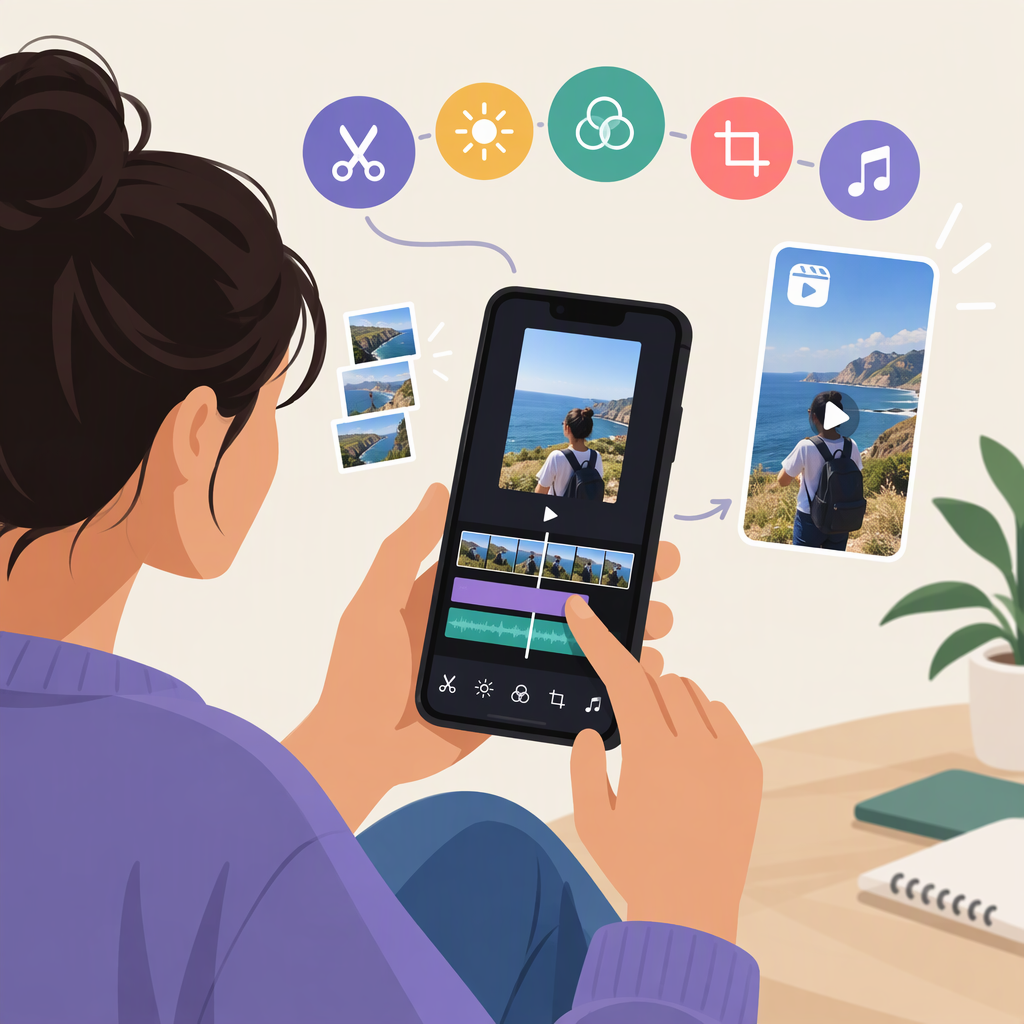
How to Edit Videos on Your Phone for Instagram Reels
The Short Answer
Choose your clips, put them in order, trim the parts you do not need, check how the video is framed, then add or adjust sound and any on-screen text. Preview the whole edit before moving to Instagram’s sharing screen. For a straightforward Reel, try editing in Instagram; if you need a more controlled timeline or want to reuse an editing workflow, consider a separate mobile editor. Exact buttons and available tools can differ by app version and account, so treat the steps below as an editing sequence—not fixed tap-by-tap instructions.
Edit the Video on Your Phone
- Pick the footage and decide the order. Select the clips that tell the story. Put them in the order a viewer should see them; a simple beginning, middle, and end is enough. If you are combining several clips, look for repeated moments or pauses you can remove.
- Trim each clip. Shorten the start and end of a clip to remove setup, mistakes, or dead time. Watch the join between clips: if a cut feels abrupt, trim a little more or choose a different moment to switch shots.
- Check the framing. Hold the phone upright while reviewing if you want a full-screen vertical look. Make sure the main subject stays visible and that important details are not near the edges, where a crop or on-screen interface could make them harder to see. If the original footage is horizontal, preview the crop before committing to it.
- Set the sound. Listen once with headphones or at a comfortable volume. Keep speech clear; lower background music if it competes with someone talking. If you add music or another sound, confirm that you are allowed to use it for your intended post and audience. Audio choices and availability can vary, so check the options and terms shown in the app you use.
- Add only useful text or captions. Use brief wording, large enough to read on a phone, and leave it on screen long enough to follow. Keep it away from the edges and from areas covered by app controls. If the video includes speech, captions can help viewers follow along; review their wording and timing rather than assuming automatic captions are error-free.
- Preview from beginning to end. Check the clip order, pacing, framing, sound, text, and any captions together. Fix anything that looks or sounds wrong, then continue to the sharing flow in Instagram or export from your editor and upload the finished video.
A useful test is to watch the preview once without pausing. If you cannot tell what is happening, hear the speech clearly, or read the text at normal phone size, adjust the edit before sharing.
Choose Where to Edit
Edit in Instagram when you want to assemble a simple Reel and prefer to keep editing and sharing in the same app. Instagram has described bringing video clips, audio, stickers, and text together in a Reels editing screen; the exact layout and available controls may change. (about.fb.com)
Use a separate mobile editor when you need a more deliberate editing workspace, want to refine timing before uploading, or expect to repeat a similar edit. Meta describes its Edits app as a phone-based video creation app with editing tools, and says it is designed for creating videos for Instagram, Facebook, and other platforms. That is one option, not a requirement; compare the controls you need and how easily you can move the finished video into Instagram. (about.fb.com)
A practical choice: For a single clip with a trim and a title, start with Instagram’s current editing flow. For several clips where precise timing and repeated revisions matter, try a separate editor and review the exported result in Instagram before sharing. This is a workflow suggestion, not a claim that every editor has the same features.
Check the Reel Before Sharing
- Framing: Is the main subject visible throughout? Does the crop work on a phone screen?
- Order and pacing: Does each clip add something? Are there pauses, repeated moments, or cuts that interrupt the idea?
- Sound: Can you understand speech? Is the music balanced? Does the audio play as intended in the preview?
- Text and captions: Can you read them on a small screen? Are they timed correctly and clear of important visual details?
- Cover and final preview: If Instagram offers a cover choice in your sharing flow, check how it looks both as a preview and wherever it may appear on your profile.
- Upload checks: Follow the current limits and prompts shown in Instagram when you select or upload the video. Requirements and controls can change; do not rely on a remembered duration, file limit, or export setting if the app flags a problem.
If something is wrong, return to the relevant clip or text element, make one change, and preview again. When the whole video looks and sounds right and Instagram accepts it in the sharing flow, continue with the on-screen publishing choices.