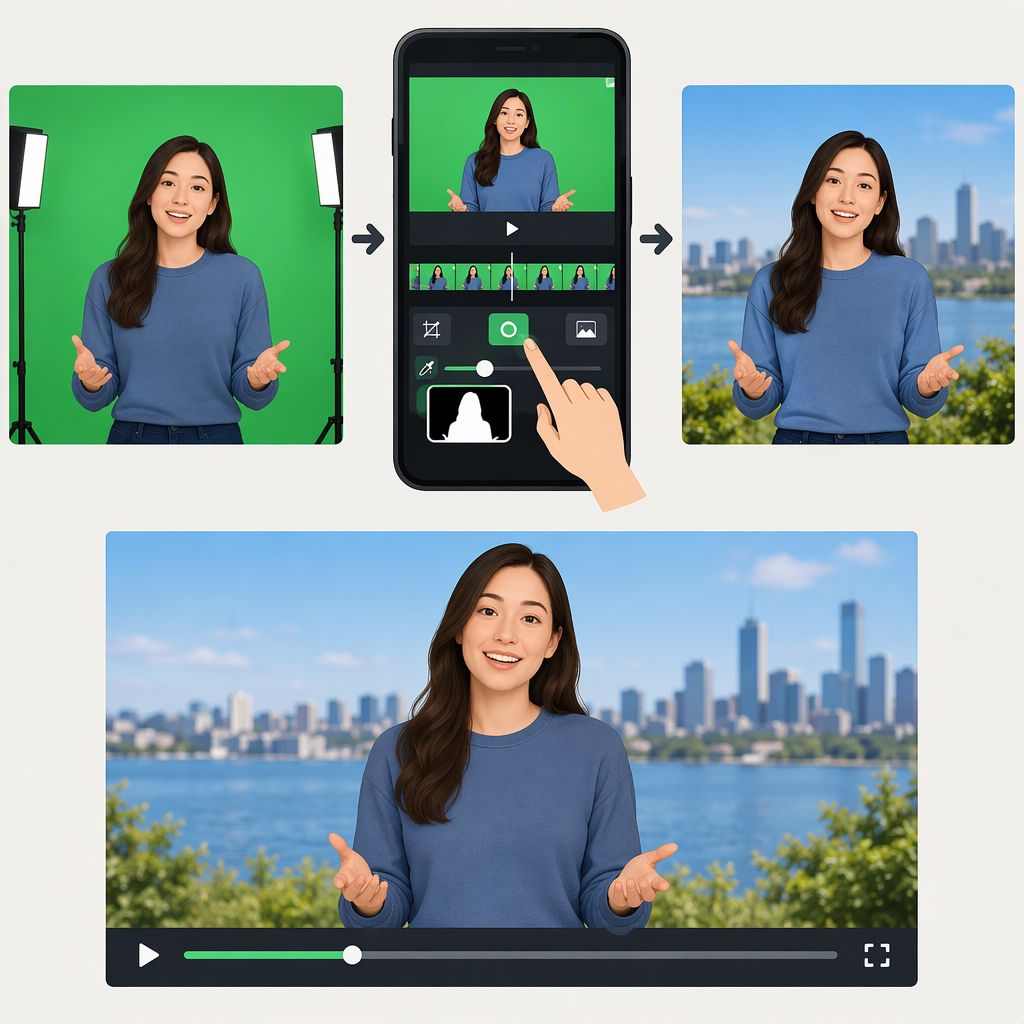
Inshot Green Screen: How to Remove and Replace a Video Background
Can Inshot Remove a Green-Screen Background?
Yes. InShot identifies a “Chroma” function for removing a green screen, and its app listing describes chroma key alongside picture-in-picture (PIP) layers. Chroma keying removes a selected color from a clip so another image or video can show through; adding an overlay by itself does not remove the green. (tiktok.com)
The exact controls and their availability in a particular app version may vary. InShot’s public feature information confirms Chroma, but does not establish a single current, platform-specific sequence of button presses. The steps below describe the practical PIP-and-Chroma workflow; use them if your version presents those controls.
Green-Screen Workflow in Inshot
- Start a video project and add the background clip or image to the main track. This is what should appear where the green screen is removed.
- Add the green-screen footage as a PIP layer. PIP means picture-in-picture: it places the foreground clip over the main video.
- Select the green-screen layer and open Chroma. Choose the green color in the footage using the color selector, if shown. The green should become transparent so the main-track background shows through.
- Refine the key if controls are available. Make small adjustments while watching the subject’s edges. If the subject starts disappearing or the outline becomes ragged, ease back toward a less aggressive setting.
- Preview the full clip, then export. Check moving edges and several moments in the footage—not only a still frame—to catch flicker, leftover green, or parts of the subject being removed.
If you cannot find Chroma after selecting the PIP clip, don’t assume that adding a second layer has keyed out its background: overlay and chroma key are different functions. Check that you selected the foreground layer, then look for Chroma in that layer’s editing tools. If it still is not available, the public evidence cited here does not establish which app versions or platforms include it; use an editor whose current documentation explicitly confirms chroma keying, or check InShot’s current in-app help.
Get Cleaner Green-Screen Footage
Good source footage makes keying easier. Adobe’s general green-screen guidance recommends lighting the screen evenly, keeping the subject separate from the screen, and avoiding clothing that matches the background color. These are capture tips, not claims about InShot-specific correction tools. (adobe.com)
- Green remains in patches: Check whether the screen is wrinkled, shadowed, or unevenly lit. Improve the lighting or reshoot if you can; a more consistent green is easier to select.
- The subject’s edge looks rough or flickers: Inspect the original footage for shadows, motion blur, or noise around the outline. If the subject is too close to the screen, try more separation on a reshoot.
- A person or object partly disappears: Check whether it contains the selected green color. Avoid green clothing or props when filming against a green screen.
- The subject has a green tint: Green light can reflect from the screen onto nearby subjects. More distance from the screen may reduce that spill in a future recording; a Chroma adjustment should not be assumed to fix it unless your version provides a relevant control.
Bottom Line
InShot’s public materials confirm a Chroma green-screen function, distinct from simply placing a PIP overlay. Try the green-screen clip as a PIP layer and look for Chroma on that layer. Because the available sources do not verify exact current controls across versions and platforms, treat the on-screen labels in your installed app as authoritative; if Chroma is absent, use a workflow or editor with confirmed chroma-key support.