How to Choose and Apply Video Effects
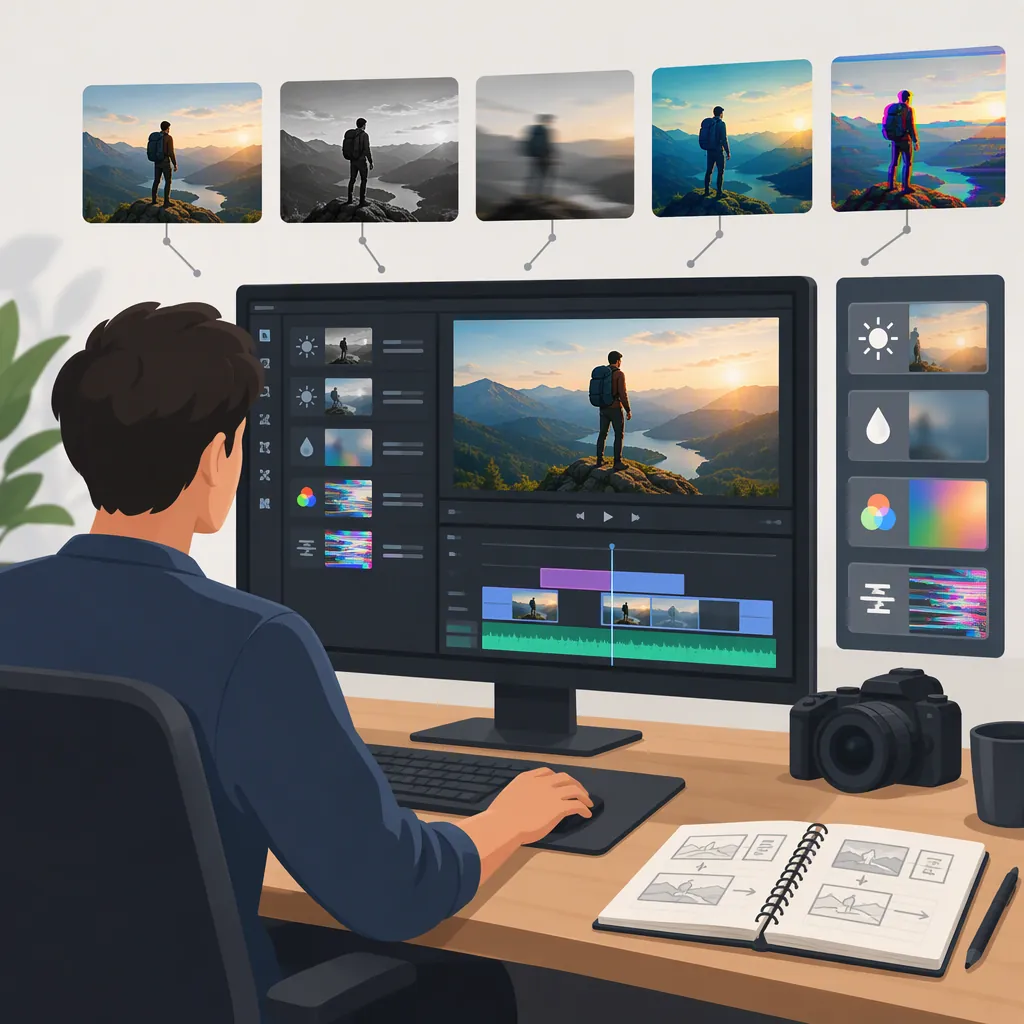
Video effects change a clip’s visual appearance or add graphics over footage. Examples in the provided references include VHS, glitch, black-and-white treatments, and animated text overlays. [c1] [c2] To edit with effects, choose a purpose, apply one treatment or overlay, preview it in context, and check a short export before processing the full video.
Choose an Effect with a Clear Purpose
Start with what the viewer needs to understand, rather than a preset’s name. The supplied references illustrate two useful approaches: changing the footage’s overall look with a preset effect, and adding a separate motion-graphics overlay. Examples include VHS and glitch treatments, animated profile graphics, and comment boxes. [c1] [c2]
Use these questions to narrow your choice:
- Mood: Do you want a restrained look or a deliberately stylized moment?
- Information: Does the viewer need a label, quotation, or other on-screen detail?
- Focus: What should remain most visible during the effect?
- Timing: Does the effect belong throughout the clip or only at a specific moment?
As an editing rule of thumb, give each effect a clear job. If you cannot explain what it adds, compare the scene without it before keeping it.
Apply Effects and Preview in Context
The effects reference describes a basic sequence of uploading footage, selecting filters or effects, and exporting the result. [c1] The following workflow adds review steps; it is a recommended editing process, not a verified interface guide for every editor.
- Prepare a short sample. Choose footage that includes the faces, movement, and text you need to evaluate.
- Apply one effect. Start with a single treatment so you can judge its contribution separately.
- Adjust available controls. If your editor offers strength, duration, or placement controls, change one setting at a time.
- Compare with the original. Toggle the effect off and on, or keep an untreated copy for comparison.
- Watch the surrounding shots. Decide whether the effect begins and ends where it makes sense.
- Export the sample. Inspect the actual file before applying the same approach to the full edit.
For dialogue or instructional footage, prioritize the visibility of faces, demonstrations, and captions over decorative intensity.
Effect Decision Worksheet
- Clip or time range: __________
- Intended purpose: __________
- Effect or overlay: __________
- Settings changed: __________
- What must stay readable: __________
- Comparison without the effect: keep / revise / remove
- Export review result: __________
Handle Overlays and Backgrounds Separately
For overlays, distinguish between a file supplied with transparency and one supplied with a green-screen background. The overlay reference describes transparent-background MOV files and green-screen MP4 files, with background removal needed for the latter. [c2] These are descriptions of that source’s exports, not a guarantee that every MOV file is transparent or that every editor accepts the same files.
For an overlay workflow:
- Import the overlay and position it above the footage if your editor supports layered tracks.
- Preview whether the background is transparent or still visible.
- If the file has a green background, use your editor’s green-screen or chroma-key control if available.
- Check the edges of letters and graphics against both light and dark footage.
- Adjust placement so the overlay does not cover essential action or captions.
If a background remains visible, check the asset’s export description and your editor’s import support before rebuilding the effect.
Check the Export and Understand the Limits
Treat the exported file—not only the editing preview—as the final review target. Use a short test to decide whether the result meets your needs.
- Readability: Can you read captions and overlay text at the intended viewing size?
- Placement: Are important faces, objects, and actions unobstructed?
- Timing: Does each effect enter and leave at an intentional moment?
- Consistency: Do adjacent shots still feel coherent?
- Background removal: Are unwanted borders or background colors visible?
- Restraint: Does the effect support the content when you watch the sequence at normal speed?
Evidence limits: This guide draws on two supplier-authored pages describing effects and overlay workflows. [c1] [c2] They are not independent compatibility tests or quality benchmarks. No specific export quality, processing speed, licensing permission, or editor compatibility is established here. Check the current asset terms and editor documentation for those details.
FAQ
What Is the Difference Between an Effect and an Overlay?
For this guide, an effect means a treatment that changes footage’s appearance, while an overlay means an added graphic placed over footage. The references include preset looks such as VHS and glitch, plus animated graphics such as comment boxes. Terminology may overlap between editing tools. [c1] [c2]
Does a Mov File Always Have a Transparent Background?
Do not assume transparency from the extension alone. The provided overlay source describes its MOV exports as having embedded transparent backgrounds, but that statement does not establish how other MOV files are exported. Check the asset description and test the file in your editor. [c2]
How Do I Decide Which Video Effects to Use?
Start with the scene’s purpose and choose a treatment that supports its theme or mood, an approach also suggested by the effects reference. Then compare an untreated version with the edited version. Keep the effect only if it serves your intended result without hiding essential information. [c1]