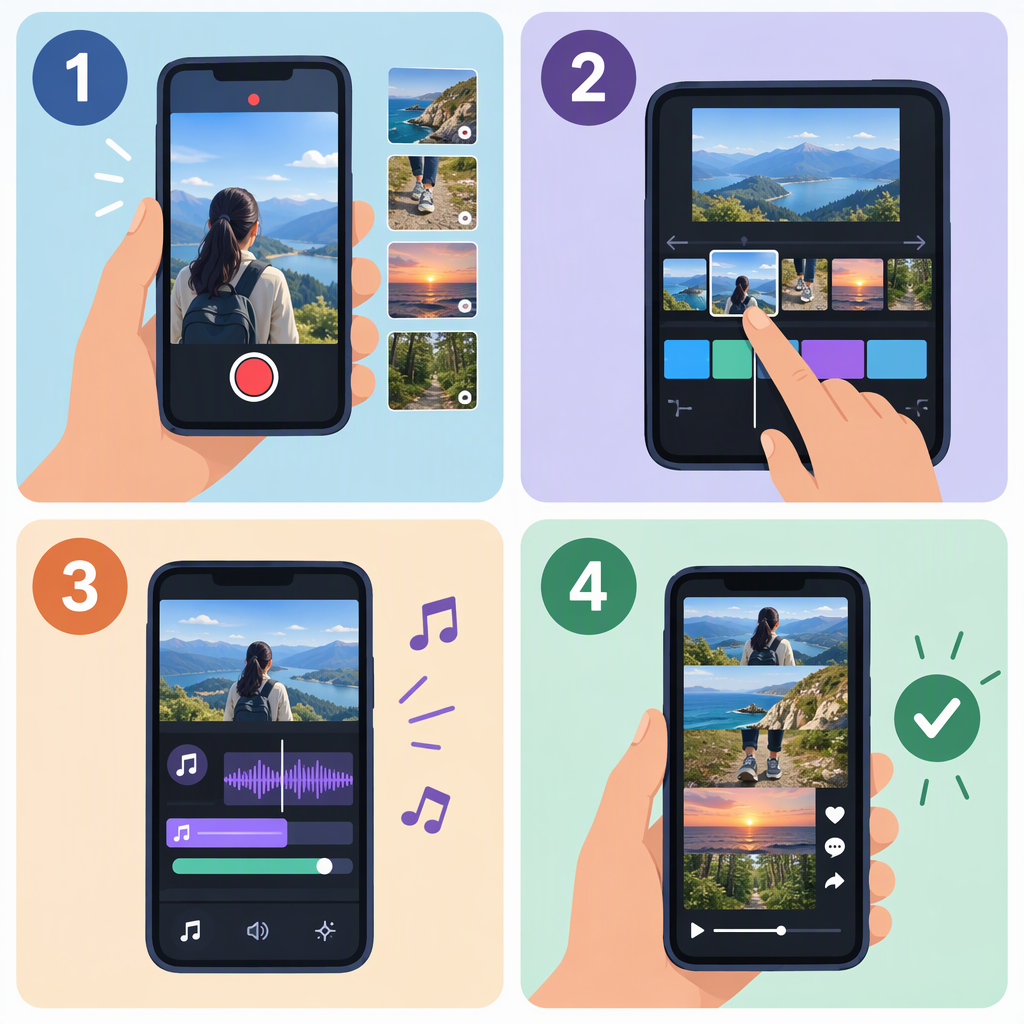
How to Make a Montage on TikTok: Record, Arrange, Add Sound, and Review
How to Make a Montage on TikTok
To make a montage in the TikTok app, tap Add post (+), record separate segments or choose existing footage to upload, then continue to the editing screen. Arrange the moments into a clear sequence, trim unnecessary pauses where the editing controls allow, add or adjust sound, and watch the full preview before posting or saving a draft. TikTok’s button names and editing options can vary; if a label below doesn’t match your screen, follow the equivalent on-screen recording, upload, or editing control rather than assuming every account has an identical layout. (support.tiktok.com)
1. Record or Upload Your Clips
To record in TikTok:
- Open TikTok and tap Add post (+) at the bottom of the screen.
- Choose a video length and tap Record. Tap the record button again to stop a segment; repeat to capture another moment. TikTok’s camera instructions describe starting and stopping recording this way, then tapping Continue to edit. (support.tiktok.com)
- When you’ve captured the footage, tap Continue to move into editing.
To use footage already on your phone:
- Tap Add post (+) and choose the upload option if it appears on your screen.
- Select the footage you want and follow the app’s prompts to continue to editing.
TikTok documents both recording and uploading videos, but the specific upload and multi-clip controls may look different across app versions. If you can’t select or assemble several clips in the screen you’re using, make one finished video from your clips first, then upload that video. TikTok’s camera guidance distinguishes between videos recorded in the app and videos uploaded to it. (support.tiktok.com)
2. Shape the Sequence so It Feels Like One Montage
A montage is more than a stack of clips. Give the moments a simple organizing idea—such as steps in a process, a day in order, or different views of one place—then arrange them to support that idea.
- Open with a useful or vivid moment. Choose a shot that quickly shows what the viewer is about to see.
- Put clips in an intentional order. For a process, show events in sequence. For a collection of highlights, group similar moments or build toward the strongest one.
- Trim pauses and repeated action. Keep the part of each shot that adds information, movement, or mood. A short gap can help a transition feel calm; several empty seconds may slow the sequence without adding much.
- Choose a pace that suits the material. Quick cuts can suit a series of brief highlights; longer shots can give viewers time to take in a scene. This is an editing choice, not a guaranteed way to affect views or performance.
For example, a small garden montage might open with the full plot, move to planting and watering, and end with the result. That order gives the clips a beginning, middle, and end without needing extra effects.
If TikTok shows clip-editing controls, use them to refine the order or trim a segment, then replay the sequence from the beginning. TikTok’s Help Center lists editing individual clips among its video-editing topics, though the available controls and labels may differ in your app. (support.tiktok.com)
3. Add or Keep Sound
You can choose a sound before recording or add one on the editing screen. TikTok’s documented sound flow is:
- Tap Add sound on the recording screen.
- Preview a sound, pick one from the available lists, or search for one.
- Confirm your choice. TikTok also says a sound can be added while editing, and its Edit control can adjust the sound clip. (support.tiktok.com)
Listen to the montage with the sound on. Check that the music or other added sound doesn’t drown out speech, instructions, or ambient audio you want viewers to hear. If a sound is important, preview the complete video—not just the first clip—to make sure it fits the sequence. TikTok notes that a sound selected before recording or uploading can determine the video’s length, so choose it early only if that fits your plan. (support.tiktok.com)
4. Preview, Then Post or Save a Draft
Before publishing, watch the montage from beginning to end and check:
- Does the opening make the subject clear?
- Does each cut make sense, without an accidental blank or duplicate moment?
- Is the pacing comfortable for the footage?
- Can you hear the audio you intended to keep?
- Are text or stickers placed where they don’t cover important details?
When you’re ready, continue to the post screen and follow the prompts to publish. To save for later, TikTok documents tapping Drafts on the post page after recording and editing. Drafts are saved to the videos tab on your profile and aren’t visible to others unless posted. TikTok cautions that drafts may be removed if you uninstall and reinstall the app or move your account to another device; they also can’t be transferred between accounts. (support.tiktok.com)
Quick Workflow Recap
Add post (+) → record segments or upload footage → continue to editing → order and refine clips → add or adjust sound → watch the full preview → post or save as a draft.