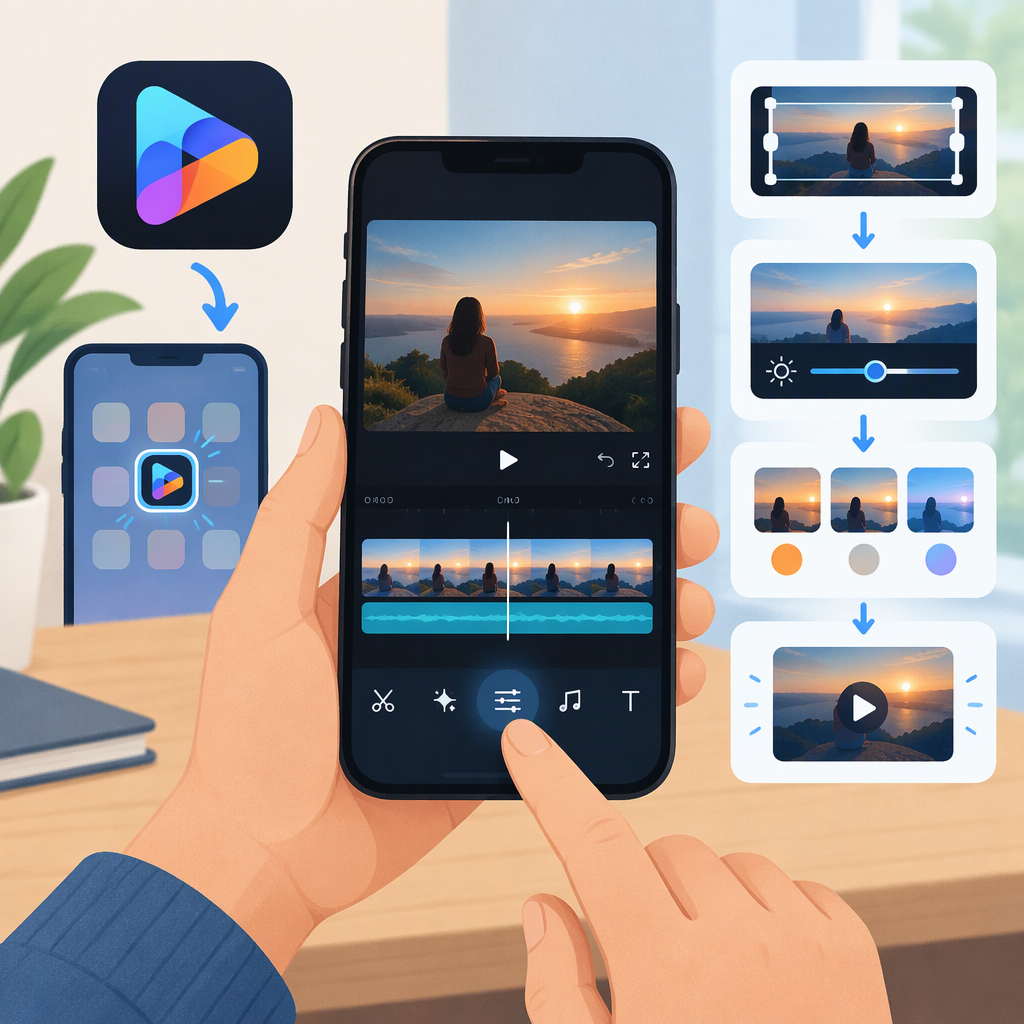
Vivo Video Editor: How to Find and Use Editing on Your Phone
“Vivo video editor” can mean either a video-editing option already on a vivo phone or a separate editing app installed on it. There isn’t enough verified public information to say that one built-in editor, with the same features and menus, is available on every vivo model, software version, or in every region. The reliable next step is to check the phone itself and match any instructions to its model and software.
Check Whether Your Vivo Phone Has an Editing Option
Start with the phone’s preinstalled Albums or Photos app, if available. Open a video and look for an Edit control. This is a discovery check—not a guaranteed vivo-wide workflow. If there is no editing control, or the available options don’t suit your task, the phone may have a different app or feature set, or you may need to consider a separately installed editor.
vivo’s support materials list “How to edit videos?” among video-related FAQs on its India site, and the global support site includes questions about Albums. That confirms vivo publishes help on these topics; it does not, by itself, establish a universal feature, menu path, or capability list for every phone. The India FAQ is regional guidance, so don’t assume it applies to every market. (vivo.com)
Try a Basic Edit—If Your Phone Offers It
If you find an Edit control, use the labels shown on your screen rather than assuming every vivo phone has the same controls:
- Open the video in the phone’s Albums or Photos app.
- Tap Edit, if it appears.
- Choose an available operation, such as trimming, if offered. Preview the result before saving.
- Follow the on-screen save or export prompt. If it isn’t clear whether the original will be replaced or a new copy created, keep the original video unchanged until you can confirm the behavior.
These are cautious discovery steps, not a verified universal vivo tutorial. The available sources do not establish exact menus, editing controls, or save behavior for a particular model and software version. If a step is missing from your phone, don’t assume something is wrong; the instructions may not match its software or region.
Is the Built-In Option Enough?
For a simple change, the option on your phone may be sufficient if it provides the control you need and lets you save the result in a way that works for you. Check those two points in the app before starting a longer edit. The information available here does not verify which specific tools or export choices are present across vivo devices.
If the needed control isn’t there, compare separately installed editors based on the task you want to do and how they save or export videos. This is a neutral comparison checklist, not a recommendation of a particular app.
Get Instructions That Match Your Device
Before looking for exact steps, note:
- the full phone model name;
- the software version shown in Settings, including whether the phone uses Funtouch OS or OriginOS, if displayed;
- your country or region; and
- the app name and any version shown in its app information.
Then search vivo’s support resources for that model and region, or consult its matching user guide. vivo’s support site provides access to FAQs and user guides, while its global FAQ pages cover Albums topics. (vivo.com) If you share the model, software version, and region when asking for help, those details can make it possible to distinguish a device-specific answer from a general suggestion.
Bottom line: A phone’s own Albums or Photos app is a sensible place to check first, but the available public guidance does not support claiming that every vivo phone has the same video editor or workflow. Confirm the option and controls on your device before relying on model-specific instructions.