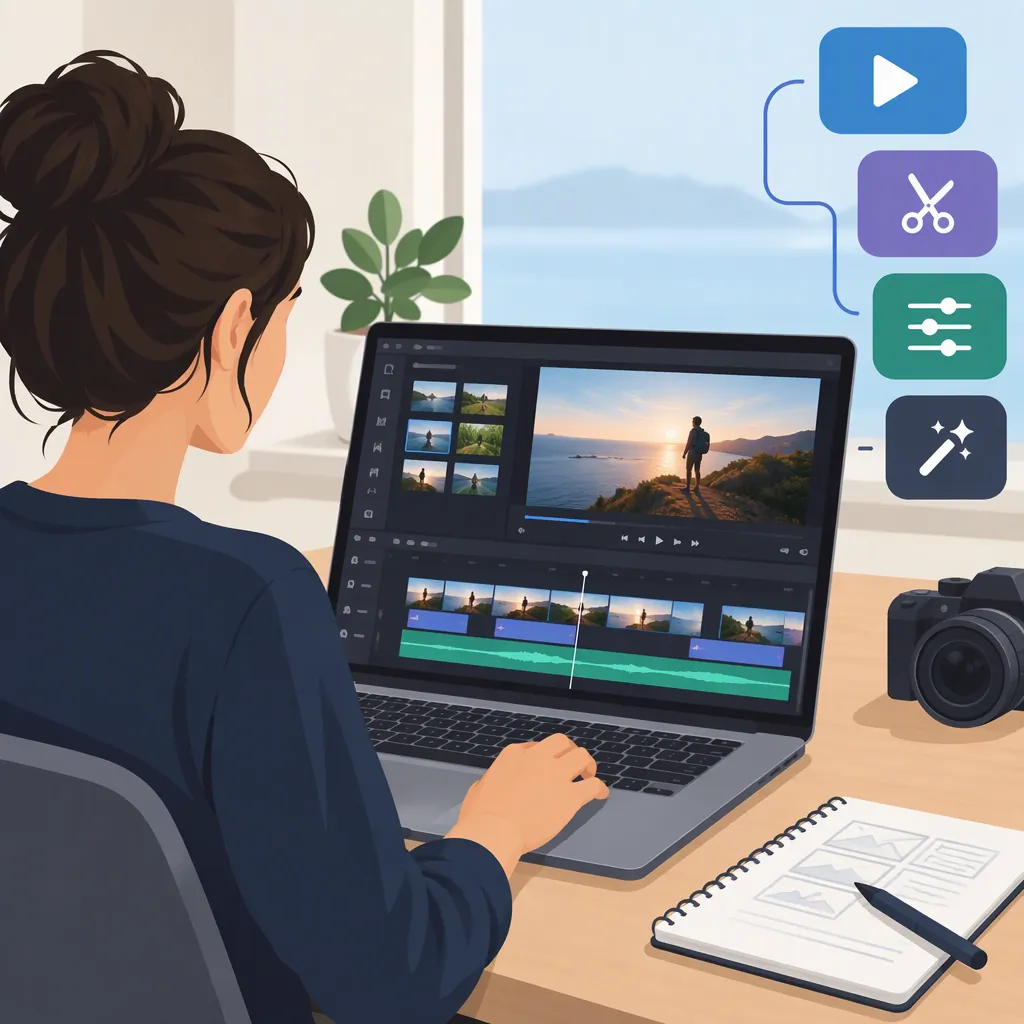
Vimeo Video Editor: Tools, Editing Workflow, and Access Checks
Vimeo’s Help Center provides separate guidance for browser and mobile editing. The Vimeo Create Google Play listing describes timeline editing, crop and fit controls, text animations, and soundtrack options. Start by identifying whether you need to create a video, revise an editable project, or manage an already finished upload—these are different tasks. [vimeo-help] [vimeo-play]
What Does “Vimeo Video Editor” Refer To?
The phrase can refer to Vimeo’s browser editing resources or the Vimeo Create mobile app. Vimeo’s Help Center organizes editing documentation into Editing in a web browser and Editing on mobile. The Google Play and US App Store listings identify Vimeo Create as an app from Vimeo.com, Inc. [vimeo-help] [vimeo-play] [vimeo-apple]
Choose a starting point based on your task:
| Your task | What to check next |
|---|---|
| Create a new video in a browser | Open Vimeo’s editing Help Center index and select Editing in a web browser. |
| Create or revise a video on mobile | Select Editing on mobile in the Help Center, then consult the store listing for your device. |
| Revise an existing project | Confirm that you can open the project and access the elements you need to change. |
| Change a finished upload | Establish whether you need to change the underlying edit or only its presentation and sharing settings. Do not assume that the upload is an editable project. |
The Vimeo editing Help Center is an index leading to browser and mobile documentation, not a step-by-step tutorial itself. [vimeo-help]
The cited documentation does not establish that every previously uploaded video can be opened as an editable project. Keep your original clips, images, audio, and project files so that later revisions do not depend solely on an uploaded copy.
Which Vimeo Create Editing Tools Are Documented?
The Vimeo Create Google Play description lists the following feature categories. These are developer-described capabilities, not independently tested results or a current feature matrix for every account. [vimeo-play]
| Documented feature | Editing task to evaluate |
|---|---|
| Precision timeline editing | Check clip order, timing, and the overall pace of the sequence. |
| Crop and fit media | Check how each clip or image appears in the intended frame shape. |
| Snap-to-grid guidelines | Check the alignment of visual elements. |
| Text and sticker animations | Check whether motion supports the message and leaves enough reading time. |
| Licensed soundtrack library and audio with cutaways | Review music choices and how sound relates to changes in the picture. |
| Templates, filters, and styles | Evaluate a starting layout or visual treatment against your footage and purpose. |
The listing also describes some custom branding, stock media, and template access as upgrade-dependent. Browser and mobile feature parity is not established by these records. [vimeo-play]
A Practical Vimeo Create Editing Workflow
Use a short test project before assembling a longer video. The workflow below connects editing tasks to the feature categories described in Vimeo Create’s Google Play listing; it is not a verified sequence of interface buttons. Use only the controls actually available in your account. [vimeo-play]
1. Define the Output and Prepare Your Media
Record the intended audience, approximate runtime, frame shape, and publishing destination. Gather a few representative clips or photos for the test, and back up the originals.
Confirm that you have permission to use the footage, images, music, and other assets. If you plan to use a template, evaluate whether its layout suits the message rather than letting the layout determine the content.
2. Review Clip Order and Timing on the Timeline
The Google Play listing describes precision timeline editing. Where those controls are available, use them to evaluate the order and timing of your test clips. [vimeo-play]
Put the main idea early, then review the supporting material. Look for repeated information, pauses that do not serve the message, and shots that end before viewers can understand them. Play the sequence continuously to judge pacing rather than reviewing each clip only in isolation.
3. Check Framing with Crop and Fit Controls
Vimeo Create’s listing describes crop and fit controls and snap-to-grid guidelines. Use the available controls to inspect how your media fits the target frame and how visual elements align. [vimeo-play]
Check each shot for cut-off faces, important objects near the edges, and essential text outside the visible area. If you change the frame shape, review the entire sequence again rather than assuming that every shot still works.
4. Review Text, Animation, and Visual Treatments
The listing describes text and sticker animations, filters, and styles. If you use these options, evaluate whether they clarify the content rather than distract from it. [vimeo-play]
Read each text element at normal playback speed. Allow time for both the animation and the message itself. Check text against the moving background, and remove decorative elements that compete with essential information.
5. Check Music and Its Relationship to Speech
The Google Play description identifies a licensed soundtrack library and audio with cutaways. These descriptions provide categories to investigate, but they do not establish the exact audio controls available to you. [vimeo-play]
Listen through the test sequence. Check for abrupt changes, music that masks speech, and mismatches between the sound and the picture. Review the applicable asset terms before publishing; a “licensed library” description alone does not explain every permitted use.
6. Inspect a Test Output
If your account permits export, produce a short test file before committing to the full edit. Inspect the resulting file, not just the editor preview.
Check its frame shape, dimensions, runtime, text readability, sound, and any branding. If the test output does not meet your requirements, resolve that issue before extending the project.
Pre-Edit and Output Checklist
- Audience, purpose, and publishing destination recorded.
- Target runtime and frame shape recorded.
- Original media and project files backed up.
- Rights to footage, images, and audio checked.
- Required timeline, framing, text, and audio controls checked.
- Export access, output limits, and payment terms checked.
- Full sequence reviewed for pacing and framing.
- Text readability and speech clarity reviewed.
- Test output inspected for dimensions, runtime, sound, and branding.
Check Platform Access, Costs, and Current Limits
The Google Play listing documents Vimeo Create for Android, while the US App Store listing identifies iPhone and iPad support. These records do not guarantee availability on every device or in every region. [vimeo-play] [vimeo-apple]
Both listings disclose in-app purchases. The App Store lists the app as free and describes subscription pricing that varies by subscription type and country, along with automatic renewal. A free download does not establish that every editing feature or export is free. Read the terms for the specific purchase route rather than combining prices or cancellation instructions from different platforms. [vimeo-play] [vimeo-apple]
Evidence and account limits: The cited Help Center page is an index, and the app records show March 2025 updates. They do not verify the complete interface or plan entitlements as of October 2026. Confirm your account’s available tools, export resolution, maximum duration, watermark or branding rules, and any payment requirement before starting substantial work. This guide therefore does not promise current prices, export specifications, or advanced editing capabilities. [vimeo-help] [vimeo-play] [vimeo-apple]
FAQ
Can I Edit Vimeo Videos in a Browser?
Vimeo’s Help Center includes an Editing in a web browser category. Open the editing Help Center index and choose that category for browser-specific guidance. The index alone does not establish which videos can be edited or which controls your account receives. [vimeo-help]
Is the Vimeo Video Editor Free?
The US App Store lists Vimeo Create as free with in-app purchases, and Google Play also discloses in-app purchases. Free installation is not the same as free access to every tool or export. Check your account’s output permissions and the terms shown before any purchase. [vimeo-play] [vimeo-apple]
Can Vimeo Create Add Music and Text?
The Google Play listing describes a licensed soundtrack library and text animations. Use a short test to check the options available to you, text reading time, and the relationship between music and speech. Review the applicable soundtrack terms before publishing. [vimeo-play]
Is Vimeo Create Available on Mobile?
The cited store listings document Android access through Google Play and iPhone and iPad support through the US App Store. For mobile editing guidance, choose Editing on mobile in Vimeo’s Help Center. Device and regional availability should be checked in the relevant store. [vimeo-play] [vimeo-apple] [vimeo-help]
Can I Re-Edit Any Video Already Uploaded to Vimeo?
The cited editing documentation does not confirm that every uploaded video becomes an editable project. First verify whether an editable project exists for the video and whether it supports the changes you need. Preserve your original media and project files rather than treating an uploaded copy as a substitute. [vimeo-help]
Sources
-
[vimeo-help] Editing videos – Vimeo Help Center
-
[vimeo-play] Vimeo Create - Video Editor – Apps on Google Play
-
[vimeo-apple] Vimeo Create App - App Store