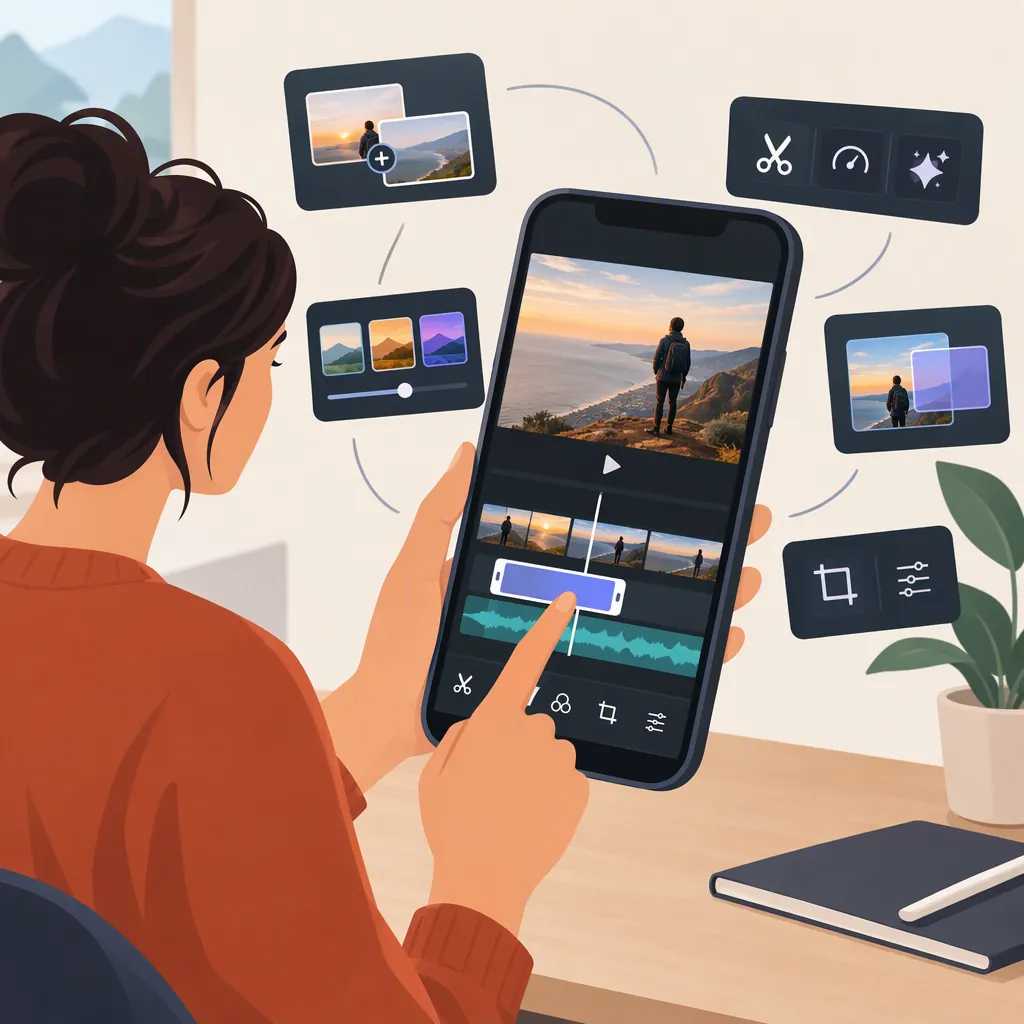
Videoleap Editor by Lightricks: Tools, Workflow, and Limits
Videoleap is a video-editing app listed on Google Play by Lightricks Ltd. Its listing describes clip editing, text, layers, speed adjustments, templates, and AI effects. These are publisher descriptions, not independently verified performance guarantees. This guide explains how to plan an edit and what to check in your installed version. [c1]
Identify the App and the Evidence
For the search “Videoleap editor by Lightricks,” the supplied Google Play listing identifies the developer as Lightricks Ltd. and uses the Android package identifier com.lightricks.videoleap. This helps distinguish the app from similarly named listings. [c1]
The main source here is an Italian-language Google Play listing. It supports an overview of the advertised Android tools, but does not establish current US pricing, iOS feature availability, or identical behavior across devices. A Creative Bloq review published April 7, 2024 provides historical context rather than confirmation of the current interface. [c2]
The workflow below is general editing guidance, not a tested, button-by-button Videoleap tutorial.
Understand the Listed Editing Tools
The Google Play description groups several kinds of tools under Videoleap. Treat this as a map of advertised functions, not a guarantee that every function is available without payment in your version. [c1]
- Clip editing: Trimming, splitting, duplicating, rotating, and mirroring footage.
- Framing and appearance: Aspect-ratio changes, filters, and brightness, contrast, and saturation adjustments.
- Timing: Speed changes, slow motion, and looping.
- Layered composition: Combining video, images, effects, and text, with masking and blending options.
- Templates and AI: Preset templates, AI effects, and AI video-generation features.
For a first project, focus on clip order, timing, and framing before experimenting with layered effects. For documentary or instructional footage, review AI-altered material for changes that could misrepresent what was recorded.
Plan a Basic Edit
Use this sequence as a project plan. Find the equivalent controls in your installed version rather than relying on assumed menu names.
- Define the output. Write down the intended destination, orientation, and approximate duration.
- Prepare the footage. Keep original files unchanged and work with copies. Select clips that contribute to the intended sequence.
- Build the rough cut. Arrange the clips, remove unwanted beginnings and endings, and check whether the sequence makes sense without effects.
- Check framing. Review each shot after choosing the output shape. Look for cropped faces, cut-off objects, or important details near the edges.
- Add text and effects selectively. Use readable text and preview transitions at normal playback speed. If trying an AI effect, compare the result with the original.
- Review sound. Listen for abrupt changes, missing audio, and speech obscured by music. Use only media you have permission to include.
- Test an export. Export a short representative segment before finishing a longer project. Inspect the saved file, not just the editing preview.
This sequence is general guidance. The listing documents relevant editing categories, but it does not establish exact controls or export settings. [c1]
Short Export Test Checklist
- [ ] Choose a segment containing motion, text, and sound.
- [ ] Record the export settings shown in your version.
- [ ] Play the saved file outside the editor.
- [ ] Check framing, text readability, sound, and timing.
- [ ] Check for watermarks or unexpected visual changes.
- [ ] Confirm the result meets the destination’s requirements before exporting the full project.
Check Cost, Privacy, and Support
Cost: Google Play marks the app as offering in-app purchases. The provided evidence does not establish current US prices, trial terms, or which exports and tools are included at each payment level. Check the terms shown for your account rather than treating older reviews as current offers. [c1]
Privacy: The listing’s developer-provided Data safety disclosure says the app may collect location, personal information, and other data categories. It also reports encryption in transit and the ability to request data deletion. These disclosures are not an independent privacy audit or a complete explanation of how a particular AI feature processes footage. Avoid using sensitive footage until you understand the applicable terms. [c1]
Support: The Android support email shown in the listing is videoleap.android.support@lightricks.com. For a technical question, note your device, app version, relevant settings, and steps that reproduce the issue. Do not include private footage unless necessary and appropriate. [c1]
FAQ
Is Videoleap Free to Use?
The provided Google Play listing indicates in-app purchases. It does not establish which tools or export options are currently free for a US account. Check the terms displayed in your version before assuming a project can be completed without payment. [c1]
Does Videoleap Support Layered Editing?
The Google Play description lists layered editing with video, effects, text, and images, plus transformations, masking, and blending modes. Availability and payment requirements for individual controls are not established by the supplied description. [c1]
Can I Assume Desktop and Mobile Versions Have the Same Tools?
No. The 2024 Creative Bloq review discusses an online editor, but that historical report does not verify current desktop availability or feature parity. The supplied Google Play listing is evidence for the advertised Android app, not every platform. [c1] [c2]