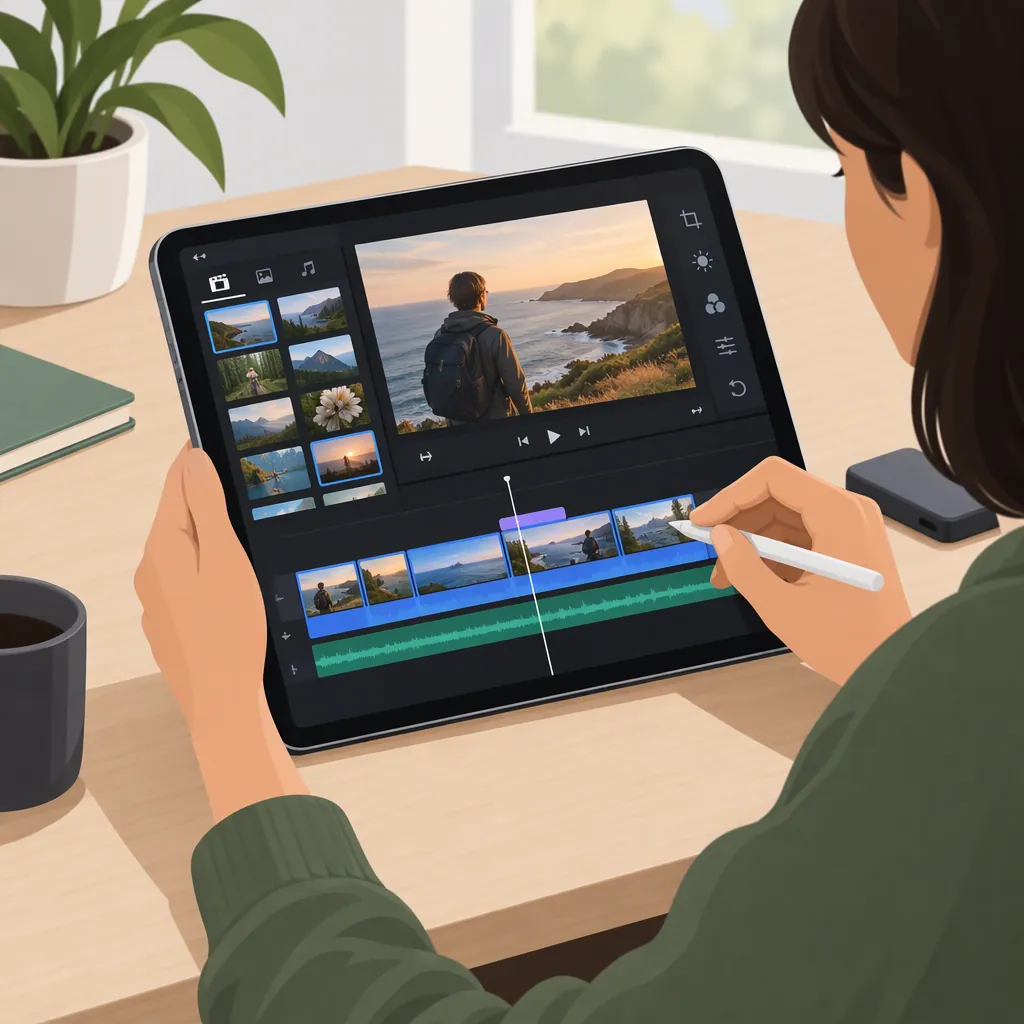
How to Choose a Video Editor for iPad and Edit a Video
Choose a video editor for iPad by matching your project needs to documented features and checking compatibility with your device. iMovie’s App Store listing describes trimming, titles, narration, and guided projects; Apple’s Final Cut Pro page describes iPad tools such as Live Multicam and touch-based editing. These are options to evaluate, not a universal ranking. Test importing, editing, and exporting a short sample before committing a full project. [c2] [c3]
Choose an Editor Around Your Project
Start with the video you want to make rather than a “best app” label. Write down its intended length, portrait or landscape format, audio needs, and whether you need overlapping footage or several camera angles.
Apple’s iPad video-editing collection lists options including iMovie, LumaFusion, Final Cut Pro, CapCut, and Splice. Inclusion in that collection does not establish which app will suit your footage or workflow. [c1]
For a project needing titles, narration, and basic compositing, compare your requirements with iMovie’s listing. It documents Magic Movie and Storyboard projects, along with picture-in-picture, green-screen, and split-screen effects. [c2]
For a project involving multiple cameras or drawing directly on footage, compare your requirements with Apple’s iPad-specific Final Cut Pro documentation. It describes Live Multicam, a touch-first interface, and Live Drawing. Do not assume that every feature described elsewhere on the combined Mac and iPad page is available on iPad. [c3]
Project Requirements Worksheet
- Intended audience and destination: ___
- Target duration: ___
- Portrait or landscape: ___
- Number of camera angles: ___
- Titles or captions needed: ___
- Narration and music needed: ___
- Overlays or background replacement needed: ___
- Must continue editing on another device: ___
Check Compatibility Before a Full Edit
Check your exact iPad model and iPadOS version against the app’s current requirements. Also check whether the particular feature you need has separate hardware requirements. iMovie’s listing attaches device requirements to features including Cinematic mode editing and 4K export at 60 frames per second. [c2]
Apple’s supplied Final Cut Pro page states that the iPad version requires iPadOS 18.6 or later and an iPad with an M1 chip or later, iPad (A16), or iPad mini (A17 Pro). Some features have additional requirements. Treat this as the requirement stated in the supplied reference, not a guarantee for every future release. [c3]
Before a full edit, try representative footage from your actual camera or phone. Check import, playback, audio, and a short export. Record the available export settings rather than assuming that a headline resolution applies to every device or project.
The supplied sources do not establish comparative performance, reliability, or export quality across these apps.
Follow a Simple Editing Workflow
Use this as an app-independent editing plan, not a set of exact button instructions. Menus and available controls depend on the editor and project type.
- Prepare the footage. Keep a backup of your originals and select the clips needed for the story.
- Build the sequence. Arrange an opening, the main action or explanation, and an ending before adding decorative effects.
- Trim and review. Remove unwanted starts, stops, and repeated material. Watch each cut for continuity.
- Work on audio. Listen to speech first, then add narration or music where needed. Review whether speech remains understandable.
- Add text. Keep titles concise and check their readability in the intended output format. If captions are required, verify the editor’s caption workflow separately.
- Use effects selectively. Add transitions or overlays only where they help explain the content.
- Export a draft. Watch the exported file from beginning to end before treating it as finished.
iMovie’s listing documents trim, split, clip-speed controls, titles, voiceover, and saving videos to Photos, making it one documented example for several steps in this workflow. [c2]
Draft Review Checklist
- [ ] Opening makes the subject clear.
- [ ] Clip order is intentional.
- [ ] Unwanted footage has been trimmed.
- [ ] Speech is understandable throughout.
- [ ] Titles and any captions have been checked.
- [ ] Framing matches the intended destination.
- [ ] Exported file plays correctly from start to finish.
- [ ] Originals and the editable project are retained.
Separate Export from Project Handoff
Decide whether you need a finished video or an editable project on another device. Check these as separate requirements: successful video export does not demonstrate that your project can continue in another editor.
iMovie’s listing describes project transfer between iPhone and iPad using AirDrop or iCloud Drive, and sending projects to a Mac for continued editing. [c2]
Apple’s Final Cut Pro page describes exporting an iPad project to Mac to access additional features. That statement alone does not establish a bidirectional project workflow. [c3]
For any intended handoff, test a small project containing the elements you plan to use, such as titles, narration, and overlays. Verify what remains editable at the destination before relying on the workflow.
FAQ
Is There a Free Video Editor for iPad?
The supplied US App Store listing labels iMovie as free and lists iPad support. Check its current compatibility requirements on your device before planning a project. [c2]
Can I Export 4K Video from iMovie on iPad?
iMovie’s listing documents saving video to Photos at resolutions up to 4K at 60 frames per second, with device requirements attached. This is not a guarantee for every iPad or project; check the export options available for your footage. [c2]
Does Final Cut Pro on iPad Include Every Mac Feature?
Do not assume feature parity. Apple’s page explicitly describes exporting an iPad project to Mac to access features such as advanced color grading and Magnetic Mask. Verify the iPad-specific availability of any essential tool. [c3]