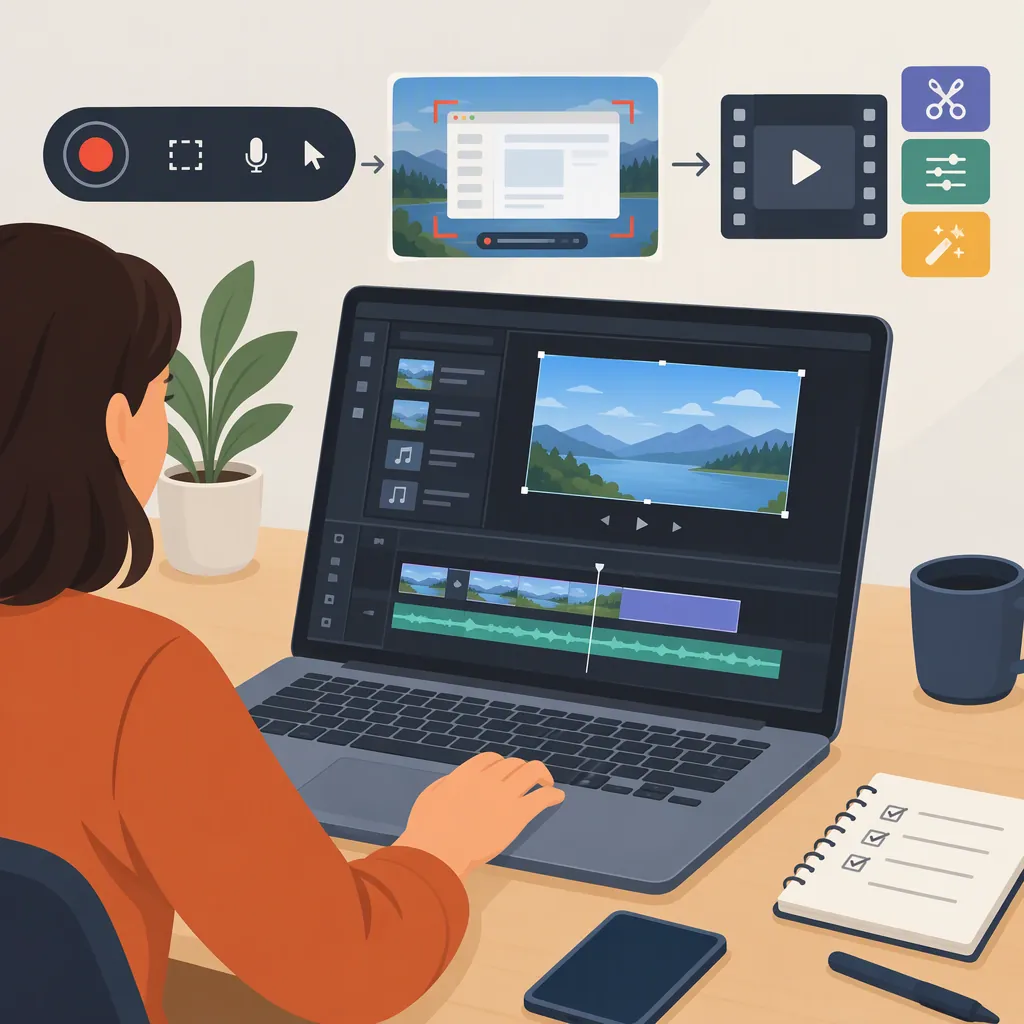
How to Choose and Use a Screen Recorder and Video Editor
A screen recorder captures on-screen activity; a video editor refines the recording afterward. Choose a workflow around your device, capture area, audio sources, editing needs, and final delivery format. The provided guides describe both built-in editing and recording followed by a separate editor, so check the complete record-to-export process rather than recording features alone. [recordcast] [screen-recorder]
Define the Recording and Editing Job
Start with what the viewer needs to learn or see. For a software walkthrough, plan the starting screen, the actions to demonstrate, and the final result. For a presentation, decide whether the screen alone is enough or whether a camera view adds useful context.
Treat capture and editing as separate requirements, even when one tool handles both. The RecordCast page describes selecting video and audio modes, choosing a recording area, editing the recording, and downloading the result. That sequence is a useful framework for evaluating a workflow, not evidence that every recorder supports the same options. [recordcast]
Write down your must-have requirements before comparing tools:
- The device and browser you intend to use.
- The screen, window, or tab you need to capture.
- Voice narration, application sound, or both.
- Any camera overlay you want to include.
- The cuts, text, captions, or privacy edits you need afterward.
- A downloadable file, a hosted link, or both.
Evaluate the Whole Workflow
Instead of looking for a universally best screen recorder and video editor, compare how each candidate handles your actual task.
| Requirement | What to Verify |
|---|---|
| Capture | Can you select the area you need without exposing unrelated material? |
| Audio | Can you record and replay each required sound source on your device? |
| Editing | Can you remove mistakes and add the explanations your viewer needs? |
| Export | Does the output open in the intended player or editing application? |
| Storage | Where does the recording go, and is uploading optional or automatic? |
| Limits | What account, recording, editing, and download restrictions apply? |
Distinguish browser recording from desktop editing. The screen-recorder.com page describes an online recorder and a separate desktop editing application; features described for one should not be assumed to belong to the other. [screen-recorder]
Also distinguish a local-file workflow from a hosted-link workflow. Loom's recording instructions describe automatic upload to an account and creation of a sharing link. Consider that storage behavior when evaluating whether a workflow fits your content. [loom]
These references are provider descriptions, not independent tests. They do not establish comparative quality or guarantee behavior on your device, browser, or account.
Run a Short Capture Test
Before recording the full piece, make a short sample using the same screen, microphone, and application you plan to use. Include a few spoken words, an on-screen action, and application sound if it is part of the lesson.
Play the sample back rather than relying only on an input indicator. Check that the intended audio is present, the screen text is readable, and the camera overlay does not cover important controls. If a required source is missing, resolve it before continuing; do not assume the editor will recover it later.
Use the sample to check the next stage, too: open it in the intended editor and export a brief version. This is a practical acceptance test, not a benchmark or a guarantee of performance.
Pre-Recording Acceptance Checklist
- [ ] The capture area contains only the intended material.
- [ ] Notifications and unrelated windows are out of view.
- [ ] Spoken narration is audible on playback.
- [ ] Required application sound is audible on playback.
- [ ] Text is readable at the expected viewing size.
- [ ] The pointer and camera overlay do not obscure key steps.
- [ ] The sample opens in the intended editor.
- [ ] The exported sample opens in the intended player.
Edit for Clarity, Not Just Length
Make the first editing pass about structure. Remove setup time, abandoned attempts, repeated actions, and unnecessary pauses. Keep enough context for the viewer to understand where each action starts and what changed afterward.
On a second pass, review the explanation:
- Place labels near the action they explain without covering essential controls.
- Keep a useful result on screen long enough to inspect.
- Check that cuts do not disconnect narration from the demonstrated action.
- Review captions against the spoken words and technical terms.
- Remove sensitive material; if using blur or another concealment method, verify the exported result.
Do not assume that a built-in editor includes every operation you need. Decide which edits are essential, then test those operations before committing to a long recording.
Review Privacy and the Final Export
Before capture, close unrelated documents and use demonstration data where possible. Obtain appropriate permission before recording other people's voices, images, or private conversations.
Before delivery, watch the exported file from beginning to end. Check audio, text legibility, captions, transitions, and any concealed information. Review the actual output rather than only the editing preview.
For hosted delivery, check the audience and access settings before distributing a link. For file delivery, confirm that the recipient's intended player accepts the file. The screen-recorder.com FAQ distinguishes MP4 downloads from WEBM downloads in Firefox, illustrating why the output format deserves an explicit check. [screen-recorder]
Keep pricing, privacy, browser support, and account restrictions as unresolved questions until you verify them for the workflow you will use. A feature mentioned on a public page is not proof of availability under every configuration.
FAQ
Do I Need One Tool for Recording and Editing?
Not necessarily. An integrated workflow may suit straightforward cuts and annotations; a separate editor may be worth evaluating when your required edits are not available in the recorder. The provided pages describe both integrated recording-and-editing workflows and an online recorder followed by desktop editing. Test the handoff and export before choosing. [recordcast] [screen-recorder]
How Should I Check Screen Recording Audio?
Record a short sample containing narration and any application sound you need, then listen to the playback. Check each source separately. If something is missing, review the selected source and available recording settings before making the full recording.
What Should I Check Before Sharing a Recording?
Review the exported recording for private information and confirm where it is stored. If you use hosted delivery, verify who can access the link. Do not assume that recording means local storage: Loom's instructions, for example, describe automatic upload to an account. [loom]
Does a Free Recorder Include Everything Needed for Editing?
Do not assume so. Check recording, editing, exporting, and sharing separately, including account requirements and restrictions. The screen-recorder.com page describes online recording and desktop editing as distinct parts of its workflow, so a recording feature description alone does not establish the available editing tools. [screen-recorder]
Sources
-
[recordcast] Free Online Screen Recorder & Video Editor | RecordCast
-
[screen-recorder] Screen Recorder | Free & Online
-
[loom] Free Screen Recorder | Loom