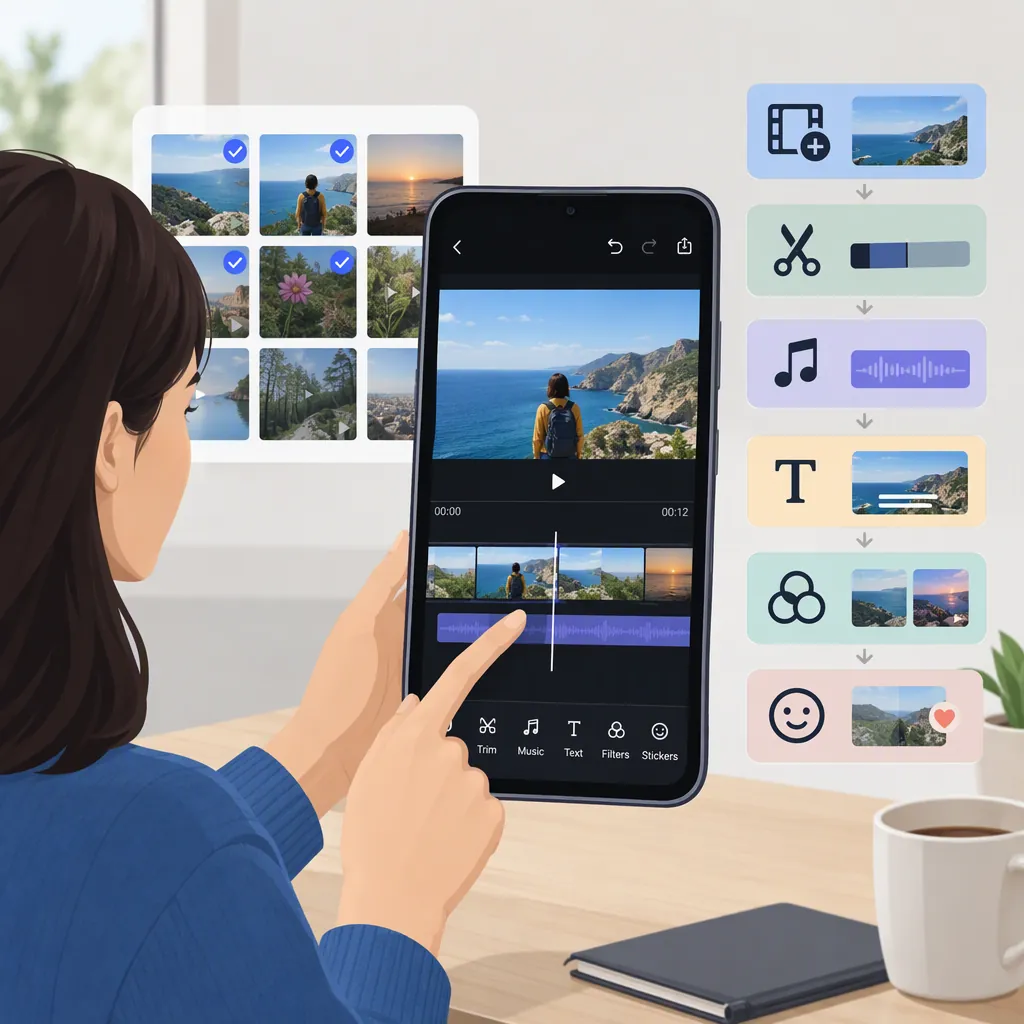
How to Use Samsung Video Editor in Gallery
To open Samsung video editor, open Gallery, select a video, and tap the Edit icon. Samsung’s support guide describes tools for trimming, rotating, flipping, adding text or stickers, applying filters, and adding background music. The Canadian guide lists Galaxy S20 models and newer as compatible; it does not establish an exact feature list for every device or software version.
Open the Editor and Check Compatibility
Samsung’s documented starting point is the Gallery app:
- Open Gallery.
- Select the video you want to edit.
- Tap the Edit icon. [samsung-guide]
The Samsung Canada guide, last updated August 2, 2024, states that the video editor is available on Galaxy S20 models and newer. Treat this as the guide’s stated compatibility scope, not a complete compatibility matrix for every Galaxy phone, tablet, region, or software release. If your controls differ, these references alone cannot establish the cause. [samsung-guide]
Trim, Rotate, or Flip a Video
For a shorter clip, tap Trim and move the white slider bars at the bottom of the screen to set the beginning and end. This is the documented workflow for removing unwanted footage from either end of the video. [samsung-guide]
To change orientation, tap Transform, then Rotate. To create a mirror image, use Flip. [samsung-guide]
As an editing practice, preview the result before moving on. Check that the opening starts where you intended and that the ending does not cut off an important word or action. After flipping, inspect any visible writing to make sure the result suits your purpose.
Add Text, Filters, and Background Music
Samsung documents the following controls:
- Text, stickers, or drawing: Tap Decorations, then choose Draw, Stickers, or Text.
- Filters: Tap Filter, browse the available filters with the slider, and tap Save when finished selecting.
- Background music: Tap Audio, choose Add background music, select music, and adjust the video and music volume levels. [samsung-guide]
Keep additions purposeful. For example, use a short text label to explain the scene, then preview whether it obscures important details. If speech matters, listen to the preview and adjust the music so the words remain understandable.
The guide describes manually adding text for captions or subtitles. It does not document automatic transcription, subtitle-file import, or music licensing terms. Do not assume those capabilities or permissions from the presence of these controls.
Review the Result and Allow Time to Save
Before finishing, review the edited video from beginning to end. The checklist below is an editorial review aid, not a claim about additional Samsung features.
Samsung warns that saving large files or high-resolution videos may take additional time. The supplied guide does not specify saving times, export-resolution choices, codec controls, or whether each save workflow preserves the original. Check the options shown on your device rather than assuming an export setting or overwrite behavior. [samsung-guide]
Pre-Save Review Checklist
- [ ] The clip starts and ends at the intended moments.
- [ ] Rotation and mirroring match the intended presentation.
- [ ] Text is readable and does not cover essential details.
- [ ] Speech remains understandable with background music.
- [ ] Any added music is permitted for the intended use.
- [ ] The displayed save options have been checked before proceeding.
FAQ
Where Is Samsung Video Editor?
The entry point documented by Samsung is Gallery: open the app, select a video, and tap the Edit icon.
Can I Add Captions to a Samsung Video?
Samsung’s guide describes adding text for captions or subtitles through Decorations > Text. It does not establish support for automatically generated captions or importing subtitle files.
Does Every Samsung Device Support These Tools?
The supplied Samsung Canada guide states that the editor is available on Galaxy S20 models and newer. It does not provide a complete device-by-device or software-version compatibility list, so it should not be read as confirmation for every Samsung device.
Why Might Saving an Edited Video Take Longer?
Samsung notes that large files and high-resolution videos may require additional saving time. The reference gives no expected duration and does not establish the cause of a particular failed or stalled save.