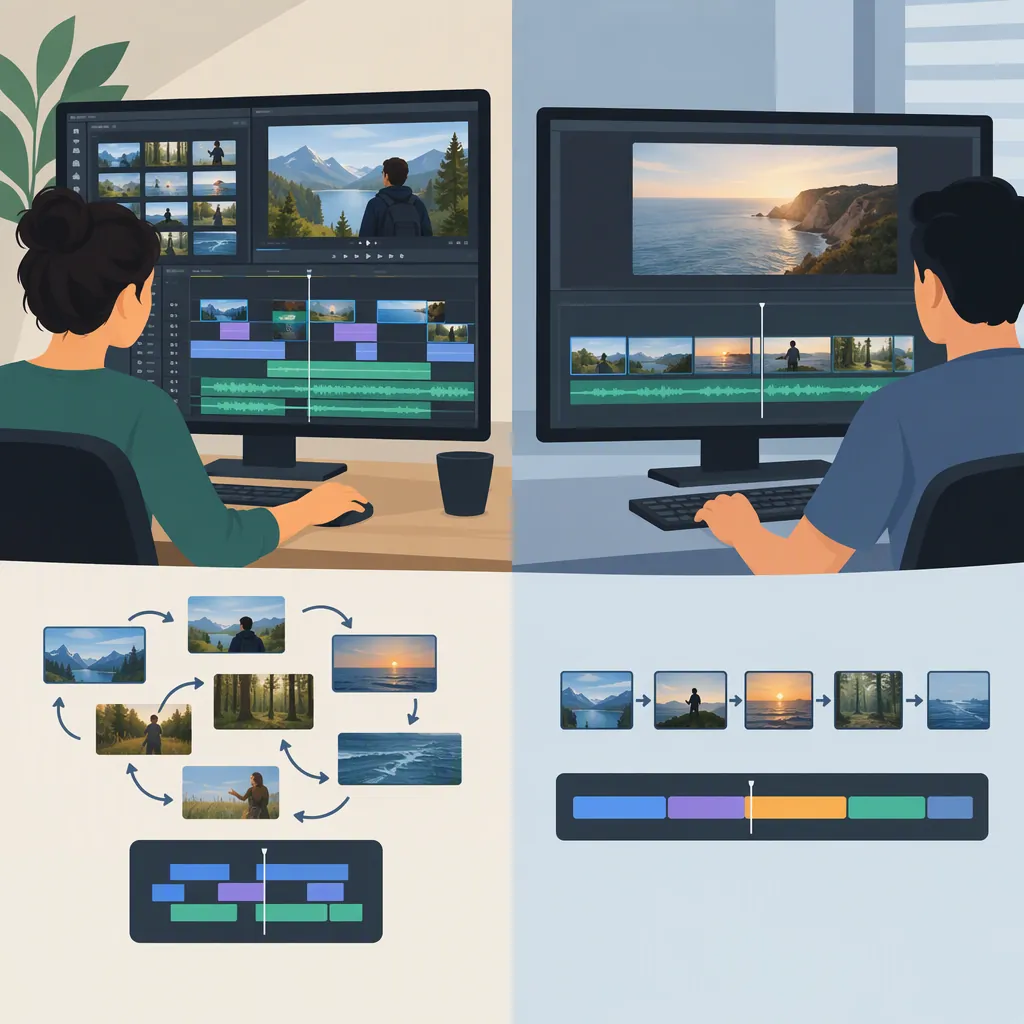
Nonlinear Editing Vs. Linear Editing: Key Differences
Nonlinear editing lets you work on different parts of a sequence without making every edit in playback order. Linear editing builds a recorded sequence sequentially. The key difference is how you access and revise the work—not whether the finished video tells a chronological story.
In a typical digital nonlinear workflow, you revise clips in an editable project or timeline, then export the finished sequence. In a typical linear recording workflow, changing the sequence can require recording the affected portion again.
Editing Order Is Not Story Order
The terms linear and nonlinear describe the editing workflow, not the narrative.
- A chronological story can be edited nonlinearly.
- A video containing flashbacks is not automatically an example of nonlinear editing.
- Both workflows can produce the same final shot order; the difference is what it takes to build and revise it.
For this comparison, linear editing means assembling a recorded output in sequence. Nonlinear editing means being able to revisit and rearrange parts of an editable sequence without following its playback order.
How the Workflows Differ
The table below compares a typical sequential recording workflow with a typical digital nonlinear workflow. It explains general mechanisms, not guaranteed behavior in every recording system or editing application.
| Editing task | Typical linear recording workflow | Typical digital nonlinear workflow |
|---|---|---|
| Access an existing shot | Locate the relevant position in the source or recorded sequence before working on it. | Navigate to the clip or timeline position without rebuilding earlier edits. |
| Insert a shot | If the insertion changes the sequence’s duration, the affected following portion may need to be recorded again. | Insert the clip in the timeline and adjust the following clips as needed. |
| Delete a shot | Closing the resulting gap may require rebuilding the affected recorded portion. | Remove the clip and close the timeline gap, checking the resulting picture and sound. |
| Change the opening | Depending on whether its duration changes and what the system supports, replace the opening or rebuild more of the sequence. | Revise the opening in the project, then check its transition into the rest of the sequence. |
| Produce the final output | The recording process builds the output sequence. | Export or otherwise output the edited timeline to create a separate finished file or recording. |
Neither label alone establishes image quality, processing speed, collaboration support, format compatibility, or cost. Those depend on the actual system and workflow.
A Simple Revision Example: A → B → C
Suppose your sequence contains three shots:
A → B → C
After reviewing it, you want:
C → A → B
In a sequential recording workflow, you would need to record the affected sequence in the new order. What can be reused or replaced depends on the recording system and how the existing output was assembled.
In a typical digital nonlinear workflow, you would rearrange the clips in the project’s timeline. You would then review the transitions and any associated audio before producing a new output.
The Project Is Not the Exported Video
An editable project holds the arrangement and editing decisions. The timeline shows the sequence you are assembling. An exported video is a separate output created from that sequence.
Changing the project does not automatically update a file you already exported. To deliver the revised sequence, you normally need to export it again.
You can also bring an exported video into an editing project, but doing so does not automatically restore its original clips and editing decisions. Keep the distinction clear: revising an editable sequence is not the same as having access to every component of a finished file.
Sequence Revision Exercise
- Write an initial sequence: A → B → C.
- Write a revised sequence: C → A → B.
- Identify what you are changing: an editable project or timeline, a recorded sequence, or an exported video file.
- Describe the revision: rearrange clips, rebuild a recorded portion, or edit the finished file as new source material.
- Identify how you will create the revised final output.
- Check the resulting shot order, transitions, and audio.
This is a conceptual exercise, not a step-by-step procedure for a particular application or recording system.
Mechanical Film Editing Is a Separate Distinction
Do not treat mechanical versus digital as interchangeable with linear versus nonlinear.
The historical article Nonlinear Editing Platforms describes early film editing as physically cutting celluloid and joining it to create sequences. It then describes the development of digital nonlinear platforms and identifies Avid’s introduction of Avid/1 in 1989 as a milestone. [c1]
Those details describe changes in tools and media. They do not establish that every physical film-editing workflow should be classified as linear.
Historical context: The article appeared in Winter 2020 and discusses configurations and optional capabilities within one platform family. It is useful here for historical background, not as a comprehensive guide to linear recording procedures or verification of current prices, licenses, or features. [c1]
What to Check in an Actual Workflow
Use the comparison to identify your revision needs, then verify how your system handles them.
- Access: Can you navigate directly to an earlier part of the sequence?
- Insertion and deletion: Does changing a shot’s duration shift later material, leave a gap, or require rebuilding output?
- Audio: What happens to associated sound when you move or remove a picture clip?
- Output: Are you changing the editable sequence or only a previously generated file?
- Preservation: Which project files and source media must you retain to revise the work later?
- Delivery: Which format and output requirements need separate verification?
The practical question is not simply “Is this nonlinear?” It is “What must I change, preserve, and output when the sequence needs a revision?”
FAQ
Are “Non Linear Editing” and “Nonlinear Editing” Different?
No. In this article, they refer to the same concept. “Nonlinear editing” is the spelling used in the historical reference’s title. [c1]
Does Nonlinear Editing Mean the Story Is Told Out of Order?
No. It describes access to the editable sequence, not the story’s chronology. You can edit a chronological video nonlinearly or use the same workflow to assemble a story with flashbacks.
Can I Change an Exported Video by Changing Its Project?
Not automatically. A typical exported video is a separate file. After changing the project or timeline, you normally need to export a new version.
Does Physical Film Editing Mean Linear Editing?
Not necessarily. Physical versus digital describes the medium and tools; linear versus nonlinear describes the workflow. The historical reference explains cutting and joining celluloid but does not classify all mechanical film editing as linear. [c1]
Does Nonlinear Editing Guarantee Better Quality or More Features?
No. The workflow label does not establish quality, speed, compatibility, or collaboration capabilities. The reference itself describes different configurations and optional capabilities within one platform family, illustrating why features need to be checked separately. [c1]
Does This Comparison Identify the Best Editing Software?
No. It explains workflow terminology rather than ranking products. The cited overview is from Winter 2020, so its product pricing and feature descriptions should not be treated as current purchasing evidence. [c1]