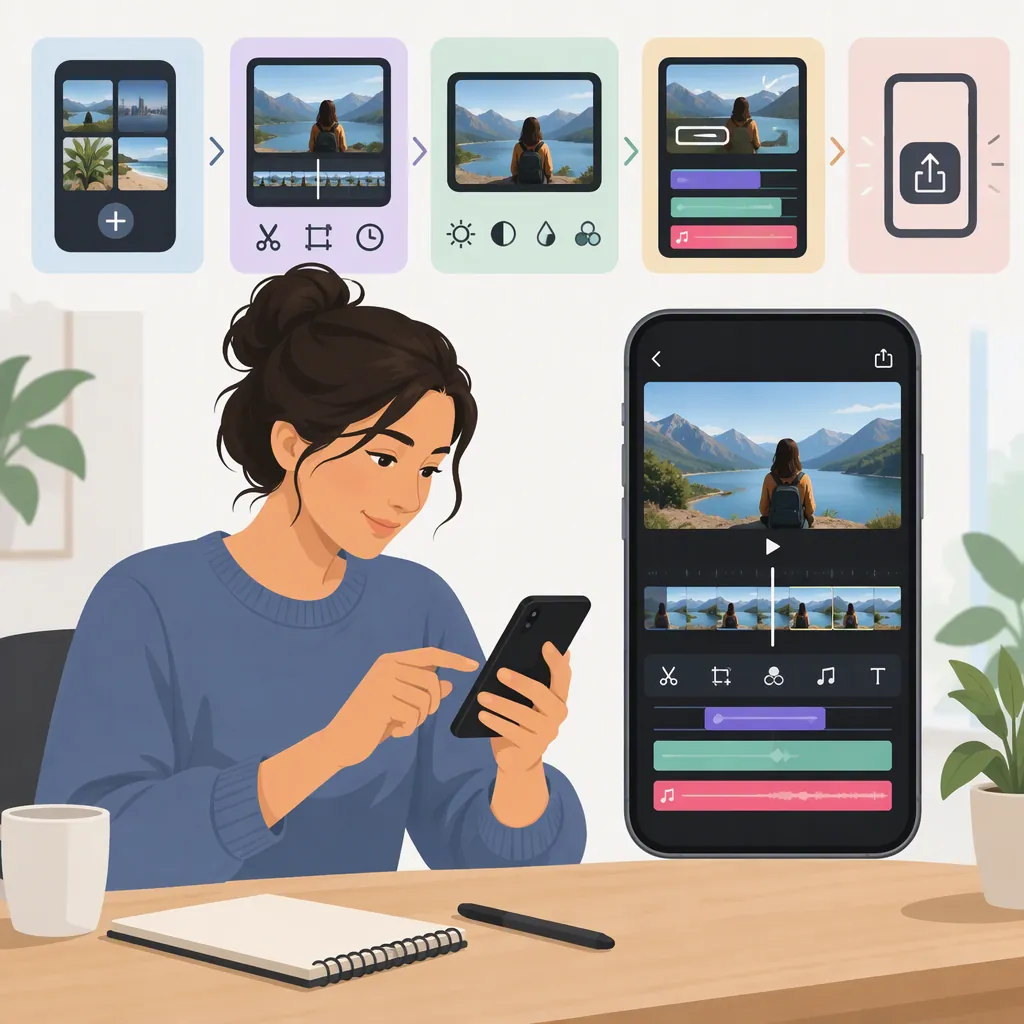
Inshot Video Editor: A Practical Editing Workflow
If you searched for “inshorts video editor” and meant InShot, Google Play lists the app as InShot - Video Editor & Maker. To edit a video, plan the sequence, arrange and trim your clips, review framing, text, and sound, then inspect the exported file. This guide explains those project tasks without assuming current button names or interface layouts. [source_1]
Confirm Which App You Mean
The Google Play developer page lists InShot - Video Editor & Maker alongside separate apps, including YouCut and Video.Guru. Check the full app name before applying guidance intended for InShot. “Inshorts video editor” is treated here as a possible search for InShot, not as its verified app name. [source_1]
About the guidance: TechRadar’s review, published December 7, 2023, described InShot video projects, a timeline, clip reordering, titles, transitions, and speed controls. Those observations provide historical context—not confirmation of today’s interface, feature access, prices, or permissions. The workflow below uses task names rather than exact controls; check what your installed version offers. [source_2]
Prepare Your Clips and Editing Plan
Start with one sentence describing what the viewer should understand. Then select only the footage needed to communicate it. Keep original media separate from exported copies, and inspect clips for private information, unwanted background details, and material you lack permission to publish.
Record the destination’s current public upload requirements before choosing framing or export settings:
- Aspect ratio: the shape of the video frame.
- Pixel dimensions: the required or accepted width and height.
- File format: accepted container or file types.
- Duration: any minimum or maximum length.
- File size: any upload limit.
Do not assume a setting suitable for one destination will suit another.
Pre-Edit Planning Template
- Purpose: What should the viewer understand?
- Destination requirements: Record aspect ratio, pixel dimensions, accepted formats, duration, and file-size limits.
- Clip order: Identify the opening, main sequence, and ending.
- Text: Draft essential on-screen wording.
- Audio: Identify speech, music, and other sound; record permission to use them.
- Privacy check: Note anything to exclude or obscure before publication.
Review Media Permissions
Use the narrowest media access offered by your device and app that supports the project. Read tracking and media-access prompts separately rather than treating them as one decision.
TechRadar’s 2023 review reported concerns about tracking consent and restrictions when adding media with limited photo-library access. That report does not establish current behavior on your device. If a prompt requests broader access than you intend to grant, pause and reassess before continuing. [source_2]
Build and Review an Inshot Video Project
TechRadar’s 2023 review described video projects that could contain video clips or a combination of still and moving images, with a timeline for adding, reordering, and altering clips. It also described titles, transitions, and speed controls. Use these as historically documented tool categories, and verify their availability in your installed version. [source_2]
For a neutral practice example, imagine three clips showing a simple assembly task:
- Opening: the parts before assembly.
- Main sequence: the assembly action.
- Ending: the completed result.
The goal is to make the process understandable—not to use every available effect.
1. Assemble a Clear Sequence
Task: Start a video project and add the selected media using the options available in your version. Arrange the three clips as opening, action, and result.
Expected result: The viewer can understand what is being shown and how the final state relates to the starting state.
Check: Play the sequence without adding text or effects. If the result appears before the action, or a necessary step is missing, revise the order or selection first.
2. Trim Without Losing Meaning
Task: Remove unnecessary starts, endings, and pauses. In the example, trim waiting time before the assembly begins, but retain enough footage to show the action clearly.
Expected result: Each clip contributes useful information without cutting away a necessary movement or explanation.
Check: Replay from just before each cut to just after it. Look for abrupt jumps, interrupted speech, or an object changing position without enough context. Restore footage if the cut makes the process confusing.
3. Check Framing
Task: Review the frame against the intended aspect ratio. If you adjust framing, keep important parts and actions visible.
Expected result: The subject remains understandable throughout the clip, not merely in its first frame.
Check: Inspect the entire action after any crop. In the example, confirm that hands, parts, and the finished result stay in view. Also check for private information in the background.
4. Add Only Necessary Text
Task: If a title or text tool is available, add wording that supplies information the footage does not convey on its own. For example, a short label can identify the completed result.
Expected result: Text clarifies the sequence without covering the action.
Check: Watch at normal speed without pausing. Can you finish reading before the text disappears? Does it remain legible against changing backgrounds? Shorten the wording or adjust its timing if needed.
5. Review Speech and Optional Music
Task: Listen to the sequence before adding optional music. If audio controls are available, use them to keep speech understandable.
Expected result: Sound supports the explanation rather than competing with it.
Check: Play the video at an ordinary listening volume. If music makes any words difficult to understand, reduce or remove it. Check cuts for interrupted words and unintended background sound.
6. Use Transitions and Speed Changes Deliberately
Task: Keep a straightforward cut unless a transition or speed change helps explain the sequence. For example, shortening a repetitive action may help, but accelerating an important step may hide information.
Expected result: Effects preserve the meaning of the footage.
Check: Compare playback with and without the effect. Keep it only if the sequence remains clear, text stays readable, and any accompanying speech is understandable.
Check the Export Before Publishing
Compare the available output settings with the destination requirements recorded in your plan. Check aspect ratio, pixel dimensions, file format, duration, and file-size limits rather than choosing a preset solely because it offers a higher number.
Before exporting, inspect notices about payment, watermarks, and unavailable options. TechRadar’s 2023 review described free editing and export alongside paid options, ads, and watermarking; these are historical observations, not a current pricing or entitlement guarantee. Read the terms displayed in the app before accepting a purchase or trial. [source_2]
After export, review the saved file, not just the project preview. Keep the original media and project until you have confirmed that the output meets your needs.
Export Review Checklist
- Confirm the saved file opens and plays to the end.
- Check every cut for missing or unintended footage.
- Read all on-screen text at normal playback speed.
- Listen for clear speech and unintended audio.
- Inspect framing for cropped subjects and private information.
- Check for watermarks or unexpected overlays.
- Compare the file’s properties with the destination’s current upload requirements.
If something is wrong, return to the project, change the relevant setting or edit, export again, and review the replacement file.
FAQ
Is “Inshorts Video Editor” the Name of Inshot?
Google Play identifies the editing app as InShot - Video Editor & Maker. This guide addresses InShot, but it does not establish that every search using “inshorts” refers to that app. Check the full app name before following app-specific guidance. [source_1]
Where Are Inshot’s Editing Controls?
TechRadar’s 2023 review described media at the top, tools at the bottom, and a timeline between them for video projects. That layout is historical context, not a verified map of the current interface. Identify controls by their task—such as arranging clips or adding text—rather than relying on an old screen position. [source_2]
Does This Guide Confirm Inshot’s Current Cost or Watermark Rules?
No. The 2023 review discussed free and paid options, ads, and watermarking. Check the current terms and export notices shown for your device and region, including any trial conditions and restrictions on selected tools. [source_2]
Should I Grant Access to My Entire Photo Library?
Choose the narrowest access that supports your task and that you are comfortable granting. TechRadar reported limited-library access concerns in 2023, but that does not verify today’s behavior. Review the actual prompts before granting broader access. [source_2]
Sources
-
[source_1] Android Apps by InShot Video Editor on Google Play
-
[source_2] InShot review | TechRadar