Hitpaw Video Editor: What It Is, How to Edit, and What to Check
Short answer: HitPaw’s current download center lists HitPaw Edimakor (Video Editor) as its video-editing product. HitPaw also offers HitPaw Univd, a separate video converter that includes some editing tools, so check the product name before following a guide or comparing plans. Official Edimakor materials describe a desktop editor with templates, effects, music, text, filters, and other editing elements. They document a basic workflow for importing clips, arranging them on a timeline, making edits, previewing, and exporting. (hitpaw.com)
Hitpaw Video Editor at a Glance
The name can be confusing: a HitPaw purchase page with “video editor” in its web address is labeled HitPaw Edimakor, while HitPaw separately describes Univd as a converter with built-in editing tools. The download center lists Edimakor and Univd as separate products. In this guide, “HitPaw Video Editor” refers to Edimakor, unless Univd is specifically named. (hitpaw.com)
HitPaw’s public materials describe Edimakor as a video editor and list editing elements such as templates, effects, music, text, and filters. The company says Edimakor is available for Windows and Mac. These are vendor descriptions, not independent performance tests; they don’t establish how well the software will run on a particular computer or whether it suits every project. (hitpaw.com)
| If your main need is… | What the public materials support | What to check for yourself |
|---|---|---|
| Basic clip editing | HitPaw’s official tutorial describes importing and arranging clips, splitting or removing sections, trimming, cropping, and exporting. | Whether your footage formats, computer, and desired export settings are supported. (youtube.com) |
| Adding creative elements | HitPaw lists templates, effects, music, text, and filters for Edimakor. | Whether specific assets or features are included in the edition you plan to use. (hitpaw.com) |
| Converting media and making simpler edits | HitPaw describes Univd as a separate converter with editing tools such as cut, merge, crop, and rotate. | Whether you need a converter with editing functions or Edimakor’s separate video-editor workflow. (hitpaw.com) |
A Basic Editing Workflow
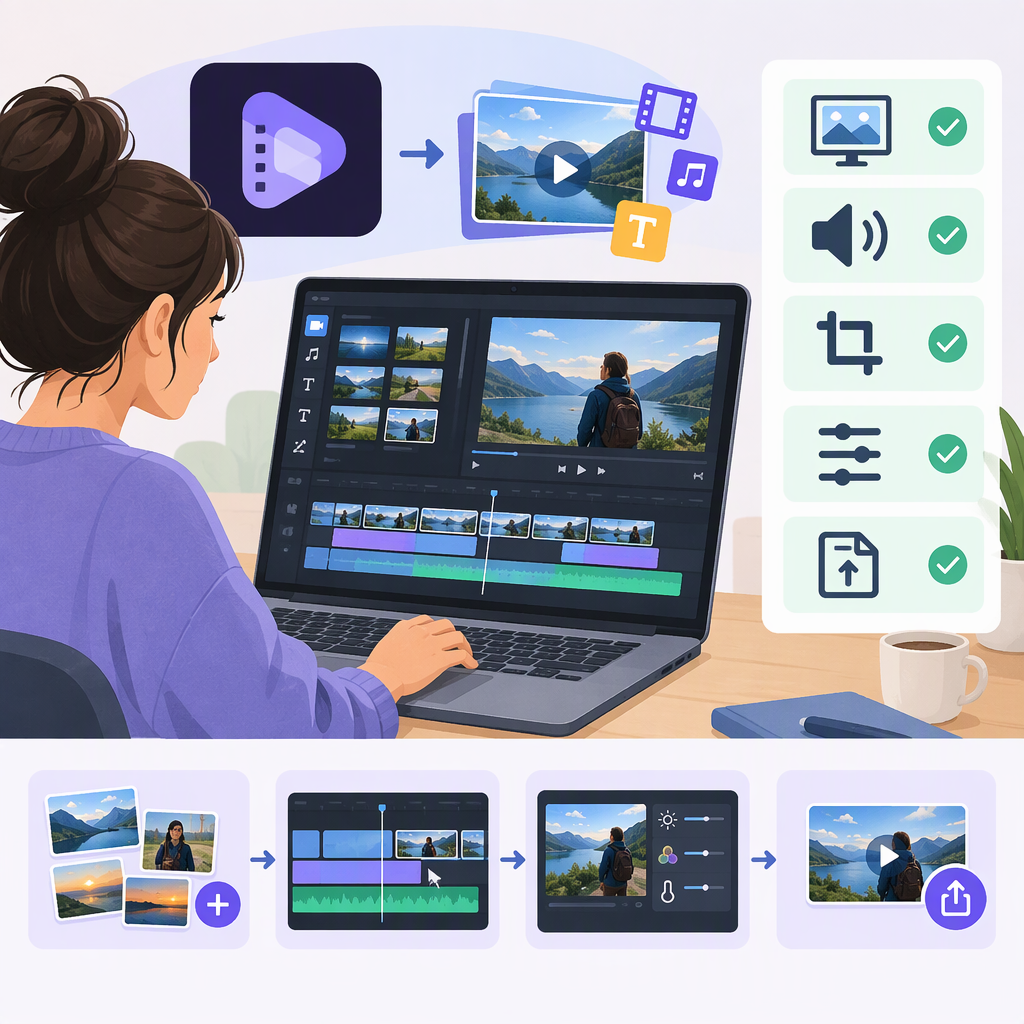
HitPaw’s getting-started guide says to import video, audio, GIF, and photo materials. Its official tutorial describes adding clips to a timeline, splitting or removing unwanted sections, trimming the beginning or end, previewing, and exporting. The precise interface may vary by version, so use the guide for the version you install rather than assuming every screen will match. (edimakor.hitpaw.com)
- Start a project and import media. Open Edimakor and use the import or drag-and-drop area to add your video and any other materials. (edimakor.hitpaw.com)
- Arrange your clips. Add clips to the timeline in the order you want them to appear. (edimakor.hitpaw.com)
- Remove unwanted footage. Use the documented split and trim operations to divide a clip and remove sections, or to shorten its beginning or end. Preview your changes as you go. (youtube.com)
- Add only what the project needs. HitPaw lists elements such as text, music, filters, and effects; its materials also describe transitions between clips. (hitpaw.com)
- Preview and export. Review the result, then export the finished project. Before exporting, check the available format and other settings against the destination where you plan to share the video. HitPaw publishes a separate export guide; verify its steps against your installed version. (youtube.com)
Expected outcome: a video assembled from arranged clips, with unwanted sections removed and any chosen text, audio, or effects included. This describes the documented workflow; it is not a report of hands-on testing.
Check Fit Before Installing or Paying
Use this quick fit-check rather than relying on a general claim that an editor is “easy” or “professional”:
- Match the product to the task. For timeline-based video editing, review Edimakor’s editing materials. If you mainly need conversion plus simple operations such as cutting or merging, compare those needs with Univd’s documented tools. They are separate products. (hitpaw.com)
- Confirm your platform and computer. HitPaw says Edimakor is available for Windows and Mac and provides a technical-specifications page. The general platform statement alone does not establish that a particular operating-system version, processor, graphics card, or media format is supported; check the specifications for your setup before installing. (edimakor.hitpaw.com)
- Test the output you need. If a client, platform, or workflow requires a specific format, resolution, frame rate, or other export setting, confirm that setting is available in your version before building the full project. HitPaw’s materials describe export options, but this guide does not establish every supported combination. (hitpaw.com)
- Check license terms for your device and use period. The purchase pages describe one-computer licenses and say Windows and Mac licenses cannot be used interchangeably. Subscription plans are listed as automatically renewing; the lifetime option is listed as a one-time price. Review the checkout terms before paying. (online.hitpaw.com)
Listed Purchase Prices
The official purchase pages display separate Windows and Mac prices in US dollars, with tax excluded. The pages show both a current listed amount and a higher comparison amount; displayed prices and promotions can change. As displayed on the pages reviewed for this guide, the Windows page lists $29.95 for one month, $39.95 for one year, and $59.95 for lifetime use; the Mac page lists $35.95 for one month, $45.95 for one year, and $69.95 for lifetime use. Monthly and yearly plans are marked as automatically renewing, while lifetime is marked as a one-time price. Each page describes a license for one PC or Mac, and the license is not cross-platform. (online.hitpaw.com)
Treat these as the amounts shown on those purchase pages, not a guaranteed checkout total. The pages exclude tax, and the amount shown at checkout may depend on applicable terms or later price changes. The listed plan descriptions say full-featured licenses include the editing tools and effects and no watermark on exported video; confirm the terms attached to the specific version and offer you are considering. (online.hitpaw.com)
Bottom Line
For someone searching for HitPaw Video Editor, the first useful distinction is the product name: HitPaw currently lists Edimakor as its video editor and Univd as a separate converter with editing features. Edimakor’s public materials support a basic import–timeline–edit–preview–export workflow and say it is available on Windows and Mac. Before installing or purchasing, confirm your exact system requirements, required export settings, and the current terms for your platform and license. (hitpaw.com)