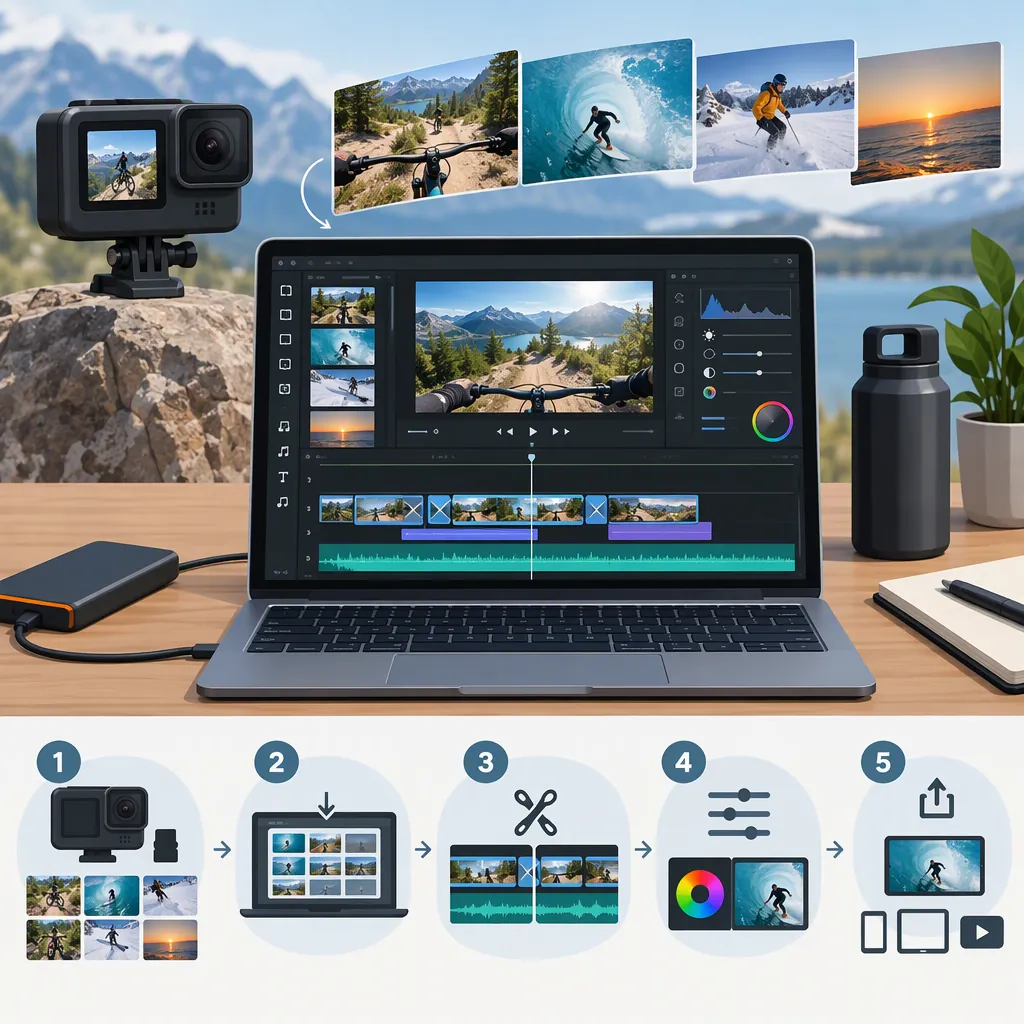
GoPro Video Editor: Choosing Tools and Editing Your Footage
For editing GoPro footage on a phone, Quik is GoPro’s video-editing app for iOS and Android. GoPro describes tools for trimming, cropping, speed changes, exposure adjustments, and music-based edits. For desktop work, GoPro Player handles playback, trimming, export, and 360 reframing; GoPro also lists Reframe plugins for supported editing applications. Check platform compatibility and subscription requirements before choosing a workflow. [gopro-quik]
Choose a Tool for Your Editing Task
A GoPro video editor can mean a mobile editing app, a desktop utility, or a plugin used inside another editor. Start with the task rather than assuming these tools are interchangeable.
| Task | Tool to Evaluate | What the Provided Source Establishes |
|---|---|---|
| Assemble a mobile highlight video | GoPro Quik | GoPro lists iOS and Android availability, manual adjustments, themes, and music synchronization. |
| Play, trim, or export footage on a computer | GoPro Player | GoPro lists Mac and Windows availability, along with trimming, export, and 360 reframing. |
| Reframe 360 footage within another editing application | GoPro Reframe plugin | GoPro lists integrations for Adobe Premiere Pro, Adobe After Effects, and DaVinci Resolve. |
These descriptions come from GoPro’s own page, not independent performance testing. They do not establish that every camera file, operating-system version, or feature is supported in every configuration. [gopro-quik]
For a longer project, write down your requirements first: clip arrangement, audio control, captions, color adjustments, 360 handling, and delivery format. The supplied references do not support a feature-by-feature comparison of third-party editors.
Follow a Simple GoPro Editing Workflow
Use this sequence as an editing plan, not as a version-specific button guide.
- Protect your originals. Keep a separate copy of the footage before deleting anything from the camera or working storage.
- Test one representative clip. Confirm that your chosen editor can import, play, and export it before building the full project.
- Choose the output shape. Decide whether the edit should be horizontal, vertical, or square, then check framing throughout.
- Build the story. Select an opening, the main action, and an ending. Trim waiting time and repeated moments before adding effects.
- Review any automatic edit. Treat its clip selection, music timing, and transitions as a draft. Check that important moments remain and the sequence makes sense.
- Adjust deliberately. Use speed changes where they help explain the action. Check exposure and framing before applying a stylized look.
- Export a short test. Watch the exported file, not only the editing preview. Check image framing, audio, text readability, and playback before exporting the full edit.
GoPro describes Quik controls for trimming, cropping, speed, exposure, and aspect ratio. Its store listings also describe automatic edits and beat synchronization, with subscription footnotes attached to several features. Availability should therefore be checked in the installed version. [gopro-quik] [quik-google-play]
Pre-Export Review Checklist
- [ ] Originals are preserved separately.
- [ ] The opening establishes the subject or activity.
- [ ] Repeated or unnecessary footage is removed.
- [ ] Cropping keeps important action visible.
- [ ] Automatic selections and transitions have been reviewed.
- [ ] Music is permitted for the intended use.
- [ ] Audio and text are understandable.
- [ ] A short exported test plays correctly.
Plan a Separate Workflow for 360 Footage
For 360 footage, deciding where the viewer looks is part of the edit. GoPro describes Quik keyframes that set the field of view at specific moments, with transitions generated between them. The store listings describe Reframe as a way to turn 360 media into a traditional video or photo. [gopro-quik] [quik-apple]
A practical approach is to establish the subject, choose a few intentional view changes, and review the movement between them. Avoid adding a camera move simply because the footage allows it. Check the opening and ending of each reframed segment for distracting changes in direction.
GoPro also describes 360 reframing in Player and plugin options for other editing applications. The supplied references do not establish detailed camera-by-camera compatibility or maximum export settings, so test your actual footage before committing to the workflow. [gopro-quik]
Check Compatibility and Subscription Limits
Free installation does not mean every editing or cloud feature is free. The App Store listing identifies Quik as free with in-app purchases, while both store descriptions attach Premium or Premium+ requirements to several features. [quik-apple] [quik-google-play]
The provided App Store version history also says that all single-media editing tools became free, including image filters and speed adjustments. That is a narrower statement than saying every multi-clip editing feature is free. Feature access may differ by version and platform. [quik-apple]
Cloud storage wording needs particular care. Both store listings’ footnotes specify up to 100GB of non-GoPro footage with Premium and up to 500GB with Premium+. They also exclude GoPro Fusion footage from GoPro cloud storage and limit non-GoPro uploads to supported file types. Broader headline wording should not replace those qualifications. [quik-apple] [quik-google-play]
Before relying on an app, check its current device requirements, the exact tools included in your plan, and whether your files are supported. These references describe advertised capabilities; they do not guarantee editing speed, transfer reliability, or export success on a particular device.
FAQ
What Is GoPro’s Mobile Video Editor?
GoPro’s mobile editing app is Quik. GoPro lists it for iOS and Android and describes trimming, cropping, speed changes, exposure adjustments, themes, and music synchronization. Some features have subscription requirements. [gopro-quik] [quik-google-play]
Can Quik Edit Footage from Other Cameras?
GoPro says Quik can import media from a GoPro, phone, or other camera. That does not establish support for every file format. Cloud storage for non-GoPro footage has separate plan allowances and supported-file restrictions. [gopro-quik] [quik-google-play]
What Can I Use for Desktop GoPro Editing?
GoPro lists Player for Mac and Windows for playback, trimming, export, and 360 reframing. It also lists Reframe plugin integrations for Adobe Premiere Pro, Adobe After Effects, and DaVinci Resolve. These tools serve different roles; the supplied source does not establish that Player replaces a full timeline editor. [gopro-quik]
Sources
-
[gopro-quik] Quik App: Video + Photo Editor | GoPro
-
[quik-apple] GoPro Quik App - App Store
-
[quik-google-play] GoPro Quik: Video Editor - Apps on Google Play