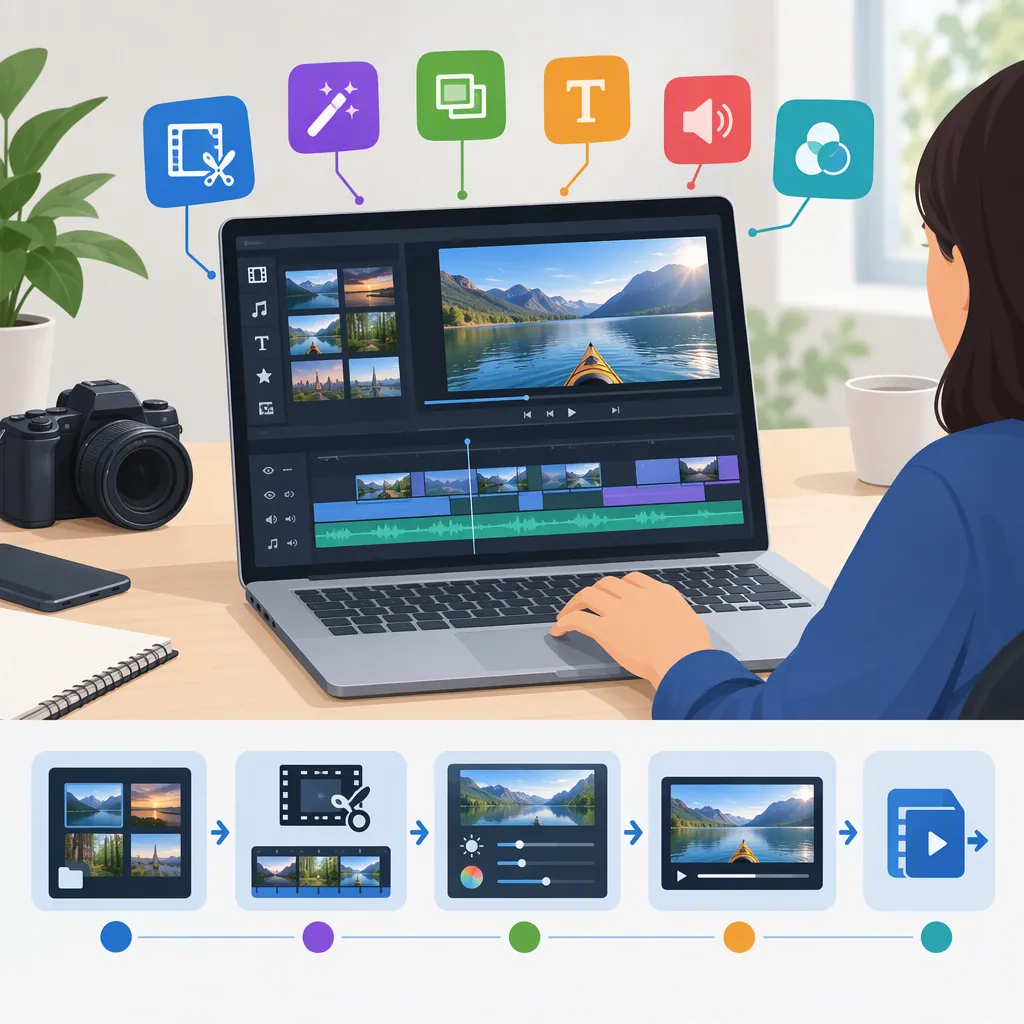
Gilisoft Video Editor: Versions, Tools, and Editing Workflow
GiliSoft Video Editor appears in Windows product documentation and an Android Google Play listing. The Windows cutter-and-joiner page describes a workflow through Video Editor Pro, with focused tools for individual tasks and Video Studio for layered timeline editing. Identify your platform and installed edition before following a tutorial; the provided sources do not establish feature parity across versions. [c2] [c3] [c4]
Identify Your Platform and Edition
The supplied Windows pages use different product labels. The page titled “Video Editor for Windows” displays version 8.0, while the cutter-and-joiner page identifies GiliSoft Video Editor Pro and displays version 15.0. The latter describes Pro as the current Windows workflow for cutting and joining. These are page descriptions, not confirmation of the version installed on your computer. [c1] [c2]
The Google Play listing is for an Android app named “Gilisoft Video Editor.” Do not assume that Windows tool names, project files, or instructions apply to that app. The supplied sources do not establish cross-platform project compatibility or equivalent features. [c4]
Before editing, record your platform, the product name shown in the application, and its version. Match those details to the relevant documentation. This article summarizes supplied public documentation; it does not report hands-on testing or independently verified performance.
Choose a Tool by Editing Task
The Windows documentation distinguishes focused tools from the Video Studio timeline. Its suggested starting points are: [c2] [c3]
| Editing Task | Documented Starting Point |
|---|---|
| Keep a selected portion of one source | Easy Cutter |
| Apply comparable trimming to several files | Batch Cutter |
| Combine trimming with crop, rotation, subtitles, or watermarks | Advanced Cutter |
| Put several files into a chosen playback order | Joiner |
| Divide a long recording into smaller segments | Split |
| Arrange layered video, titles, music, or picture-in-picture | Video Studio |
Treat this table as a documentation map, not a guarantee that every option is present in your edition. For batch work, review each source’s timing separately. The cutter-and-joiner page explicitly cautions against assuming that every recording has identical timing. [c2]
Plan a Small Edit Before Processing Everything
For a layered Windows project, the Pro guide describes this sequence: choose an aspect ratio, create a project, import media, arrange tracks, make edits, add finishing elements, then preview and export. It also advises saving early and keeping source media available in its original location. [c3]
A practical way to evaluate that workflow is to use a short representative sample before processing a full recording. Write down the intended cut points, clip order, subtitle requirements, and delivery settings. After the sample export, compare the result with those requirements rather than relying only on the editor preview.
The following checklist adapts the guide’s preview and export checks. It is a manual review aid, not an automated test or a promise of compatibility. [c3]
Sample Export Review Checklist
- [ ] Preserve the original source files.
- [ ] Note the intended start, end, and clip order.
- [ ] Check that the aspect ratio and crop retain important content.
- [ ] Review every cut, join, and transition.
- [ ] Check subtitle wording, placement, and timing.
- [ ] Listen for audio changes and inspect synchronization.
- [ ] Record the selected export settings.
- [ ] Export to a new file.
- [ ] Play the exported file outside the editor.
- [ ] Confirm the beginning, ending, and total duration before processing the remaining footage.
Understand No-Re-Encoding and Export Limits
Do not interpret “zero quality loss” language as a universal export guarantee. The Windows Video Editor page qualifies no-re-encoding cuts by the source and selected cut points. It also says compatible streams may permit a direct join, while mixed formats or added transitions often require a new export. [c1]
The Pro guide documents a “Cut video files without re-encoding” option in Easy Cutter and notes keyframe limits. It also states that direct joining requires compatible source streams. The supplied text does not provide a complete compatibility matrix or enough detail to predict every cut boundary. [c3]
For ordinary exports, the guide recommends reviewing resolution, frame rate, quality, codec, and audio options when available. It warns that repeated encoding can increase processing time and reduce quality. Keep the original and inspect a sample output before accepting the settings for a larger job. [c3]
Read Android Listing Disclosures Separately
The Android Google Play listing is marked as containing ads and in-app purchases. Its description lists editing operations such as trimming, joining, splitting, adding text, and adjusting aspect ratio. Those are listing statements, not independently tested results. [c4]
The Data safety section says the app may share location, app information and performance, and device or other IDs with third parties. It also displays “No data collected.” Google Play identifies this information as developer-provided and notes that practices may vary by use, region, and age. These disclosures should not be treated as an independent privacy audit or as evidence about the Windows software. [c4]
Before using sensitive footage, review the disclosures and permissions applicable to your installed app. The provided references do not establish whether every editing operation runs locally or whether particular functions upload media.
FAQ
Which Windows Tool Should I Use for a Simple Trim?
The Windows documentation points to Easy Cutter for a straightforward selection from one source. It describes Advanced Cutter for trimming combined with changes such as cropping, rotation, subtitles, or watermarks. Match the guide to your installed edition before following its steps. [c2] [c3]
Does Gilisoft Video Editor Always Export Without Quality Loss?
No universal guarantee is established by the supplied documentation. No-re-encoding cuts depend on the source and cut points, and direct joins require compatible streams. Mixed sources or additional edits may require encoding. Verify a sample export rather than assuming every operation is lossless. [c1] [c3]
Is the Android App Completely Free?
The Google Play listing is marked as containing ads and in-app purchases. The supplied listing does not establish which individual functions require payment, so it is not enough to describe all features as free. [c4]