Funimate Video Editor & Maker: Features and a Practical Editing Workflow
Funimate is a mobile video-editing app listed for Android and for iPhone and iPad in the U.S. App Store. Its public materials describe tools such as transitions, keyframes, text and video effects, overlays, music, and AI effects. Those sources outline editing capabilities, but do not establish a complete, current export sequence or confirm that every feature is available on every device or account. (play.google.com)
What Is Funimate, and Where Can Creators Access It?
The Google Play listing names the app Funimate Video Editor & Maker and identifies Pixery Bilgi Teknolojileri as its publisher. The U.S. App Store lists Funimate Video & Motion Editor, also by Pixery Bilgi Teknolojileri, for iPhone and iPad. These listings support those platform and publisher details for the respective U.S. store pages; they do not establish availability in every country. (play.google.com)
Funimate’s official website presents the product as a video editor and highlights motion-design tools. If you’re deciding whether to install it, use the official store for your device and region, and check the listing there for current compatibility and in-app purchase details. (funimate.com)
A Practical Editing Workflow
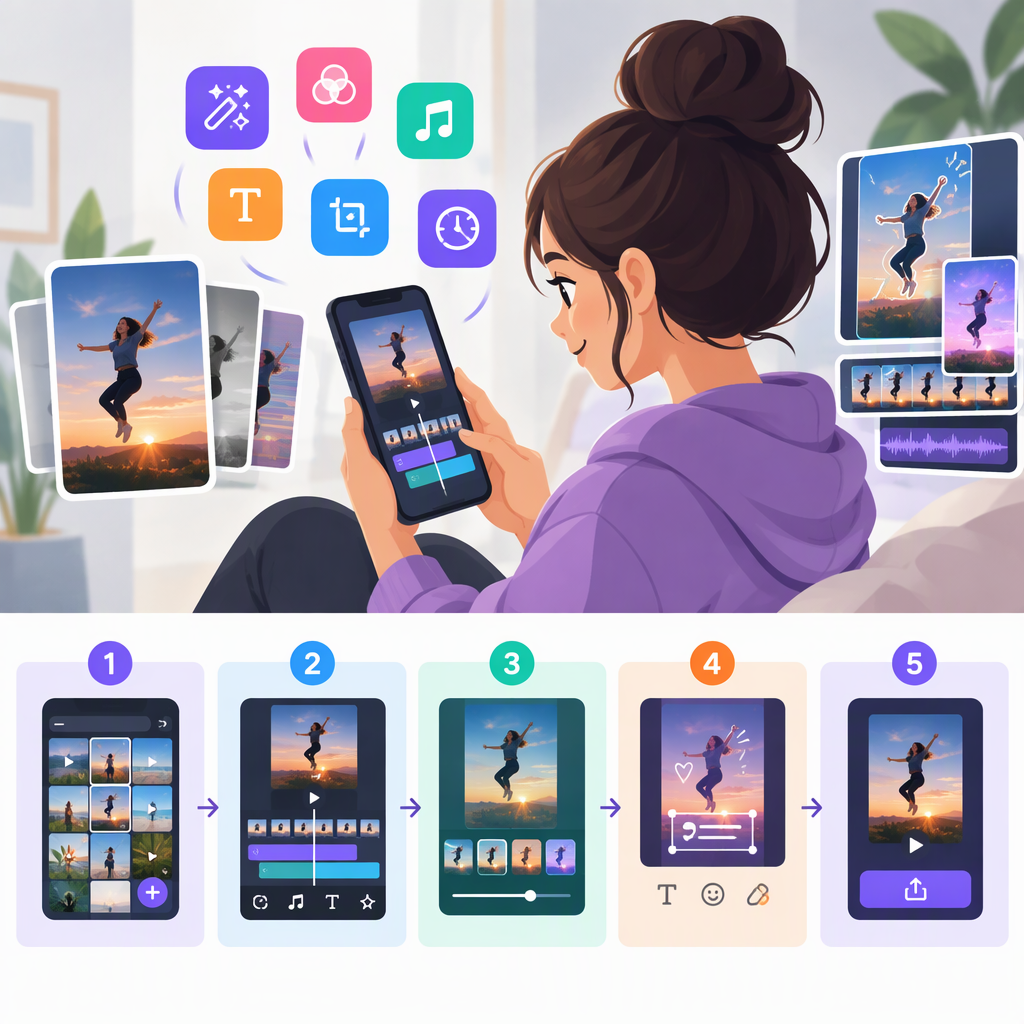
The following is a feature-based starting point, not a verified walkthrough of every screen in a particular app version. Store descriptions say to add photos or videos and describe transitions, effects, text, music, and keyframe animation. They do not document a complete project-start-to-export path, so exact button names and save steps may vary or remain unconfirmed.
- Choose source media. Prepare the photos or video clips you want to edit. The Google Play listing describes adding pictures and videos; it also describes a dance or freestyle clip as an example for trying an AI effect. (play.google.com)
- Add media in the app. Start an edit in your installed version and select the intended photos or clips. The store listing supports adding media, but does not specify a verified project-creation control or screen sequence. (play.google.com)
- Shape the edit. Try a transition between clips or images, then consider text, overlays, or an effect if they serve the video. Funimate’s public materials list these kinds of tools; the exact controls and availability can depend on the installed version. (play.google.com)
- Animate only what needs movement. The app listings describe keyframes for animating layers. For example, you might use a keyframe animation for a text or image layer if you want it to move during the clip. That example illustrates a listed capability; it is not a claim about a tested result or a particular control sequence. (play.google.com)
- Preview and check the ending. Review the edit for timing, readable text, and transitions that feel consistent. These are general review suggestions, not product-specific features.
- Confirm how your version outputs the video. The public materials captured here do not establish the current steps or options for saving, exporting, or sharing a finished edit. Before investing time in a project, look for the output option in your installed version and confirm the destination, format, and any restrictions shown there. Do not assume that a social-sharing option and a device save are the same thing.
What Kinds of Edits Do the Listed Tools Support?
Funimate’s store descriptions and official site mention transitions, keyframes, effects, text, overlays, and music. The Google Play listing also describes video masking and AI effects, including an example that says to add a dance or freestyle video, tap AI Effects, and choose an effect. That named control and example come from the listing; they may not describe every platform or app version. (play.google.com)
These capabilities point to uses such as short edits built around visual effects, animated layers, text, or transitions. That is a practical interpretation of the listed tools—not a guarantee of a particular output, quality level, or workflow. For instance, a creator making a short clip could combine source footage, a transition, text, and music, then check in the app whether the desired tools and export route are available.
What Should You Check Before Starting?
- Device and region: Confirm the app listing for your own device and country. The sources above establish U.S. iOS-store and Google Play listings, not universal availability. (play.google.com)
- Feature access: The Google Play listing indicates in-app purchases. The sources cited here do not map every feature to a free or paid tier, so check the in-app prompt or current store details if a specific effect or tool matters to your project. (play.google.com)
- Export requirements: If you need a particular resolution, file type, watermark status, or direct-sharing destination, verify that exact requirement in your installed version before editing. The public descriptions cited here do not specify those output terms.
- Version and control names: Features and interface labels can change. Treat the store descriptions as a guide to advertised capabilities, not as a version-specific manual.
Bottom line: Funimate’s public listings describe a mobile editor oriented around effects, transitions, layers, text, music, and animation. It may be worth exploring when those are the tools you need, but confirm feature access and the finished-video export path in the app version and store region you’ll actually use.