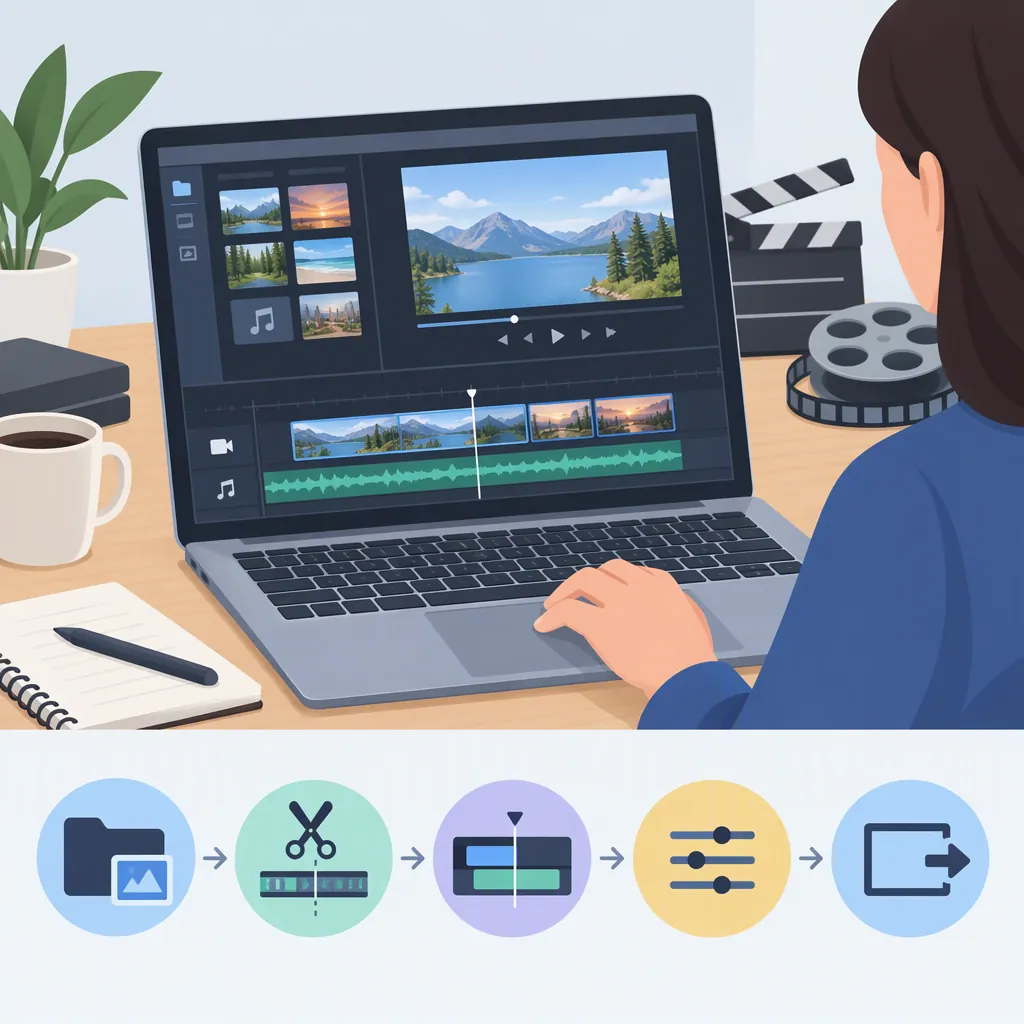
Freemake Video Editor: Editing Tutorial Finder and Export Checklist
For a “Freemake video editor” search, the available documentation points to basic editing tasks in Freemake Video Converter. Freemake’s official tutorial index lists cutting, joining, rotating, cropping, and subtitle guides. Its cutting summary says you must convert the video to save the changes. [freemake-how-to]
Use this guide to locate the relevant editing tutorial, prepare a short edit plan, and check an MP4 export. It does not provide complete click-by-click editing instructions: the supplied official source is a tutorial index, while the detailed export workflow comes from a secondary review. [freemake-how-to] [freemake-review]
Find the Freemake Tutorial for Your Task
The references describe Freemake Video Converter rather than establish a separate product named “Freemake Video Editor.” The UniFab review describes it as a Windows desktop conversion tool with basic editing tasks such as trimming, joining, and rotating. [freemake-how-to] [freemake-review]
Open Freemake’s official tutorial index and locate the title matching your task. The following entries appear in that index. [freemake-how-to]
| What you want to do | Official tutorial title |
|---|---|
| Delete unwanted sections | “How to cut video quickly & free” |
| Combine separate clips | “How to join videos into one” |
| Correct a sideways recording | “How to rotate video free” |
| Change the visible picture area | “How to Crop Video [Super Easy & Free]” |
| Add subtitles | “How to add subtitles to a video” |
| Add music | “How to Add Music to Video Free” |
| Remove sound | “How to Remove Audio from Video Free” |
For cutting, the index explicitly describes deleting unwanted video parts with Freemake Video Converter and converting afterward to save the changes. It does not supply the full cutting procedure or identify the controls used to select those parts. [freemake-how-to]
Prepare a Short Edit Plan
Keep a backup of important footage and write down the intended result before changing the file:
- Delete sections: record each unwanted interval and check the boundaries during preview.
- Join files: list the source filenames in the required order.
- Rotate: note the intended final orientation.
- Crop: identify picture content that must remain visible.
- Change audio or subtitles: specify what must remain in the saved output.
For time-based changes, use a simple interval table:
| Source file | Keep or remove | Start time | End time |
|---|---|---|---|
| ______ | ______ | ______ | ______ |
| ______ | ______ | ______ | ______ |
Also note the expected final duration and destination player. These notes define your acceptance criteria; they do not establish which editing operations your installed version supports.
Follow the matching official tutorial to apply the edit. Preview the result against your notes before exporting. For cutting, remember that the preview is not the saved edited file—Freemake’s summary requires conversion to save the changes. [freemake-how-to]
Export to Mp4: The Documented Workflow
The UniFab review describes the following MP4 conversion path. Treat it as a documented workflow, not a guarantee that every control or setting is identical in your version. [freemake-review]
- Select
+Videoand add the source file. Note its duration, resolution, orientation, aspect ratio, audio tracks, and subtitles. Play the original to establish a comparison baseline. [freemake-review] - Apply your edit using the relevant official tutorial. The official index identifies the editing topics but does not provide their complete procedures in the supplied material. [freemake-how-to]
- Select
to MP4. Choose a preset or custom parameters suitable for the destination player. Check codec and resolution compatibility rather than relying on the.mp4filename alone. [freemake-review] - Review resolution, aspect ratio, and audio. Match the source aspect ratio unless you intentionally want different framing. Preserve the required audio track. If subtitles matter, check whether the selected output keeps them selectable or renders them into the picture. [freemake-review]
- Choose an output folder and select
Convert. The review describes saving a new MP4 in that folder. Use a distinct filename where available so the output is easy to identify. [freemake-review] - Open the saved file in the intended player. The review recommends testing a short export before processing a larger file. [freemake-review]
Use a short source—or a short section your documented editing workflow can produce—that contains speech, motion, and any required subtitles. This makes the test relevant to the full project.
Check the Saved Sample
Compare the exported file with your edit plan:
- The file is in the expected folder and opens successfully.
- The intended sections remain in the correct order.
- The beginning, end, and total duration are correct.
- Orientation and framing are correct, including all four picture edges.
- Required audio is present and synchronized.
- Subtitles appear and behave as required.
- Any watermark, branding, or duration restriction is acceptable.
- Playback works in the destination player.
The review specifically recommends checking a short export for watermarking, full duration, framing, audio, and destination playback. Reuse the settings for the full file only after the sample passes. [freemake-review]
Evidence and Version Limits
Feature availability and export terms: Tutorial listings establish documented topics, not current availability in every version. “Free” in a tutorial title does not verify unrestricted or watermark-free exports. Record your installed version, review any terms or payment prompts, and inspect the saved sample. [freemake-how-to] [freemake-review]
Installer safety: The UniFab review includes historical user reports and promotes an alternative product, so it is not an independent safety audit. Its recommendations—use the official package, review setup choices, decline unrelated additions, and scan the installer—are precautions, not proof of safety. [freemake-review]
Platform and editing scope: The review describes a Windows workflow. The supplied references do not establish native macOS support or a complete multi-track editing workflow. [freemake-review]
FAQ
Is Freemake Video Editor a Separate Product?
The supplied references do not establish a separate product with that exact name. They describe Freemake Video Converter and related editing tutorials; the official cutting summary explicitly names Video Converter. [freemake-how-to] [freemake-review]
How Do I Save a Video After Cutting It?
Freemake’s cutting summary says conversion is required to save the changes. The secondary review describes choosing an output such as to MP4, setting parameters and an output folder, and selecting Convert. Check the saved file rather than relying only on the preview. [freemake-how-to] [freemake-review]
Can Freemake Join, Rotate, Crop, or Add Subtitles?
Freemake’s official index lists tutorials for those tasks. That supports the existence of documented workflows, but not every feature or restriction in your installed version. Locate the matching tutorial and test the required result. [freemake-how-to]
Are Freemake Edits Free to Export Without a Watermark?
That is not verified here. The official index uses “free” in several tutorial titles, while the secondary review recommends checking a sample for watermarking and full duration. Review the terms shown in your version and inspect a short saved export. [freemake-how-to] [freemake-review]
Does This Guide Establish Native Mac Support?
No. The supplied review describes a Windows desktop workflow; the available references do not establish a native macOS editing workflow for Freemake Video Converter. [freemake-review]
Sources
-
[freemake-how-to] How to use Freemake freeware - Text & video tutorials
-
[freemake-review] Freemake Video Converter Review: Free Use and MP4