Flixier Video Editor: A Practical Editing Guide
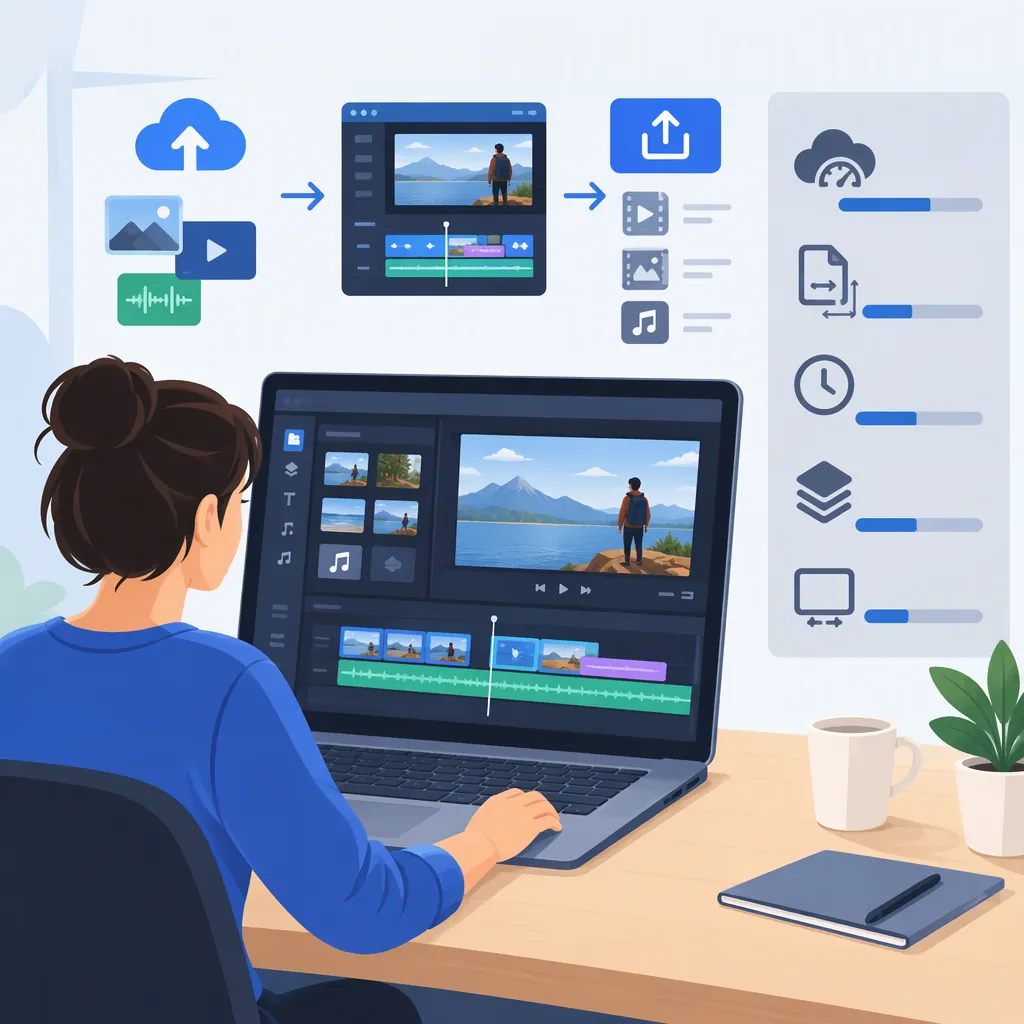
Flixier’s official French-language page describes it as a browser-based video editor with cloud rendering. For an editing project, the main checkpoints are preparing media, arranging the cut, reviewing audio and captions, and checking the exported file. This guide provides a general workflow, not a tested interface walkthrough; feature access and export limits should be checked against the current plan. [flixier-official]
Understand the Browser-Based Editing Model
Flixier’s official page describes editing in a browser without installing an editor, with rendering handled in the cloud. It lists media importing, screen and webcam recording, multiple video and audio tracks, subtitles, and collaboration among its capabilities. These are the provider’s descriptions, not independently tested findings. [flixier-official]
Distinguish that browser editor from the desktop arrangement described by WebCatalog. WebCatalog’s listing offers a dedicated window for Flixier through WebCatalog Desktop and explicitly states that WebCatalog is not affiliated with Flixier. That listing should not be treated as evidence of an official Flixier desktop application. [webcatalog-listing]
The supplied sources do not establish measured rendering speed, reliability on a particular device, or suitability for sensitive footage. A cloud-rendering description alone does not answer questions about data retention, access controls, or organizational approval.
Plan the Edit Before Adding Effects
The following is a general editing workflow, not a sequence of verified Flixier button labels or menu locations.
- Define the output. Note the intended audience, destination, aspect ratio, approximate duration, and caption requirements.
- Prepare the media. Keep original files separate from working copies. Identify the main recording, supporting footage, logos, and audio, and confirm permission to use them.
- Build a rough cut. Arrange the essential scenes first. Remove unwanted starts, repeated takes, and material that does not support the message.
- Review continuity. Watch each cut in context. Check whether the edit changes the speaker’s meaning or removes an explanation needed later.
- Add supporting elements. Introduce titles, relevant visuals, and music only after the sequence is understandable without them.
Flixier’s official page lists importing or recording media, multi-track editing, text, music, and transitions. Those descriptions support the broad workflow, but they do not verify the exact interface steps or account-level availability. [flixier-official]
Editing Brief Template
Audience: ___
Main message: ___
Publishing destination: ___
Target aspect ratio and duration: ___
Required scenes: ___
Media permissions checked: ___
Caption language: ___
Reviewer and approval criteria: ___
Review Audio, Captions, and Automated Edits
Flixier’s official page describes automatic subtitles, audio cleanup, transcription-based editing, and AI-assisted editing. It also states that editing with Eva is available from Creator plans. Treat these as plan-dependent provider descriptions rather than promises about accuracy or results. [flixier-official]
For any automatically generated captions, compare the text with the recording. Check names, specialist terms, punctuation, speaker changes, and timing. If captions are translated, have a competent reviewer check meaning rather than relying only on fluent-looking wording.
For audio, listen through the full sequence for abrupt changes, distracting music, and missing words. Review automated removals of pauses or filler words in context: a shorter edit is not necessarily a clearer or more faithful one.
Before accepting generated visuals or voiceovers, check factual accuracy, permissions, and whether viewers could mistake synthetic material for an authentic recording. These are editorial safeguards, not claims that a particular Flixier feature performs those checks.
Check Plan Limits and the Final Export
The supplied official page lists a free plan with a Flixier watermark and a 720p export limit. It also lists monthly export, subtitle, and storage allowances, with different allowances and feature access on paid plans. These details come from the French-language page and should not be assumed to establish current US pricing or account terms. [flixier-official]
Before committing to a project, check the resolution, watermark rules, export allowance, storage allowance, subtitle allowance, and any AI credit requirements that apply to the account.
Review the exported file separately from the editing preview. Confirm the opening and ending, image framing, caption readability, audio balance, and any unintended blank frames. Keep the original media and record which version received approval.
This guide does not verify export performance, upload duration, codec compatibility, or publishing behavior. The provided references are descriptive pages, not a documented test of the editor.
Final Export Review Checklist
- Confirm resolution and aspect ratio.
- Check for an unexpected watermark.
- Watch the opening, ending, and every cut.
- Compare captions with the spoken audio.
- Listen for missing words and abrupt volume changes.
- Check titles and captions at the intended viewing size.
- Record the exported filename, version, and approval status.
FAQ
Does Flixier Require a Desktop Installation?
The official page describes the editor as running in a browser without installation. WebCatalog separately offers a desktop window through WebCatalog Desktop; its listing says it is not affiliated with Flixier. [flixier-official] [webcatalog-listing]
Is Flixier Free Without Restrictions?
No unrestricted free tier is established by the supplied reference. The official page lists a free plan with a watermark, a 720p export limit, and monthly usage allowances. Check current account terms before planning a final deliverable. [flixier-official]
Should Automatic Captions Be Reviewed?
Yes. The official page describes automatic subtitle generation, but that does not establish accuracy for a particular recording. Compare captions with the audio, especially names, technical terms, timing, and any translated content. [flixier-official]
Sources
-
[flixier-official] Flixier : Éditeur Vidéo en Ligne Gratuit avec Montage IA
-
[webcatalog-listing] Flixier for Mac, Windows, and Linux - WebCatalog