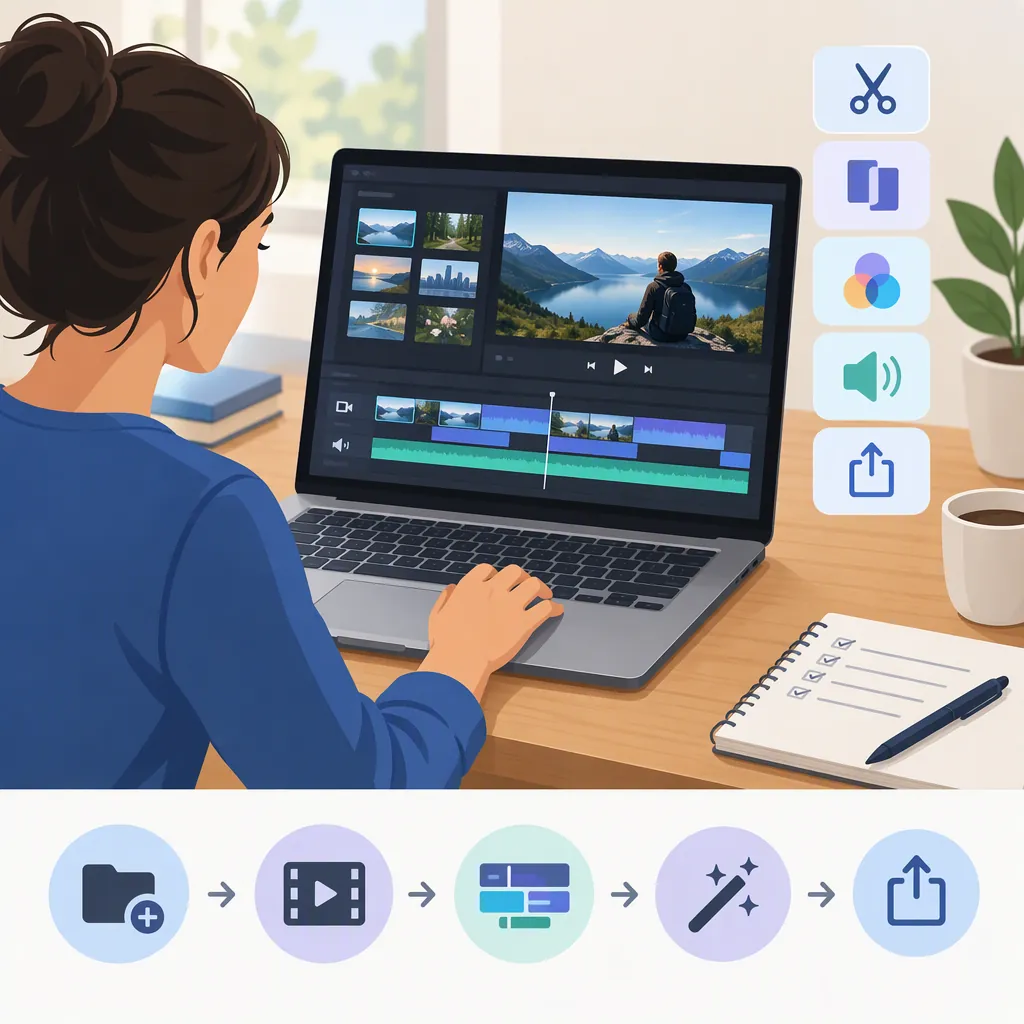
Filmforth Video Editor: Features and a Basic Editing Workflow
FilmForth is described in Soft112’s FilmForth 1.1 listing as a Windows video editor for combining photos, video clips, and music. Listed tools include trimming, splitting, text captions, transitions, and picture-in-picture editing. [c1]
Evidence note: This guide relies on that third-party listing and its publisher description—not hands-on testing or current official documentation. Treat the features as listed capabilities to confirm in your installed version, rather than guarantees of current availability, compatibility, or export conditions.
What the Filmforth Listing Describes
The publisher description groups FilmForth’s tools into several editing tasks: [c1]
| Task | Tools described in the listing |
|---|---|
| Assemble clips and photos | Split, trim, rotate, flip, join, and combine media |
| Edit audio | Add music or voiceover, detach audio, split and trim audio, adjust volume, and apply fades |
| Add text | Create text captions and adjust font, size, bold, italic, and color |
| Layer content | Work with picture-in-picture content and adjust its opacity |
| Finish a video | Add transitions and effects, then export in described “HD video quality” with “No watermark” |
These capabilities suggest a workflow for a simple clip compilation or photo slideshow. The export description does not establish specific resolutions, codecs, frame rates, or quality settings. Watermark status also needs checking in an actual exported file. [c1]
Plan a Small Filmforth Editing Project
A useful starter project is a short sequence of a few clips or photos, an opening title, and background music. The steps below connect that project to tools listed for FilmForth; they are not verified instructions for particular buttons or menus. The source describes capabilities but does not provide a current screen-by-screen interface guide. [c1]
1. Prepare and Test Your Media
Preserve your original recordings and work with copies. Gather the clips, photos, and audio you want to use, then check that representative files open and play correctly before building the full sequence.
Choose a small enough project that you can quickly repeat an export if something goes wrong.
2. Arrange and Trim the Sequence
Put your material in story order. Use the listed trimming capability to remove unwanted beginnings and endings, and splitting to isolate sections you want to keep or remove. The publisher description also lists joining and combining clips and photos. Confirm these tools in your installation before planning around them. [c1]
Preview the sequence after each substantial change. Check that cuts do not interrupt important actions or spoken words.
3. Add Music and Balance the Sound
The listing describes importing audio, adding voiceover, detaching audio from video, adjusting volume, and applying fade-in and fade-out effects. [c1]
For this small project, add a music track if needed, then listen to it alongside any speech. Adjust the balance so the music does not obscure words. Where the installed tools allow, trim the music to the sequence and use fades to avoid abrupt starts or endings.
4. Add a Readable Title
FilmForth’s listed text-caption controls include font, size, bold, italic, and color. These refer to text editing; the source does not establish automatic speech transcription or automatic subtitle generation. [c1]
Add a short opening title, review its spelling, and check its contrast against the footage. Leave it visible long enough to read comfortably.
5. Preview Transitions and Optional Overlays
The listing describes transitions for photos and videos, plus picture-in-picture editing with opacity controls. [c1]
Start with straightforward cuts. Add a transition only where it helps the sequence, and preview the result. If you want an inset clip or image, test the listed picture-in-picture capability separately before making it essential to the project.
6. Export a Short Sample
Export a representative section containing a cut, text, and audio before rendering the full project. Open the resulting file outside the editor and compare it with the preview.
If a listed tool is missing or behaves differently, consult documentation for your installed version rather than assuming the directory description matches its interface.
Small Project Acceptance Checklist
Use this checklist to evaluate the result, rather than simply confirm that editing steps were completed:
- Clips and photos display correctly, without unexpected rotation or distortion.
- Cuts preserve the intended action and speech.
- Music does not overpower dialogue.
- Audio starts and ends without unwanted abruptness.
- Titles are readable, correctly spelled, and visible long enough.
- Transitions or overlays do not obscure important content.
- The exported file plays outside the editor.
- Output dimensions, image quality, and watermark status meet the project’s requirements.
Check Compatibility and Download Details
Soft112 identifies FilmForth as Windows software. Its general navigation also names other operating systems, but that is not evidence that FilmForth runs on macOS, Linux, Android, or iOS. The supplied listing does not establish Windows 11 compatibility or detailed hardware requirements. [c1]
The listing names example media formats including MP4, MOV, MKV, JPEG, BMP, MP3, and WAV. A listed extension does not guarantee that every file using it will work in your installation; test representative files from your own recordings before committing to a project. [c1]
Before installing software:
- Verify the download destination and the installer’s publisher information.
- Check the requirements and terms presented with the version you obtain.
- Do not treat a third-party directory listing as a security guarantee.
The supplied source alone does not establish current official distribution.
Review the Export Before Sharing
Play the finished export separately from the editing project. Watch the beginning and ending, then review the full video for missing media, unexpected cuts, text placement, and audio balance.
Check the actual file against your intended requirements:
- Dimensions and image quality: Inspect the output rather than relying on the listing’s broad “HD” description, which does not establish particular resolution or encoding options. [c1]
- Watermark status: Look for any watermark in the exported file; the publisher’s “No watermark” statement is not a verified guarantee for your installation. [c1]
- Sound and timing: Confirm that speech, music, fades, and titles remain correctly timed after export.
- Duration and completeness: Make sure the file includes the intended sequence from start to finish.
Keep the project and source media until this review is complete. If the export differs from the preview, reproduce the issue with a short section and change one setting at a time.
FAQ
Is Filmforth Free?
Soft112 labels FilmForth as free. That listing does not independently establish current pricing or the terms of every distribution, so check the terms presented with the version you obtain. [c1]
Does Filmforth Export Without a Watermark?
The publisher description on Soft112 says “No watermark.” This guide has not verified that claim in a current installation. Inspect a short exported sample before relying on it. [c1]
Can Filmforth Run on a Mac?
The supplied listing identifies FilmForth as Windows software. It does not establish a native Mac version; the site’s general Mac navigation is not evidence of FilmForth compatibility. [c1]
Can Filmforth Add Captions and Music?
The listing describes text captions, imported audio, voiceover, volume adjustments, and audio fades. It does not establish automatic speech transcription or automatic subtitle generation. [c1]
Which File Formats Does Filmforth Support?
Soft112 lists formats including MP4, MOV, MKV, JPEG, BMP, MP3, and WAV. These are source-listed examples, not a guarantee that every file with those extensions will work in a current installation. Test your own media first. [c1]