Clideo Video Editor: A Practical Guide to Editing Online
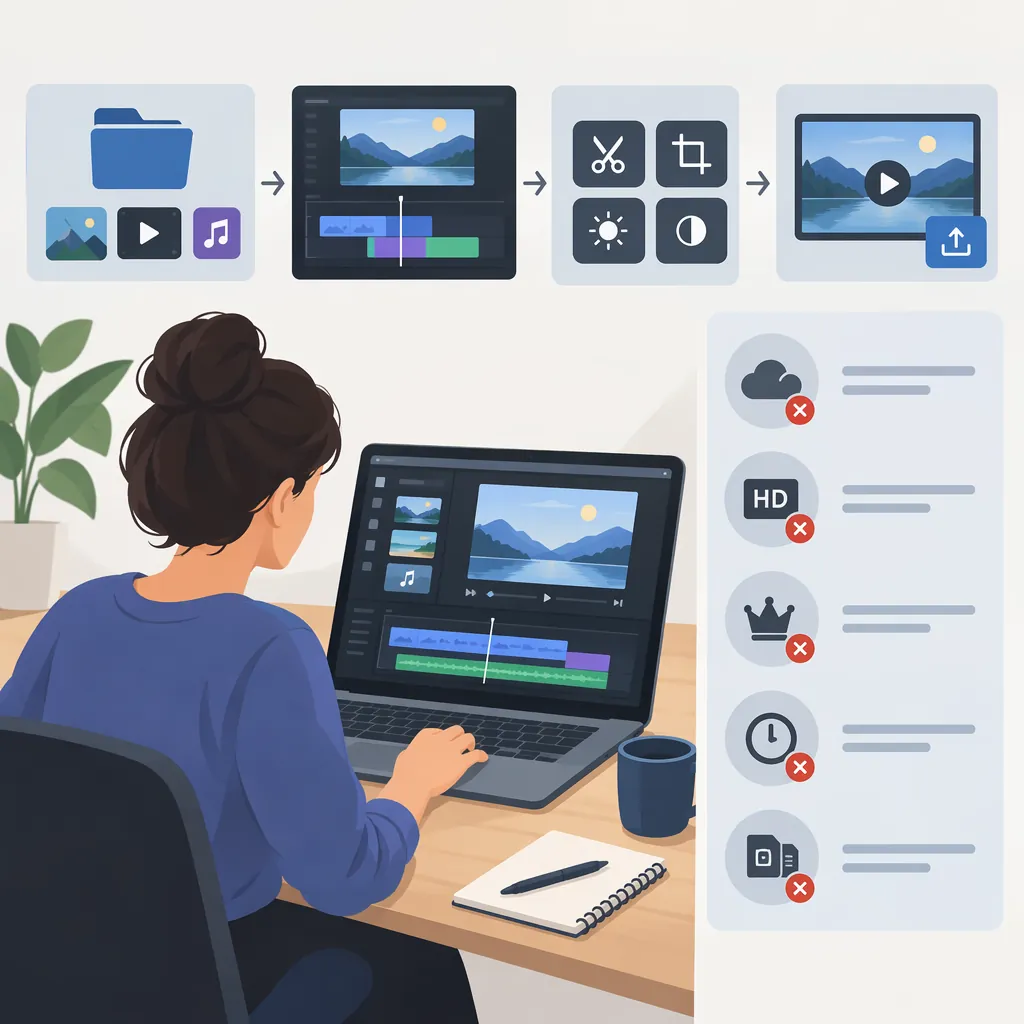
Clideo video editor is a browser-based editor that its official page describes as supporting a multitrack timeline, video, images, audio, and text. Its documented workflow is to upload media, arrange and edit it, then export the result. Account restrictions and available export settings need checking before a project; the supplied sources do not establish exact current prices or free-plan limits. [c1]
Understand the Editor and Separate Tools
Clideo’s official editor page describes a workspace for combining media on a multitrack timeline. It lists text formatting, manual positioning for picture-in-picture or split-screen compositions, aspect-ratio presets, and adjustments to speed, volume, brightness, and contrast. These are descriptions from the provider, not independently verified performance findings. [c1]
The integrated editor should be distinguished from Clideo’s separate task-specific tools. TechRadar’s March 2023 review discussed both: individual tools for operations such as compression or reversing a clip, and an Online Video Editor for assembling a project with multiple layers. Its observations describe the service at that time, not necessarily the current interface. [c2]
For planning purposes, distinguish a single-file operation from a composition task. A project that combines footage, titles, and audio needs a coordinated editing workflow; a single adjustment may not require that same setup.
Plan the Upload, Edit, and Export Workflow
The official page organizes editing into three stages: uploading media, arranging and modifying it, and exporting the result. It names device storage, Google Drive, and Dropbox as upload sources, and describes downloading an export or saving it to cloud storage. The supplied official editor page is in German, so interface labels in an English-language session may differ. [c1]
A practical workflow based on those stages is:
- Prepare the source files. Keep original copies, identify the intended clip order, and confirm that you have permission to use the footage and audio.
- Define the composition. Decide whether the output should be landscape, portrait, or square before positioning important subjects and text.
- Assemble a rough cut. Place the required media on the timeline and establish the sequence before fine-tuning individual clips.
- Refine the edit. Check framing, text timing, audio balance, and any speed or color adjustments.
- Review the export settings. Confirm the options actually offered for the account and project, rather than assuming a particular resolution is available.
- Inspect the downloaded file. Watch the exported video from beginning to end and check framing, sound, text readability, and any watermark.
These steps are an editing checklist, not a guarantee about processing speed, output quality, or compatibility.
Project Preparation Checklist
- [ ] Original media backed up.
- [ ] Media permissions checked.
- [ ] Intended clip order written down.
- [ ] Output orientation selected.
- [ ] Account-specific export and saving options checked.
- [ ] Short test export inspected.
- [ ] Final downloaded video reviewed.
Check Saving, Watermarks, and Export Options
Clideo’s official FAQ says Premium users can save projects in their profiles for later editing, while unregistered users must complete editing in one session. It also describes Premium as allowing larger uploads, longer project storage, and exports without an added watermark. The provided page does not specify exact current upload caps, storage durations, or subscription prices. [c1]
The official page also describes HD and 4K editing. That statement alone does not establish which resolutions a particular account can export, or guarantee that every source file will retain its quality. Check the available export options in the actual project. [c1]
TechRadar’s 2023 review reported free-plan restrictions and delays during its tests. Those findings are historical context: they should not be used as current pricing, file-size limits, or expected processing times. [c2]
Before committing to a lengthy edit, a short test project can help answer practical questions: Is the needed export setting available? Does the output contain a watermark? Can the project be reopened under the intended account? Does the exported file meet the destination’s requirements?
Use the Sources Within Their Limits
The supplied evidence includes Clideo’s German-language editor page, its English-language article index, and TechRadar’s dated review. The official page supports descriptions of the documented workflow, but it is a provider source rather than an independent test. The review supplies an outside assessment, but its age limits its usefulness for current interface and subscription details. [c1] [c2]
Clideo’s article index lists guides about subtitles, audio cleanup, aspect ratios, transitions, and other editing topics. An index establishes that those articles are listed; it does not establish their complete instructions or prove that every named feature is available under every account. [c3]
The provided references do not establish detailed privacy protections, upload-retention rules, current prices, or reliable processing-time estimates. For sensitive media or strict delivery deadlines, treat those as unresolved requirements rather than filling the gaps with assumptions.
FAQ
Does Clideo Video Editor Require a Desktop Installation?
Clideo’s official page describes the editor as running in a browser without a download or installation. It lists Mac, Windows, Android, and iOS, but the supplied material does not establish compatibility with every browser version or device. [c1]
Can a Project Include Music or Other Audio?
According to the official FAQ, audio options include uploading an audio file, selecting music from an integrated library, using sound effects, recording a voice, and generating speech. The supplied page does not establish licensing conditions for each audio source or account-level access to every option. [c1]
Can I Save a Project and Edit It Later?
The official FAQ says Premium users can save projects in their profiles for later editing, while unregistered users need to finish in one session. It does not give complete saving rules for every account type, so confirm the options available to your account. [c1]
What Are the Current Free-Plan Limits?
The supplied sources do not establish exact current free-plan limits. The official page describes some Premium differences, while TechRadar gives limits from March 2023. Those historical figures should not be treated as current upload, retention, or export rules. [c1] [c2]