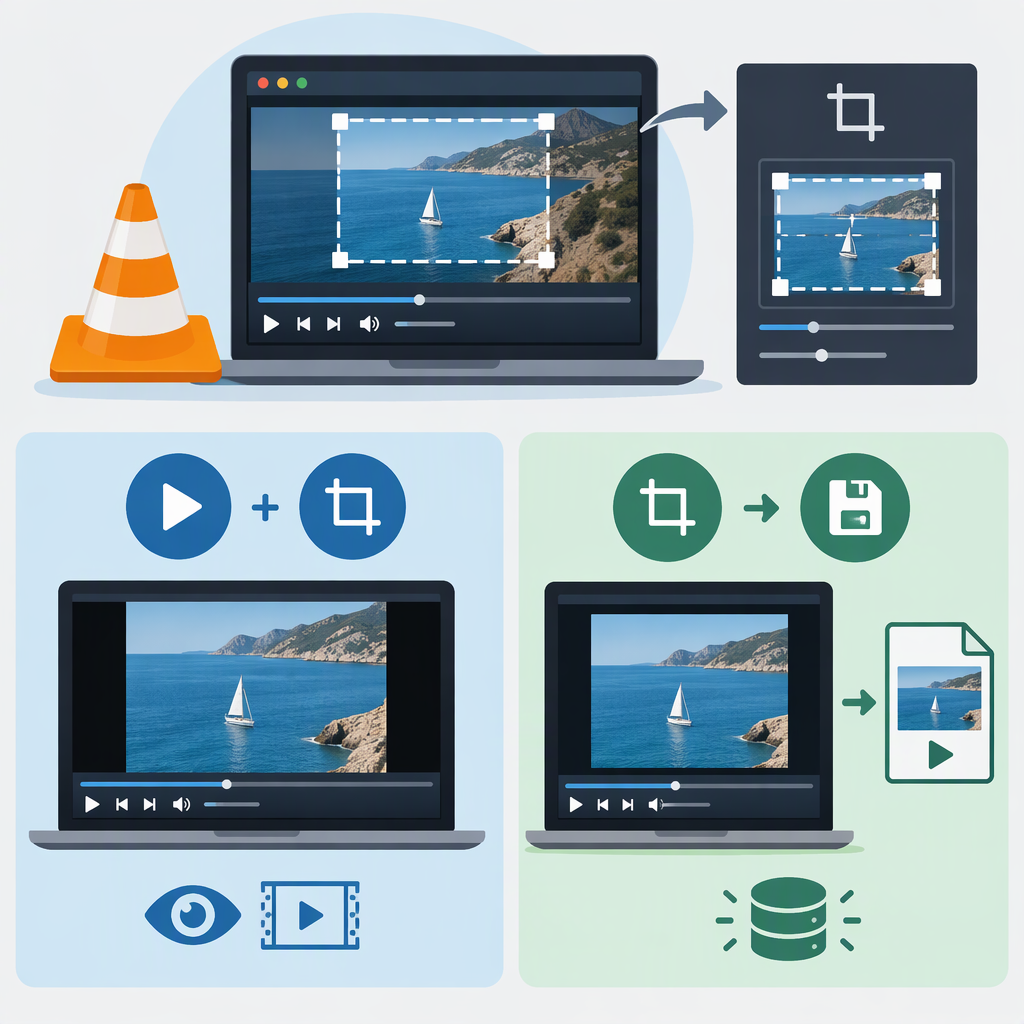
How to Crop a Video in Vlc: Playback Vs. Saving a Cropped File
Quick answer: To crop the picture while watching in VLC Desktop 3.0, open Video → Crop and choose a preset. To restore the default view, choose Video → Crop → Default. This changes how the video is displayed; it does not by itself create a permanently cropped video file. (docs.videolan.me)
These menu steps are for the VLC Desktop 3.0 documentation’s interface. Labels and layouts can differ in other VLC versions or on mobile.
Crop While Watching in Vlc
- Open and play your video.
- Select Video → Crop.
- Choose a crop preset, such as 16:9, 4:3, or 1:1.
- Watch the picture and try another preset if the framing is not what you want.
- To return to the default framing, select Video → Crop → Default.
VLC’s Desktop 3.0 documentation lists the available crop presets and says to select one from the Video → Crop menu. Cropping removes parts of the image; it is not the same as merely resizing the player window. (docs.videolan.me)
Example: If a video has black bars above and below the picture, try a crop preset and check whether the bars disappear without cutting off important content. VLC’s documentation specifically mentions cropping as a way to crop black bars. (docs.videolan.me)
The documentation identifies Default as a crop-menu option, so it is the menu choice to use when you want to restore the default crop view. It does not specify whether a selected preset carries over to other videos or remains after restarting VLC; if that matters, check the next video rather than assuming the setting is temporary.
Does Vlc Save the Cropped Video?
Choosing a crop preset during playback does not, by itself, export an edited copy. VLC documents playback cropping separately from conversion. Its conversion workflow saves a destination file, but choosing a conversion profile alone does not establish that a playback crop will be included in that output. (docs.videolan.me)
VLC’s documentation does list crop/padding filters for use during transcoding, and describes transcoding as a way to apply a filter or effect while creating output. That means a crop can be part of an advanced transcode workflow. However, the referenced documentation does not give a complete, version-specific crop-and-save recipe with verified settings, so this guide does not offer a copy-and-paste export command or claim that the playback menu will make a permanent edit. (wiki.videolan.org)
If you need a dependable saved crop and do not already know VLC’s advanced transcoding settings, use a video editor with an explicit crop-and-export workflow. Keep the original file and check the exported video in a separate playback session to confirm the framing is actually baked into the output.
Crop, Aspect Ratio, and Resizing Are Different
Cropping removes image edges. Changing Video → Aspect Ratio changes the displayed width-to-height relationship, while resizing changes the display size. If your goal is to hide black bars by removing picture edges, use Crop, not Zoom or a player-window resize. VLC lists aspect ratio and crop as separate video-menu controls. (docs.videolan.me)