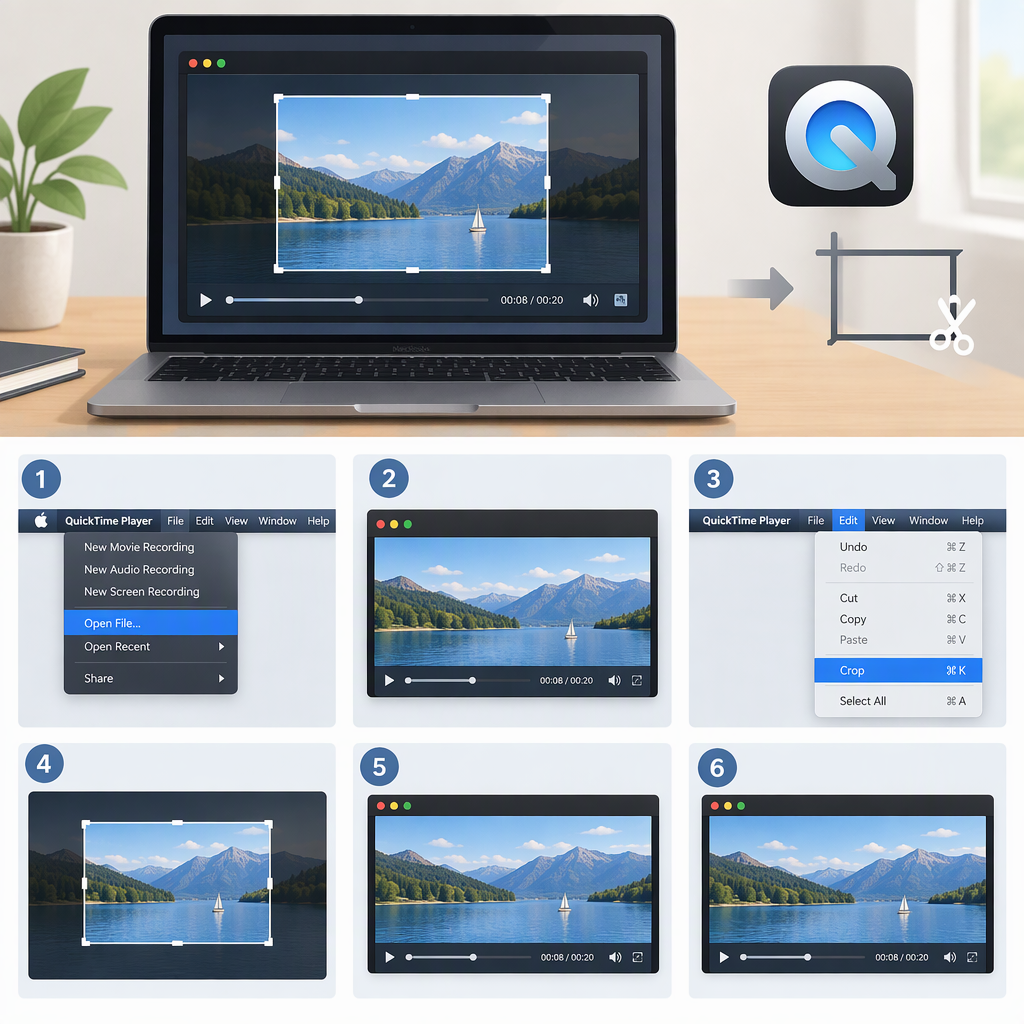
How to Crop a Video in Quicktime Player on Mac
Can You Crop a Video in Quicktime Player?
No—not using the video-editing controls documented in Apple’s QuickTime Player guide for Mac. The guide explains how to trim, split, rearrange, and rotate or flip clips, but it does not document a control for cropping the video’s visible frame. QuickTime’s Edit > Trim command shortens a movie by removing material from its beginning or end; it does not reframe the picture. (support.apple.com)
Cropping changes which part of the image appears in the frame. Trimming changes the clip’s duration. If you want to remove unwanted material at the start or end, QuickTime Player’s trim tool may be enough. If you want to cut off the edges of the picture or reframe the subject, use a video editor with a crop control.
Crop and Export the Video with iMovie on Mac
Apple documents crop controls and file export in iMovie for Mac. To crop a video and save a finished copy:
- In iMovie, choose Create New > Movie.
- Import your video, then add it to the project timeline.
- Select the clip in the timeline and click the Cropping button.
- Click Crop to Fill. Adjust the crop frame over the viewer to choose the visible area, then click Apply.
- Export the result using File > Share > File, then choose a name and save location in the export dialog. (support.apple.com)
Aspect-ratio note: iMovie’s documented Crop to Fill frame is constrained to 16:9. That works for cropping within a widescreen frame, but it may not give you the vertical or custom-shaped output you want. (support.apple.com)
Quicktime Trimming Is Not Video Cropping
Use QuickTime Player’s trim control when the unwanted material is at the beginning or end of the clip: open the movie, choose Edit > Trim, adjust the yellow handles, and click Trim. To change what is visible within the picture instead, use a crop tool such as iMovie’s. (support.apple.com)