How to Crop a Video on Google Pixel Using Google Photos
To crop a video on Google Pixel, open it in Google Photos and tap Crop. If your layout shows an Edit button first, tap Edit, then Crop. Use Aspect ratio to choose the frame shape, review the crop, and save a copy. Google’s current guide labels the final button Save; Vimeo’s Android walkthrough uses Save copy. [c1] [c2]
Crop Your Video in Google Photos
Google’s Android instructions document cropping in Google Photos. Vimeo’s walkthrough includes an Edit step before opening Crop, so the two sources show slightly different editor paths. [c1] [c2]
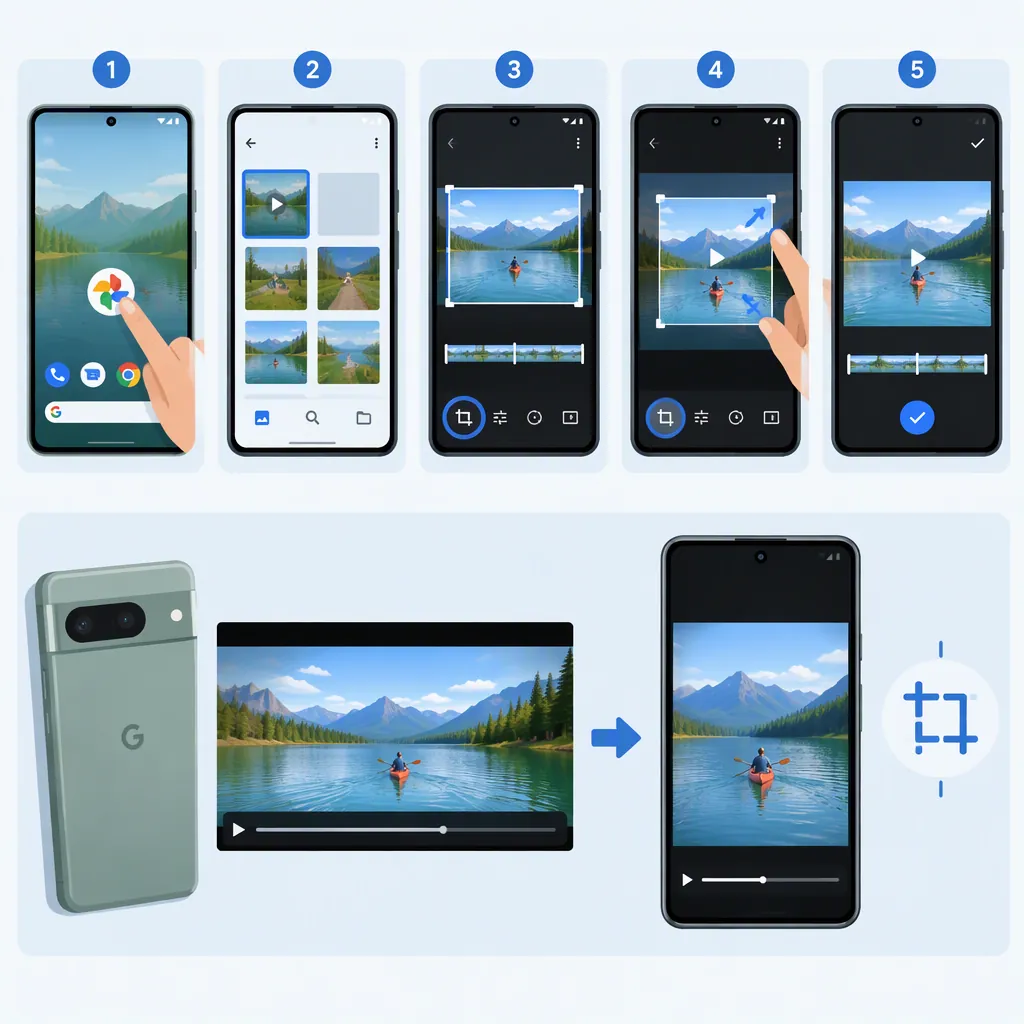
- Open Google Photos on your Pixel.
- Open the video you want to crop.
- Tap Crop. If you see an Edit button instead, open it and then select Crop.
- Tap Aspect ratio to choose a different frame shape, such as a square.
- Review the framing before saving. Check that the parts you want to keep remain inside the crop.
- Save the edited copy. Google’s current instructions say to tap Save at the top; Vimeo’s walkthrough says Save copy. Both describe saving a copy rather than replacing the original. [c1] [c2]
Before-Saving Checklist
- Confirm that the frame shape suits your intended use.
- Preview the clip and check that moving subjects remain inside the crop.
- Check any text or important details near the edges.
- Save the edited copy, then review the result.
Choose an Aspect Ratio or a Custom Crop
An aspect-ratio preset gives the crop a defined shape. Google’s guide names a square as an example. Vimeo’s Android walkthrough lists Square, 16:9, 4:3, and 3:2, along with a Free option for adjusting the crop box. Those examples are not a guarantee that every Pixel editor layout will show the same menu. [c1] [c2]
If Free appears in your editor, Vimeo describes using the controls along the sides of the crop box to adjust the ratio. Otherwise, use the aspect-ratio options available in your layout. [c2]
As a practical framing check, preview more than the first frame: a crop that looks right at the beginning may cut off a subject later. Choose the frame based on what needs to remain visible, not just its shape.
Cropping, Trimming, and Rotating Are Different
Cropping changes the visible frame. Use Crop when you want a different frame shape or want to exclude something near an edge. Google documents this separately from trimming. [c1]
Trimming changes the clip’s length. To shorten the beginning or end, Google instructs you to touch and hold, then drag the trim handles to select the portion you want to keep. Save a copy afterward. [c1]
Rotating changes orientation. Within Crop, Google documents a Rotate control for 90-degree turns and a dial for minor straightening adjustments. It also lists Auto straightening, but notes that availability depends on the video. [c1]
If You Cannot Find the Crop Controls
First, compare both documented paths: Google’s current guide says to open the video and tap Crop, while Vimeo’s walkthrough says to tap Edit before Crop. Google also describes a refreshed editor with tools on a scrollable action bar, so check that bar for the control. [c1] [c2]
Google lists at least 1 GB of RAM and Android 6.0 or later as requirements for cropping, straightening, and filters. These are general Android requirements, not a model-by-model Pixel compatibility list. [c1]
The provided sources do not diagnose every case where a control is missing or a save fails. They also do not specify the cropped video’s output resolution, file size, or processing time, so no particular result for those properties is guaranteed here.
FAQ
Does Cropping Replace My Original Video?
The provided instructions describe saving an edited copy. Google labels the action Save, while Vimeo uses Save copy and explicitly says both the original and cropped versions remain in Google Photos. [c1] [c2]
How Do I Shorten a Video Instead of Cropping It?
Use the trim handles rather than Crop. Google says to touch and hold, then drag the handles to select the portion of the video you want to keep, and tap Save to save a copy. [c1]
Do I Need Another App to Crop a Video on Pixel?
You can use Google Photos for this task; a separate video editor is not required for the documented crop workflow. The Google Photos app must be installed, and Google lists device requirements for the feature. [c1]