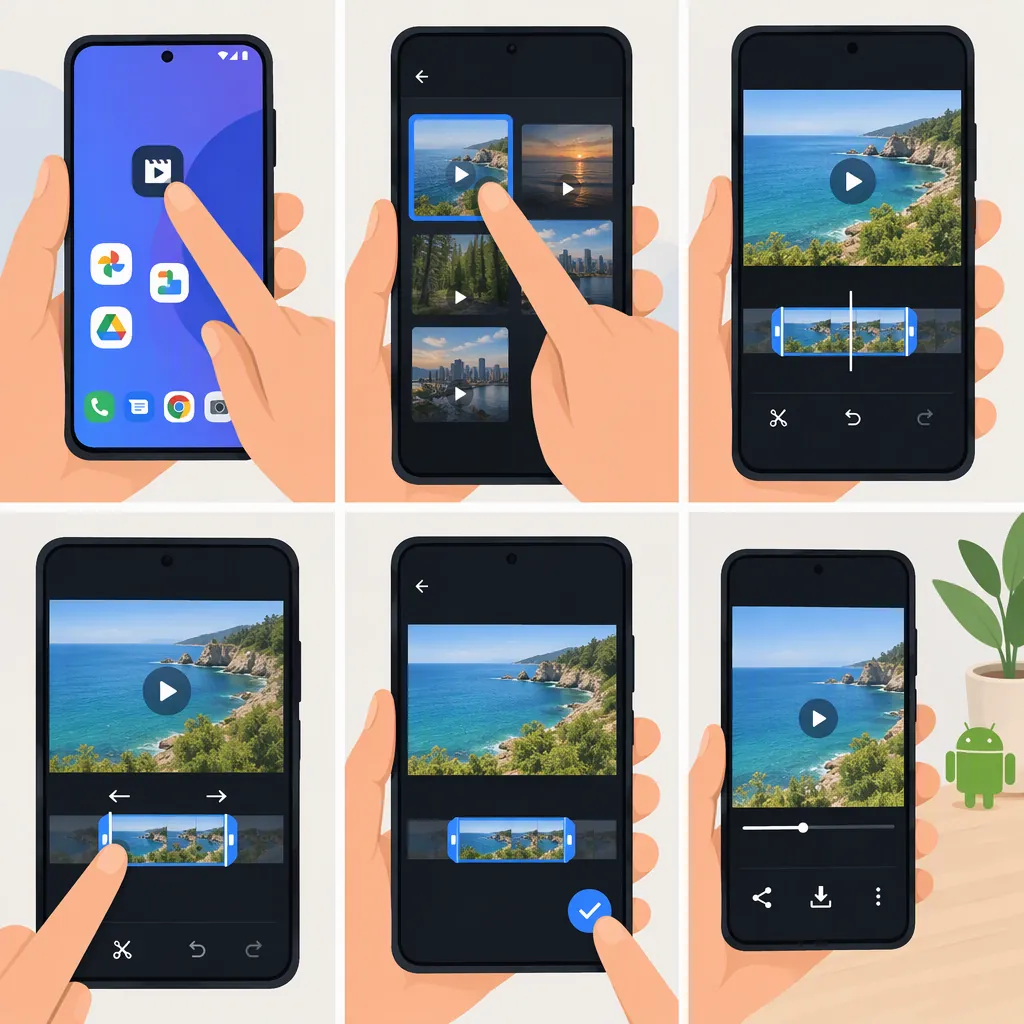
How to Trim a Video on an Android Phone
In Google Photos on your Android phone, open the video you want to shorten. Touch and hold the trim handles, then drag them to select the portion you want to keep. Tap Save at the top to save a copy with your edits. These steps follow Google’s documented Google Photos workflow, not every Android gallery app. [c1]
Trim a Video in Google Photos
Google’s Android instructions describe selecting the portion of a video to keep with trim handles. [c1]
- Open the Google Photos app on your Android phone.
- Open the video you want to trim.
- Touch and hold the trim handles, then drag them to select the portion you want to keep.
- Tap Save at the top to save a copy of the video with your edits. [c1]
Choose a starting point just before the action or speech you need, and an ending point after it finishes. Before saving, review your selection so you do not accidentally cut off a word or an important moment.
These instructions are specific to Google Photos. They do not establish the button names or workflow in your phone manufacturer’s gallery app.
Trim Review Checklist
- Identify the first moment you want to keep.
- Identify the last moment you want to keep.
- Select that portion with the trim handles in Google Photos. [c1]
- Review the opening and closing moments for cut-off speech or action.
- Tap Save to save an edited copy. [c1]
- Open the saved copy and check that it contains the intended segment.
Choose Trim, Not Crop
For shortening the video’s duration, use the trim handles. Google documents Crop separately as the tool for changing the picture’s aspect ratio, such as making it square. [c1]
If your goal is only to remove unwanted footage at the beginning or end, follow the trimming workflow above rather than changing the frame’s shape.
The cited trimming instructions describe keeping one selected portion. They do not provide a procedure for removing a section from the middle while joining the footage before and after it. [c1]
If the Editing Controls Are Unavailable
First, check that you are using Google Photos, since these steps are not instructions for every Android video app. Google lists downloading and installing Google Photos under its requirements. [c1]
Device limitations also matter. The cited help page states that non-Pixel Android devices running Android 9 do not support or have access to video editing. It lists additional requirements for certain tools, including crop, straighten, filters, and adjustments. [c1]
Do not assume that a requirement for one editing tool applies to every other tool. The source does not give a separate minimum-device requirement specifically for basic trimming. [c1]
FAQ
Does Google Photos Save the Trimmed Video as a Copy?
Yes. Google’s Android instructions describe tapping Save at the top to save a copy of the video with your edits. After saving, check the edited copy before deciding whether to delete any other version. [c1]
Should I Use Trim or Crop to Make a Video Shorter?
Use the trim handles to shorten the video’s duration. Crop changes the picture’s aspect ratio, such as making the frame square; it is documented as a separate operation. [c1]
Can These Steps Remove a Section from the Middle of a Video?
These steps cover selecting one portion to keep. The cited Google Photos instructions do not document removing an internal section and joining the footage on either side, so this guide does not establish a workflow for that edit. [c1]