How to Make a TikTok Video: A Beginner’s Guide, Including YouTube Clips
If you’re searching for “YouTube how to make a TikTok video,” you might mean either a tutorial for making a TikTok or a way to adapt footage from YouTube. This guide covers the TikTok workflow first, then briefly explains what changes when you reuse existing footage.
How to Make and Publish a TikTok Video
- Choose one idea. Write down the single point, demonstration, or story the viewer should take away. If you have several ideas, make separate videos rather than squeezing them all into one.
- Plan a simple opening and sequence. Note the first thing viewers will see or hear, the few steps or moments that follow, and how you’ll end. For a demonstration, that could be: show the finished result, demonstrate two steps, then show the result again. This is a planning example, not a TikTok requirement.
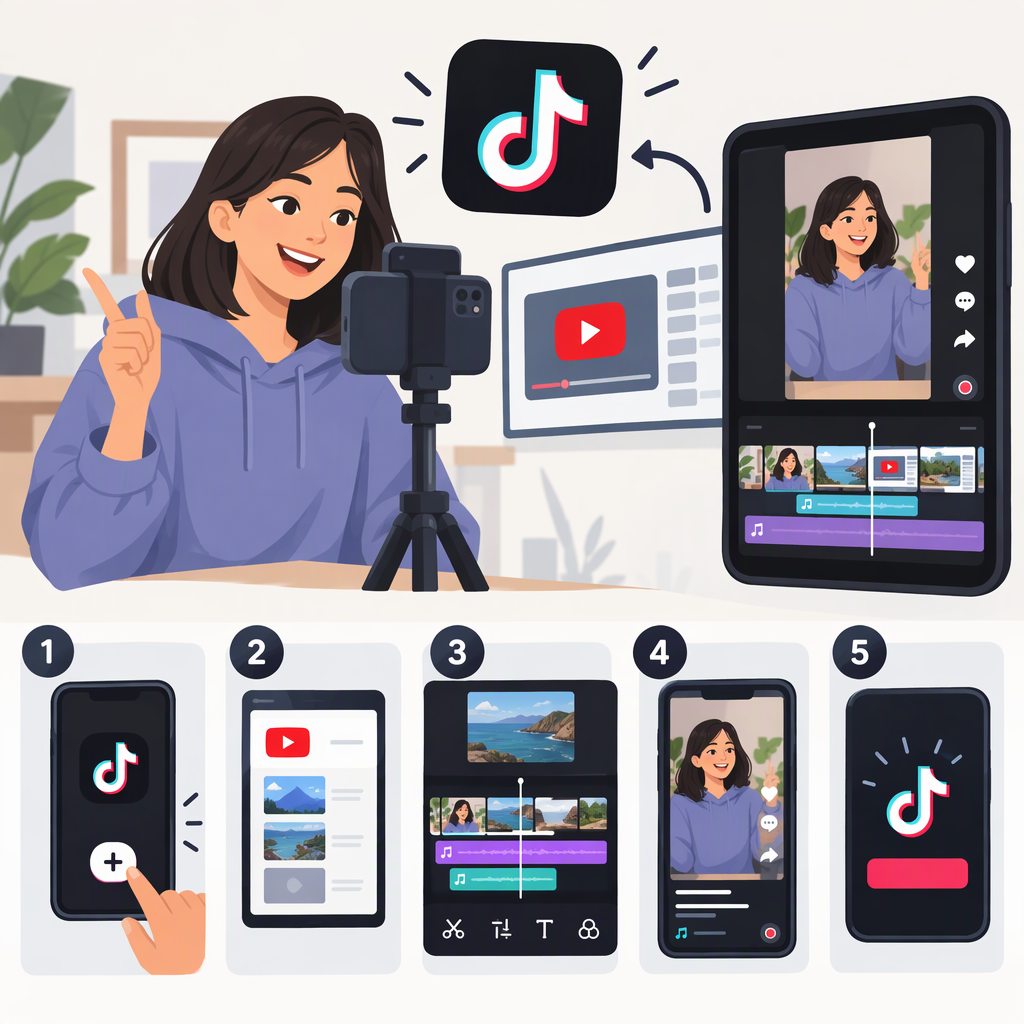
- Record in TikTok or prepare a clip to upload. In the TikTok app, tap Add post +. Choose a video length, then record and tap Continue; or tap Upload to choose footage on your device. TikTok’s help page describes both routes. (tiktok.com)
- Edit for clarity. Keep the parts that deliver your main point and remove pauses or repeated moments. TikTok’s documented post flow includes options such as filters, sound, text, stickers, effects, and advanced editing tools. Use only the edits that help viewers follow along; effects are optional. (tiktok.com)
- Review before publishing. Play the video through once. Check that the opening makes sense, the key moment is visible or audible, any text is readable, and the ending feels complete. If you need time to review, TikTok says you can save a draft instead of posting immediately. Drafts are visible only to you on your profile. (tiktok.com)
- Add post details and publish. Tap Next to make further edits and add details such as a description or hashtags. Review the privacy setting before you post: TikTok notes that a new post retains the privacy setting used for your previous post. Tap Post to publish, or Drafts to save it for later. (tiktok.com)
Record in TikTok or Edit Elsewhere?
Choose the in-app route if you want a straightforward path from recording or uploading to TikTok’s editing and posting screens. Choose an external recording or editing workflow if you prefer to prepare and review a finished clip before uploading it. The practical trade-off is convenience versus how much control you want over your editing process; neither route is automatically better. TikTok’s documented flow supports recording in the app or uploading a video from your device, but the right choice depends on your own workflow. (tiktok.com)
For example, if you’re making a short cooking demonstration and want to trim it before it reaches TikTok, you could edit the footage elsewhere and upload the finished clip. If you’d rather make and adjust the video in one posting flow, you could record in TikTok and edit there. These are workflow examples, not claims that one method produces better results.
If You Mean Turning a YouTube Video into a TikTok
First ask whether the footage is yours or you have permission to reuse it. YouTube explains that its standard license is the default for uploads; a video being publicly viewable does not by itself mean you have permission to reuse it. Some videos may have a Creative Commons Attribution license, which has its own terms, including attribution requirements. (support.google.com)
If you’re entitled to use the footage, choose a moment that can make sense on its own. Recut it around one point, and consider whether the framing or sequence needs adjusting for the new post. Those are editorial choices, not platform format rules. Then upload the clip using the TikTok posting steps above and review how it looks before publishing. If you’re unsure about the applicable rights or license terms, don’t assume that reposting is allowed; YouTube notes that rules can vary by region and recommends seeking legal advice when needed. (support.google.com)
Quick Pre-Post Check
- Does the video communicate one clear idea?
- Can viewers follow the sequence, and is any on-screen text readable?
- Have you watched the finished video all the way through?
- Is the post’s privacy setting the one you intend?
- If you reused footage or audio, have you checked the relevant permission or license terms?
TikTok’s buttons and screens may change over time. If the labels in your app differ, use TikTok’s current Help Center guidance for the posting steps rather than relying on an old menu path.