How to Make a Video Channel on YouTube
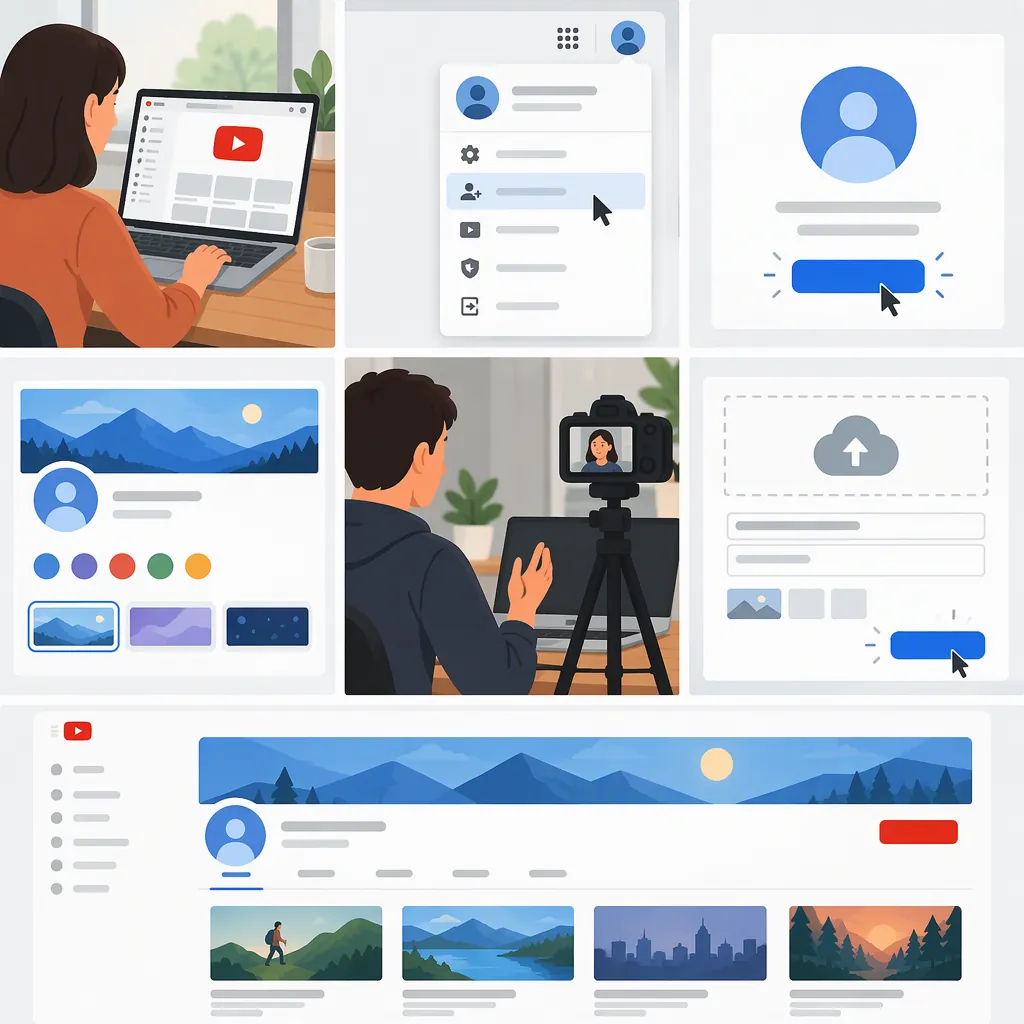
To make a video channel on YouTube, sign in with a Google account, complete the channel-creation prompts, choose your public channel identity, and add a description and artwork. You can then upload your own videos. The supplied setup guide supports this general sequence, but its screenshots and menu instructions reflect an older interface, so follow the prompts shown in YouTube today rather than expecting identical buttons. [source_1]
What to Prepare Before You Start
A YouTube channel is the public home for the videos you share. Digital Unite’s guide describes signing in with a Google account before setting up that channel. For its computer-based walkthrough, it specifies an internet connection and a browser. [source_1]
Before opening the setup screen, prepare:
- A proposed channel name that reflects your subject or identity.
- A short description explaining what viewers can expect.
- A profile image you are comfortable displaying publicly.
- An optional first video that you created and intend to share.
Treat these as planning choices, not a verified list of required fields. Avoid putting personal information in your proposed public profile unless you deliberately want to share it.
Channel Planning Worksheet
Fill in this worksheet before setup:

- Proposed channel name: __________
- Main subject: __________
- Intended audience: __________
- Description draft: This channel covers __________ for __________.
- Profile image choice: __________
- Personal details to keep out of the public profile: __________
- Optional first video: __________
Create Your Channel
Use the following as a general setup sequence, not a verified description of today’s exact interface:
- Open YouTube and sign in. Use your Google account. If you do not have one, follow the account-creation prompts available during sign-in.
- Begin channel setup. Look for the channel-creation option in the interface. The supplied guide begins this step through an Upload button, but that route should not be treated as a confirmed current instruction.
- Review your public identity. Enter the channel details requested on screen. Check the spelling of your name and consider whether it communicates your planned content.
- Complete the prompts. Review what will be public before confirming.
- Open your channel page. Check that the displayed identity is the one you intended. [source_1]
Source limitation: Digital Unite’s walkthrough explicitly uses Windows 7 and Internet Explorer and refers to a Google+ profile. Those details make it unsuitable as a verified current click-by-click guide. The supplied evidence does not establish today’s exact menu labels or required fields. [source_1]
Finish Your Public Profile
After creating the channel, review its description and visual identity. Digital Unite describes adding a written description, channel artwork, and optional links as finishing touches. It also recommends checking how the channel looks to the public. [source_1]
For a clear description, explain the subject and type of videos you plan to share. Avoid promising an upload schedule unless you have decided on one.
Review the profile as a viewer would: Is the name recognizable? Does the description explain the subject? Do the images contain details you would rather keep private? The guide names a “View as public” control, but its availability and wording are not verified for the current interface.
Prepare Your First Video
Channel creation and video uploading are separate parts of the guide’s sequence: it describes completing setup before uploading a video to the channel. [source_1]
Before your first upload, watch the file from beginning to end. Check that the audio is understandable, the video is the intended version, and no private information appears unintentionally.
When uploading, read the options shown in the current interface rather than relying on the old guide’s button names. Review the publication and visibility choices before confirming. The supplied references do not verify current upload limits, eligibility rules, or the complete publication workflow.
FAQ
Do I Need a Google Account to Create a YouTube Channel?
The supplied guide instructs you to sign in with a Google account. It also describes creating an account during sign-in if you do not already have one. Follow the prompts currently displayed rather than expecting the guide’s older screens. [source_1]
What Should I Put in My Channel Description?
Describe the subject and kinds of videos you intend to share. Digital Unite identifies a written description of the channel and its video genre as a finishing touch. A useful draft is: “This channel covers [subject] for [audience].” [source_1]
What If My YouTube Buttons Look Different?
Do not assume you have made a mistake. The supplied walkthrough uses Windows 7 and Internet Explorer and includes Google+ wording. Use it for the general setup sequence, not as verification of today’s exact buttons, menus, or fields. [source_1]