How to Make Original YouTube Shorts Step by Step
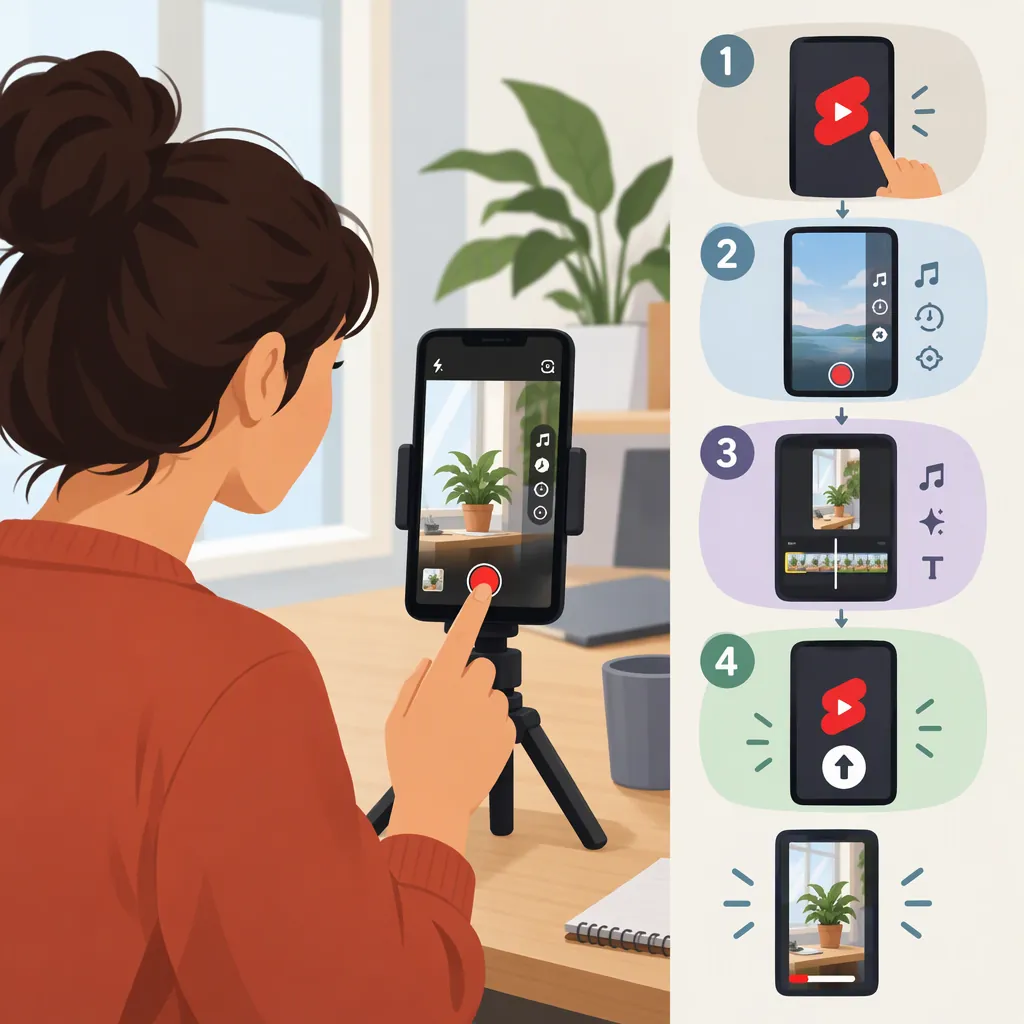
To make a YouTube Short, plan one clear idea, then record your own footage or prepare a vertical video. In the YouTube app, sign in, tap Create, select Short, and record. Preview and edit the video, tap Next, add a title, choose privacy and audience settings, then tap Upload Short. YouTube’s getting-started guide describes Shorts creation tools for videos up to three minutes long. [yt-help]
1. Plan One Original Idea
Start with a single question, demonstration, or observation that you can explain without extra background. For a first project, consider showing a process you can film yourself: folding a paper bookmark, organizing a drawer, or demonstrating a drawing technique.
Write the ending first: what should the viewer understand or see when the video finishes? Then plan an opening that introduces that result and a middle that shows the necessary steps. This is a suggested storytelling structure, not a formula for views.
Use your own footage and narration where possible. If you include someone else’s footage, images, or music, check the applicable permissions and terms rather than assuming that online availability means permission to reuse.
Fill-In Script and Shot Plan
Topic: [One process or question]
Viewer takeaway: [What the viewer will learn]
Opening shot: [Show the result or the problem]
Opening line: [Explain what this video demonstrates]
Middle shots: [Show the necessary steps in order]
Narration: [Describe each visible action briefly]
Closing shot: [Show the finished result]
Materials check: [List footage, images, and audio; note ownership or permission]
2. Record or Import Your Footage
You can record a Short in the YouTube mobile app or upload a vertical video saved on a smartphone or computer. The official guide describes creation tools supporting videos up to three minutes long. [yt-help]
For the in-app route:
- Sign in to the YouTube app.
- Tap Create, then select Short.
- Adjust the duration control if needed.
- Hold Capture to record, or tap it to start and tap again to stop.
- Record additional segments as needed; use Undo to remove the previous recorded clip. [yt-help]
For a separately edited video, film vertically and keep the important action within the frame. Before recording the full sequence, make a short test: listen for distracting noise, check whether the subject is clearly visible, and confirm that your hands or tools remain in view.
YouTube also describes timer and recording-speed controls. A timer can be useful when you need both hands in the shot. [yt-creators]
Recording Test Checklist
- Record a short sample of the actual action.
- Play it back with sound.
- Check that speech is understandable.
- Check that the subject and necessary details are visible.
- Remove distracting objects or private information from the background.
- Reposition the phone or light before recording the full sequence.
3. Edit for Clarity
After recording, tap Done to preview the video. YouTube’s help guide describes options to add sounds, text-to-speech, and effects before continuing to the details screen. Its creator overview also describes trimming, voiceovers, and automatic captions. [yt-help] [yt-creators]
Review the sequence as an explanation, not just a collection of clips:
- Remove setup footage that does not help explain the idea.
- Keep each action long enough to understand before cutting away.
- Add brief text for details that are difficult to hear or see.
- Review any generated captions and correct mistakes where your editing workflow permits.
- Listen to the final mix so background audio does not obscure speech.
- Watch once without sound to check whether the essential steps remain understandable.
Music is optional. YouTube provides an Add sound workflow, but the supplied references do not establish every track’s permitted duration or reuse conditions. Check the terms for the specific audio rather than treating access to a track as unrestricted permission. [yt-creators]
4. Review Settings and Upload
Tap Next to open the video-details screen. YouTube’s guide specifies a title limit of 100 characters and describes privacy and audience settings. Choose the appropriate made-for-kids designation, then tap Upload Short, or save a draft if you need more time. [yt-help]
Write a title that accurately names the subject. For the illustrative bookmark project, a title such as “How to Fold a Paper Corner Bookmark” describes the content without promising an outcome beyond the demonstration.
Check visibility explicitly rather than relying on defaults. The help guide lists public, private, and unlisted options and notes that default privacy differs by creator age. It also states a maximum Shorts upload resolution of 1080p. [yt-help]
These steps follow the supplied YouTube documentation. If your screen differs, use the controls available in your app; this article does not verify every device-specific layout or feature.
Pre-Publish Checklist
- The title accurately describes the finished video.
- The full video has been reviewed with sound.
- Text has been checked for spelling and readability.
- Footage and audio permissions have been reviewed.
- No unintended private information is visible or audible.
- The audience designation is appropriate.
- Visibility is deliberately set to public, private, or unlisted.
- Save a draft instead of uploading if any check remains unresolved.
5. Review Results Without Assuming a Formula
YouTube distinguishes overall Shorts views from Engaged views. Since March 31, 2025, overall views count starts and replays without a minimum watch-time requirement. Engaged views retain the measure of viewers who chose to continue watching, and YouTube recommends using them to compare Shorts performance. [yt-help]
For your next video, identify one production change to test: a clearer opening, a closer demonstration shot, or less background noise. Keep a brief note about what changed so comparisons have context.
The supplied official references do not establish a universal posting time, guaranteed opening length, or editing technique that ensures reach. Treat creative choices as experiments rather than promises.
FAQ
How Long Can a YouTube Short Be?
The supplied YouTube getting-started guide describes Shorts creation tools for videos up to three minutes long. You do not need to use the full duration; plan enough time to communicate your idea clearly. [yt-help]
Can I Make a YouTube Short on a Computer?
Yes. YouTube’s guide says you can upload vertical videos saved on a computer or smartphone as Shorts. You can prepare your footage in a separate editor before uploading. The supplied guide does not provide a complete desktop-specific upload walkthrough. [yt-help]
Do I Need Music in My Short?
No. Music is an optional creative choice. YouTube describes adding sound as part of its creation workflow, but a demonstration can instead use your narration or recorded sound. Check any selected audio’s applicable terms before using it. [yt-creators]
Can I Save a Short Before Publishing?
Yes. YouTube’s guide describes saving edits when exiting the recording stage and a Save draft option at the final upload stage. A draft gives you an opportunity to review the video before publishing. [yt-help]
Sources
-
[yt-help] Get started creating YouTube Shorts - YouTube Help
-
[yt-creators] Create Shorts on YouTube | YouTube for Creators