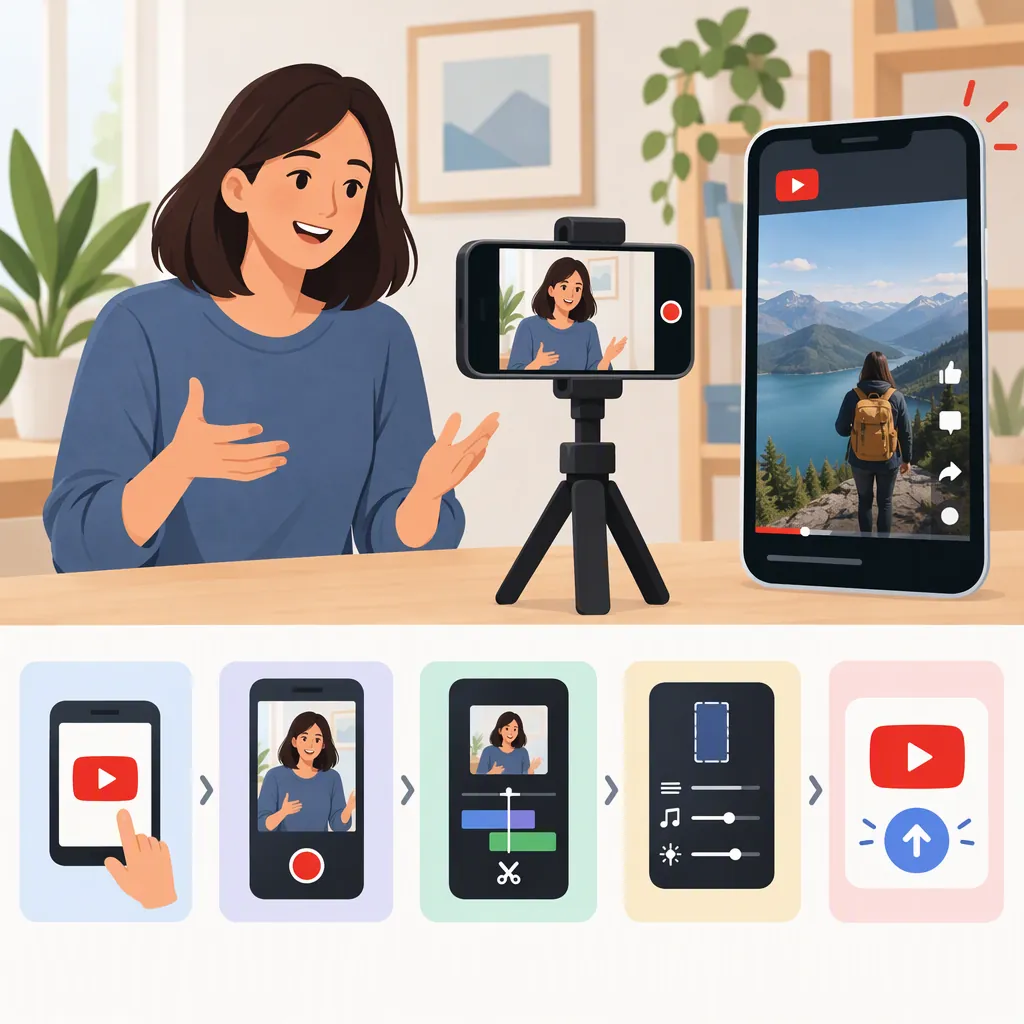
How to Make Reels on YouTube Using YouTube Shorts
If you mean short-form videos by “reels on YouTube,” use YouTube Shorts. You can record a Short in the YouTube mobile app or upload a vertical video saved on your phone or computer. YouTube’s Shorts creation tools support videos up to three minutes long. To record in the app, sign in, tap Create, select Short, capture your clips, preview and edit them, then add your title, privacy, and audience settings before publishing. [yt-shorts]
Plan One Original Idea
YouTube calls its short-form video format Shorts. Its official guide describes both recording in the app and uploading a saved vertical video. [yt-shorts]
For an original first video, choose one small idea rather than a broad topic. A single demonstration, a quick explanation, or a before-and-after process gives you a manageable starting point.
Try this simple structure:
- Opening: Show what the video will explain or demonstrate.
- Middle: Present the essential steps using your own footage and narration.
- Ending: Show the result or summarize the main takeaway.
The structure is an editorial suggestion, not a platform requirement or a promise of more views. Aim for the length your idea needs rather than filling the entire available duration.
Original Short Planning Template
Topic: ______
One thing the viewer should understand: ______
Opening shot or sentence: ______
Essential shot 1: ______
Essential shot 2: ______
Essential shot 3: ______
Closing result or takeaway: ______
Footage, narration, and other materials to prepare: ______
Record a Short in the YouTube App
The official YouTube Help workflow is: [yt-shorts]
- Sign in to the YouTube app.
- Tap Create, then select Short.
- Hold Capture, or tap it to start recording and tap again to stop.
- Adjust the duration using the control in the upper-right corner if needed.
- Record additional clips to build your sequence.
- Use Undo to remove the previous recorded clip or Redo to restore it.
- Tap Done when you are ready to preview.
As a filming practice, keep the subject easy to see, use a steady position, and record a brief audio test before capturing the full explanation. These are production suggestions, not YouTube upload requirements.
If you prefer editing outside the app, you can instead prepare a vertical video on your phone or computer and upload it as a Short. The supplied guide confirms that option but does not provide the complete desktop upload workflow. [yt-shorts]
Edit for Clarity Before Publishing
YouTube’s guide lists music, filters, and effects among the recording options. After tapping Done, you can preview the video and add sounds, text-to-speech, and other effects. [yt-shorts]
Review your Short with a specific purpose:
- Remove pauses or repeated explanations that do not help the idea.
- Check that the opening accurately describes what follows.
- If you add text, make it readable and leave enough time to understand it.
- Listen for narration that is difficult to hear.
- Check the final shot so the explanation feels complete.
Effects are optional. For a demonstration or tutorial, consider keeping the original footage and explanation more prominent than decorative edits.
The supplied source describes available editing features, but it does not establish music licensing terms for every track or reuse scenario. Do not treat the presence of a music option as evidence of permission for uses beyond those documented.
Set Details and Publish Your Short
After previewing, tap Next to add video details. YouTube’s guide specifies a title limit of 100 characters and lets you choose the video’s privacy setting. Select the appropriate audience option, then tap Upload Short to publish or Save draft to keep working later. The guide also states a maximum Shorts upload resolution of 1080p. [yt-shorts]
Use a title that describes the actual content. Before publishing, verify the privacy setting rather than assuming the video will be public: YouTube documents different default privacy settings depending on the creator’s age. [yt-shorts]
This guide follows the supplied YouTube Help page. It does not provide a complete account-specific troubleshooting guide or guarantee that every feature will appear identically in your app.
Pre-Publication Checklist
- [ ] The video communicates one clear idea.
- [ ] The footage and narration match the title.
- [ ] Added text is readable during playback.
- [ ] Audio has been checked from beginning to end.
- [ ] The title is no longer than 100 characters.
- [ ] The privacy setting is the one intended.
- [ ] The audience selection has been reviewed.
- [ ] Publish now or save as a draft has been deliberately chosen.
FAQ
What Are Reels Called on YouTube?
For the short-form video format covered here, YouTube uses the name YouTube Shorts. Its guide explains how to record Shorts in the mobile app or upload saved vertical videos. [yt-shorts]
How Long Can a YouTube Short Be?
The supplied YouTube Help guide says its Shorts creation tools support videos up to three minutes long. A shorter video is also an option; choose the duration that fits your idea. [yt-shorts]
Do I Have to Record My Short Inside YouTube?
No. YouTube’s guide says you can upload vertical videos saved on your smartphone or computer as Shorts. The provided source does not include all upload steps for each device. [yt-shorts]
Can I Save a Short Without Publishing It?
Yes. The documented workflow includes saving and exiting during creation, as well as a Save draft option on the final details screen. [yt-shorts]