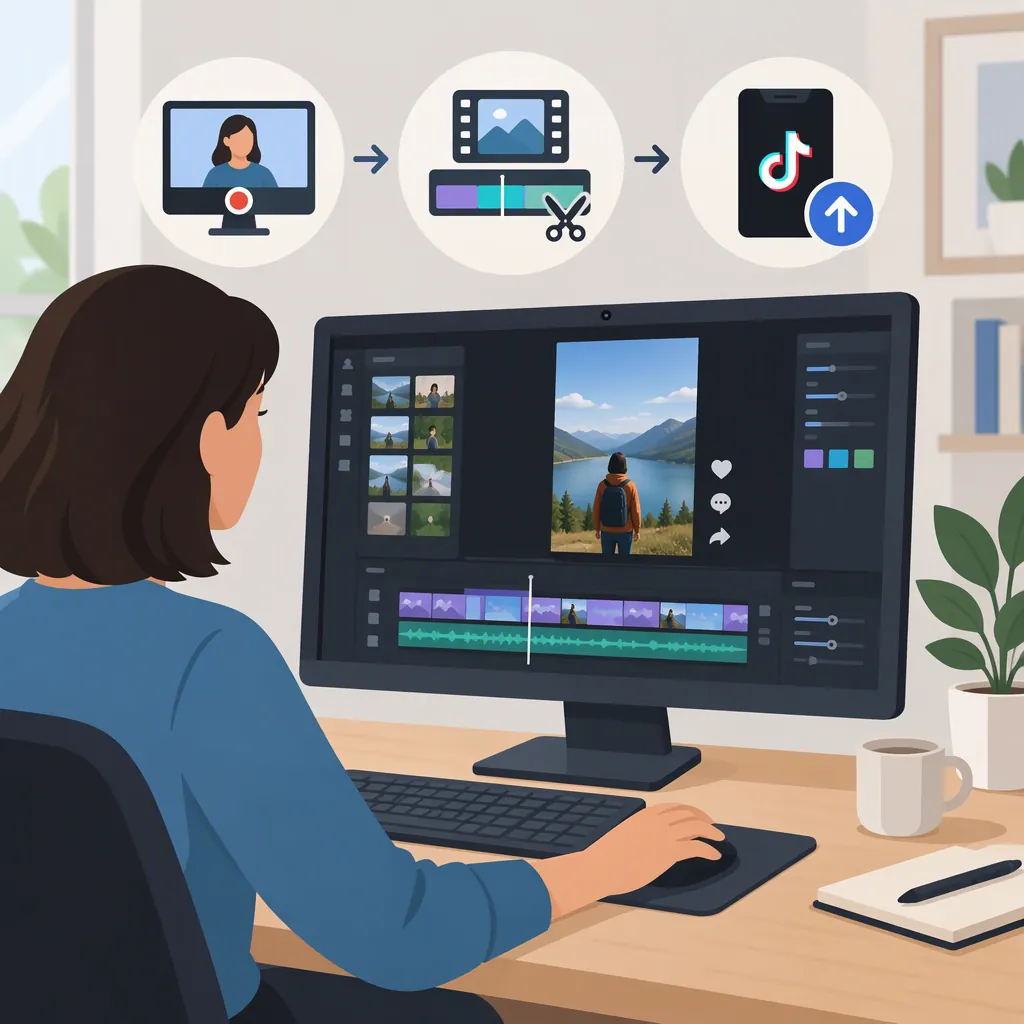
How to Make Original TikTok Videos on a Computer
To make a TikTok video on a computer, plan a short original story, record or gather your own footage, edit it in a desktop video editor, and export a finished file. Then sign in to TikTok in a browser and use the upload workflow to select the video, add a description, and review publishing settings. The provided wikiHow guide documents desktop uploading, but it was last updated January 31, 2023; check the current upload screen rather than treating its limits or button labels as current requirements. [c1]
Plan One Original Idea
Start with something you can explain or demonstrate using your own material: a drawing process, a cooking step, a short tutorial, or a narrated screen recording.
Use a simple structure:
- Opening: Show the question, task, or result.
- Middle: Demonstrate the essential steps.
- Ending: Show the outcome or summarize the lesson.
Write a rough script before recording. Choose a duration that suits the idea rather than stretching it to meet a presumed platform maximum. The supplied source's duration limits are dated and should not be used as a current specification. [c1]
The production steps below are suggested practices, not TikTok requirements.
Original Video Planning Template
Topic: __________
One thing the viewer should learn: __________
Opening visual or sentence: __________
Step or scene 1: __________
Step or scene 2: __________
Final result: __________
Footage to record: __________
Narration to record: __________
Permissions to verify for any outside material: __________
Record and Organize Your Material
Choose a recording method that fits the subject: a webcam for a spoken explanation, screen capture for a software demonstration, or camera footage transferred to your computer for a physical activity.
Before a full take, make a brief test recording. Play it back to check framing, readable screen details, and intelligible speech. For screen recordings, hide notifications and remove private information from view.
Keep clips, narration, images, and project files in a dedicated folder. Name clips by scene or action so you can find them during editing. Prefer material you created; for anything supplied by someone else, verify permission or applicable license terms before including it.
Recording Checklist
- [ ] Record a short picture-and-sound test.
- [ ] Listen to the test with headphones.
- [ ] Check the frame for private information.
- [ ] Record each planned scene.
- [ ] Capture the finished result.
- [ ] Save source files in the project folder.
- [ ] Verify permission for any outside footage, images, or audio.
Edit the Video on Your Computer
Use a video editor that lets you arrange clips, trim footage, add text, adjust audio, and export a file. This workflow does not depend on a particular brand.
- Create a project. For a portrait composition, consider a 9:16 canvas such as 1080 × 1920 as a starting point, not a verified upload requirement.
- Build the sequence. Place the opening, demonstration, and result in order. Remove mistakes, repeated explanations, and pauses that do not serve the story.
- Reframe carefully. When using horizontal footage, inspect the crop so the relevant action stays visible.
- Add narration and text. Explain details that the images alone do not convey. Keep text concise and check it at a small preview size.
- Review captions. If your editor generates captions, correct names, punctuation, and timing manually.
- Balance sound. Listen through the entire edit and adjust music so it does not obscure speech.
Keep a copy of the editable project before exporting. Treat visual effects and transitions as optional; use them only when they clarify the sequence.
Export and Check the Finished File
Export a local video file, then watch that file from beginning to end—not just the editor preview. Check the crop, spelling, caption timing, sound, and ending.
The supplied wikiHow guide lists MP4 and WebM as supported formats at the time of its update. That provides historical guidance, not confirmation of today's accepted formats or encoding settings. Compare your export choices with the current uploader's displayed requirements. [c1]
Keep the original export and source project. If the uploader rejects the file, read the error message and adjust the relevant setting rather than repeatedly changing unrelated export options.
Pre-Upload Review Checklist
- [ ] The exported file plays from start to finish.
- [ ] Important action remains inside the frame.
- [ ] Text is readable at a small viewing size.
- [ ] Captions match the spoken words.
- [ ] Speech is clear throughout.
- [ ] No private information appears.
- [ ] Outside material has been checked for permission.
- [ ] Export settings match the requirements shown by the current uploader.
Upload from a Browser
The supplied guide describes uploading a finished video through TikTok's website on a PC or Mac. Its sequence includes signing in, selecting a video, entering a caption or description, choosing a cover, reviewing privacy settings, and submitting the upload. [c1]
Use that sequence as a general orientation:
- Open TikTok's website in your browser and sign in.
- Locate the upload option and select your exported file.
- Review the preview and any validation messages.
- Add a description and choose a cover if the interface offers those controls.
- Review audience and interaction settings before publishing.
- After processing, inspect the posted video for picture, sound, and text issues.
Source limitation: The reference was updated in 2023. This article does not verify current button names, caption limits, file-size limits, maximum duration, or whether desktop and mobile editing features are equivalent. Follow the controls and requirements displayed in your current account. [c1]
FAQ
Can I Upload a TikTok Video from a PC or Mac?
The supplied wikiHow guide documents uploading from a PC or Mac through TikTok's website after signing in. Because the guide was updated in January 2023, use it as an outline and check the current interface for availability and requirements. [c1]
Do I Need a Specific Desktop Video Editor?
This suggested production workflow does not require a specific editor. Choose one that supports arranging and trimming clips, adding text, adjusting audio, and exporting a file that meets the current uploader's requirements.
What Are the Current TikTok Upload Limits?
The supplied reference does not establish current limits. It gives duration, resolution, format, and caption requirements from a guide updated in 2023. Check the current upload screen rather than relying on those historical numbers. [c1]
How Can I Make an Original Video Entirely on a Computer?
As a practical approach, record your own screen demonstration, animation, or webcam explanation, then add your own narration and edit the sequence. Remove private information from recordings and verify permission before using outside images, clips, or music.