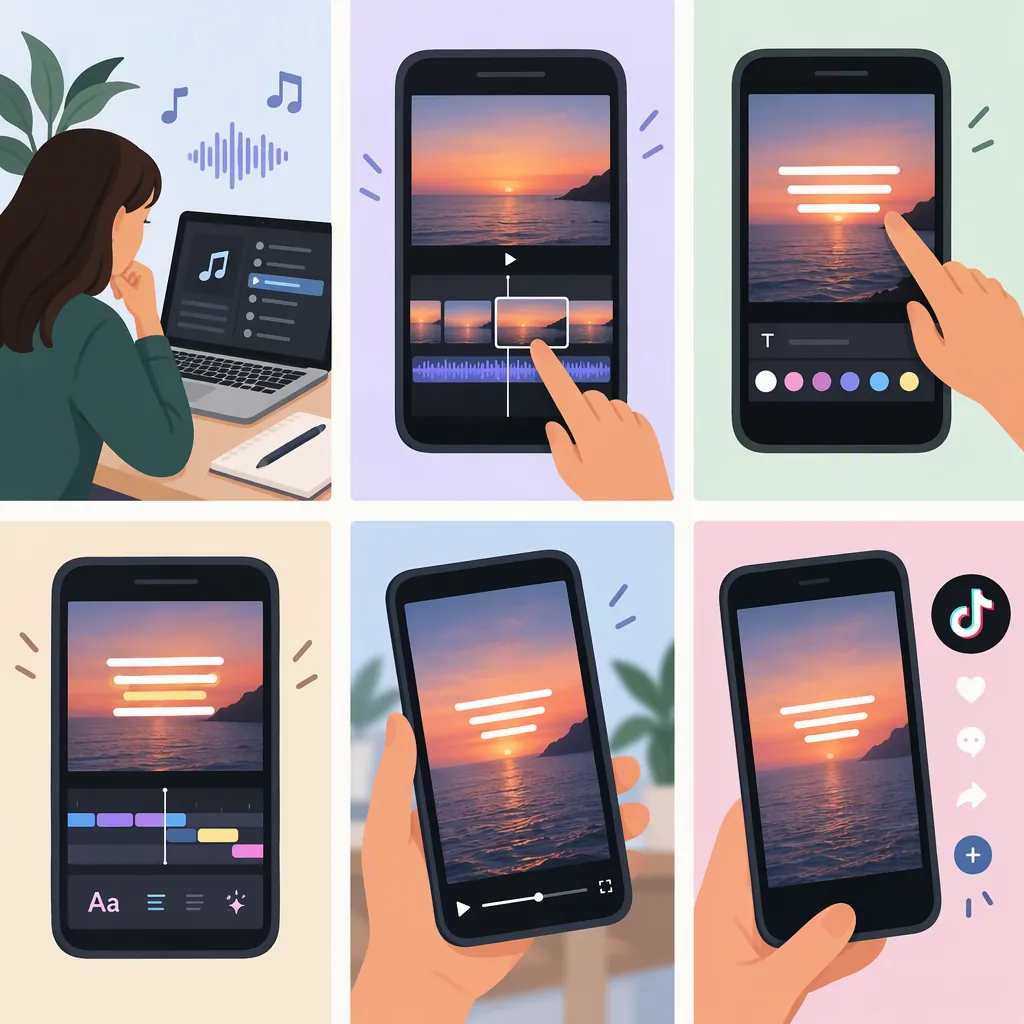
How to Make a TikTok Lyric Video
To make a TikTok lyric video, choose an audio excerpt and background, verify the lyrics, and add short text blocks timed to the singing. You can use TikTok’s text editor or edit a vertical 9:16 video in a separate editor. Preview the result on a phone to check timing, readability, and text placement before publishing. The supplied guides describe both workflows, but they are third-party tutorials rather than current TikTok documentation. [c1] [c2]
Prepare the Audio and Lyrics
Start with a short passage that makes sense on its own, such as a chorus or a complete lyrical phrase. Choose a background that supports the mood without distracting from the words.
Before adding text:
- Settle on the exact audio version and excerpt you will use.
- Check every word against that recording, including repeated phrases and ad-libs.
- Split the lyrics into short, readable phrases.
- Clarify permission to use the music, recording, and background artwork.
The preparation guide recommends checking lyrics against the final audio and resolving rights questions before editing. It does not establish permission for any particular song or use. [c2]
Keep the chosen audio version consistent through the edit. If you replace it later, recheck every text block rather than assuming its timing still matches.
Lyric Timing Worksheet
Create one row per phrase:

Phrase number | Verified lyric text | Start time | End time | Timing checked

Listen to the selected recording, enter each phrase’s start and end times, then replay the passage while reading the rows. Use this worksheet to set the duration of each text block.
Add Lyrics in TikTok
For a simple lyric video, use separate text blocks for successive phrases rather than putting the entire excerpt on screen at once.
The supplied FlexClip tutorial describes this TikTok workflow: [c1]
- Record a video or upload existing footage.
- Open the text tool, identified as Aa in the tutorial.
- Type the first lyric phrase.
- Adjust its font, color, size, and position.
- Set the text’s duration so it appears and disappears with the sung phrase.
Repeat the text-and-duration process for the remaining phrases, then replay the whole excerpt. Listen for the first sung word of each phrase and adjust the text’s appearance to match it.
Interface limitation: this tutorial was last updated in December 2023. Button labels, locations, and available controls may differ in your current app. Treat it as a workflow description, not a guarantee of the present interface. [c1]
Use a Timeline Editor for More Detailed Timing
A separate editor is another option when you want to arrange lyrics, backgrounds, and animation on a timeline. The supplied tutorial describes setting a 9:16 canvas, importing footage, adding text and music, previewing, and exporting. [c1]
Use this sequence:
- Create a vertical 9:16 project.
- Import the background and the exact audio excerpt.
- Add one text block for each lyric phrase.
- Align each block’s start and end with the recording.
- Apply a consistent text style.
- Add restrained animation only after the words are correctly timed.
- Preview and export, then inspect the saved file before uploading.
If an editor offers automatic transcription or lyric alignment, treat its output as a draft. Correct the words, phrase breaks, and timing by listening to the recording. The lyric-production guide explicitly recommends reviewing automated output rather than accepting it unchanged. [c2]
Neither supplied source establishes current TikTok upload limits or universal export settings, so this guide does not prescribe a required frame rate, bitrate, or file size.
Keep the Lyrics Readable
Use a simple font, clear contrast, and comfortable line breaks. A quiet background can be more useful than a detailed scene if the words are the focus.
Keep important text away from the edges and from areas covered by TikTok’s interface. The design guide recommends checking platform overlays and previewing on a phone, but it does not provide a verified, fixed TikTok safe-zone measurement. [c2]
For a first edit, try one consistent placement and minimal movement. If you emphasize a word with a size change or animation, check that it remains readable throughout the effect. Avoid making viewers chase moving text while the next phrase is already being sung.
Review Before Publishing
Watch the entire saved video, not just the editor preview. Then inspect the upload preview for text placement and confirm that the audio still matches your edit.
If a phrase feels rushed, shorten the displayed text block or split it at a natural break. If the text clashes with the background, simplify the background or strengthen the text contrast. These checks follow the supplied guide’s emphasis on lyric accuracy, readable line breaks, and mobile review. [c2]
The supplied sources are vendor-written tutorials. They support the general editing workflow, but they do not verify current feature availability, pricing, copyright clearance, or likely audience results.
Final Review Checklist
- Every lyric matches the selected recording.
- Each phrase appears with the corresponding vocal.
- No text disappears before it can be read.
- Line breaks are comfortable on a phone.
- Text remains visible over the background.
- App controls do not cover important words in the upload preview.
- The saved file has the intended audio and timing.
- Permission questions about music and visuals have been resolved.
FAQ
Can TikTok Automatically Add Song Lyrics?
Do not assume speech captions will produce accurate song lyrics. The supplied December 2023 tutorial says TikTok’s auto captions are intended for speech rather than added song music. That is not current official documentation, so feature availability remains unverified here. Manual text blocks are the workflow the tutorial describes for lyrics. [c1]
What Aspect Ratio Should I Use?
Use a vertical 9:16 canvas as the starting layout described in the supplied TikTok editing tutorial. Check the upload preview for cropping and interface overlap. This recommendation is not a statement of all formats TikTok currently accepts. [c1] [c2]
How Do I Sync Lyrics to the Singing?
Divide the lyrics into short phrases, then set each text block’s start and end to match the recording. Replay the excerpt and adjust any early or late phrase. TikTok text-duration controls are described in the supplied tutorial; automated timing should still be reviewed for errors. [c1] [c2]