How to Make a Landscape Video for TikTok
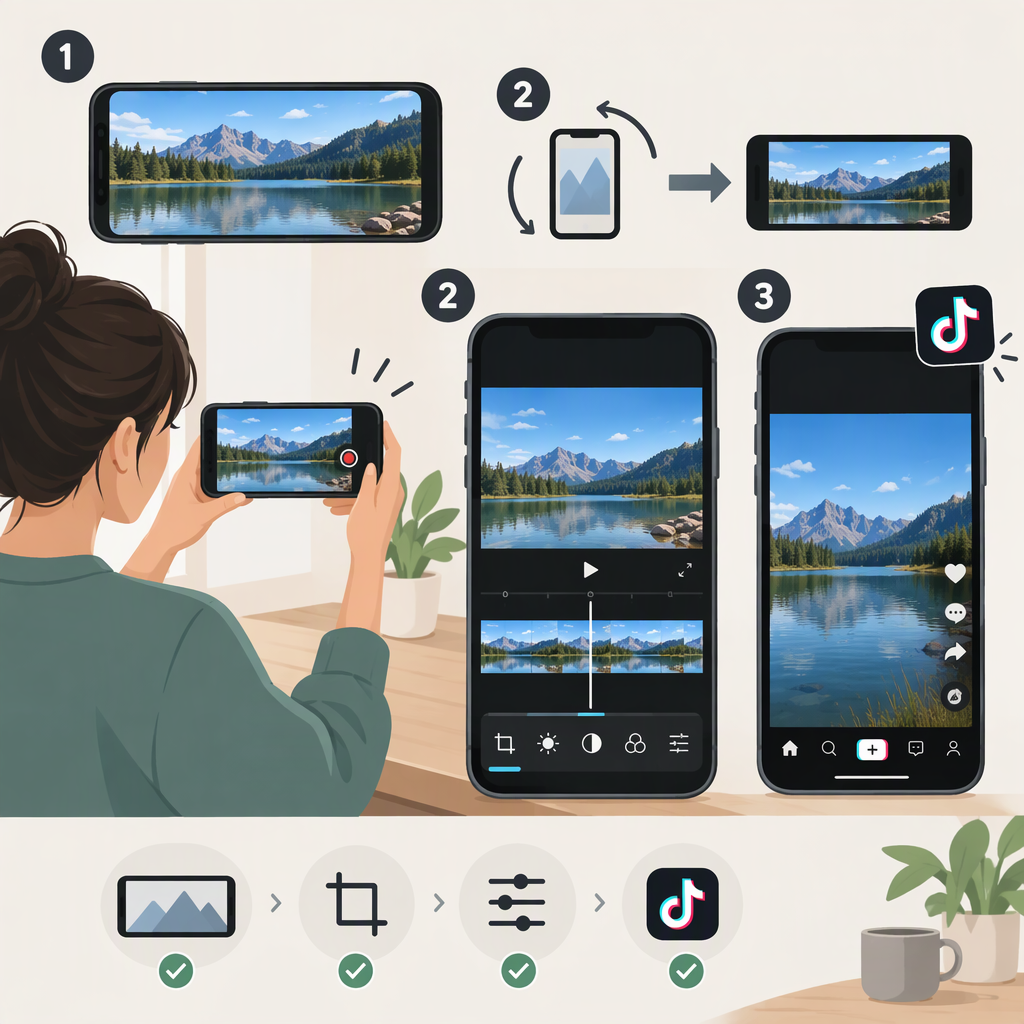
A landscape video has a frame that is wider than it is tall. To make one, hold your phone horizontally while recording—or set your editor’s project canvas to a horizontal format, such as 16:9. That changes the video’s frame, not the orientation of the TikTok app or the viewer’s device.
TikTok’s public help information describes recording and uploading videos, but the material available here does not establish a universal display or cropping rule for landscape videos in regular TikTok posts. So treat 16:9 as a practical example, not a confirmed requirement, and check how your own video looks using the preview or playback options currently available.
Record or Edit in Landscape
Recording: Turn your phone sideways before recording and keep it steady. Review the resulting clip in your camera roll: the image should be wider than it is tall, with no unintended rotation or crop.
Editing: Start with a horizontal canvas—for example, 16:9—and place your clip within it. Check the edges after any reframing or resizing so faces, demonstrations, and on-screen text stay visible. If the source clip was recorded vertically, putting it on a horizontal canvas may leave empty space at the sides or require a crop; check the result rather than assuming it will fill the frame cleanly.
If you record inside TikTok, its help page documents camera tools such as switching cameras, recording, and zooming. It does not establish a landscape-specific recording setting, so don’t assume rotating the phone changes a platform setting or guarantees a particular display after upload. (support.tiktok.com)
Check the Framing Before Publishing
A wide video shown on a taller, portrait-oriented screen involves a framing choice:
- Keep the full wide frame: preserves everything at the sides, but may leave unused space on a taller display.
- Crop or reframe to fill more of the screen: uses more of the display, but can cut off content near the left and right edges.
Before publishing, inspect the entire image in whatever preview or playback is available. Check corners and edges, especially where you placed text or important action. If there is no preview that shows how the post will appear to viewers, review the exported file before uploading and avoid assuming the upload will preserve or crop it in a particular way. TikTok’s preview guidance for ads notes that previews can differ across devices and browsers, but that is ad-preview guidance—not a rule for regular posts. (ads.tiktok.com)
Choose Landscape or Vertical for the Shot
Landscape can suit a wide scene, a group, or a screen demonstration when keeping the full width matters. Vertical uses more of a portrait-oriented phone display. Neither format guarantees better reach or performance; choose based on what you need viewers to see.
Quick checklist
- Record with the phone held horizontally, or create a horizontal editing canvas.
- Check the exported video’s orientation and edges.
- Keep key subjects and text away from the extreme edges if you may need to reframe.
- Inspect any available TikTok preview or playback, and decide whether to preserve the full frame or revise the crop.
TikTok’s published aspect-ratio figures for ads are advertising specifications, not proof of requirements for regular organic posts. Don’t use ad specs as an organic-upload rule. (ads.tiktok.com)