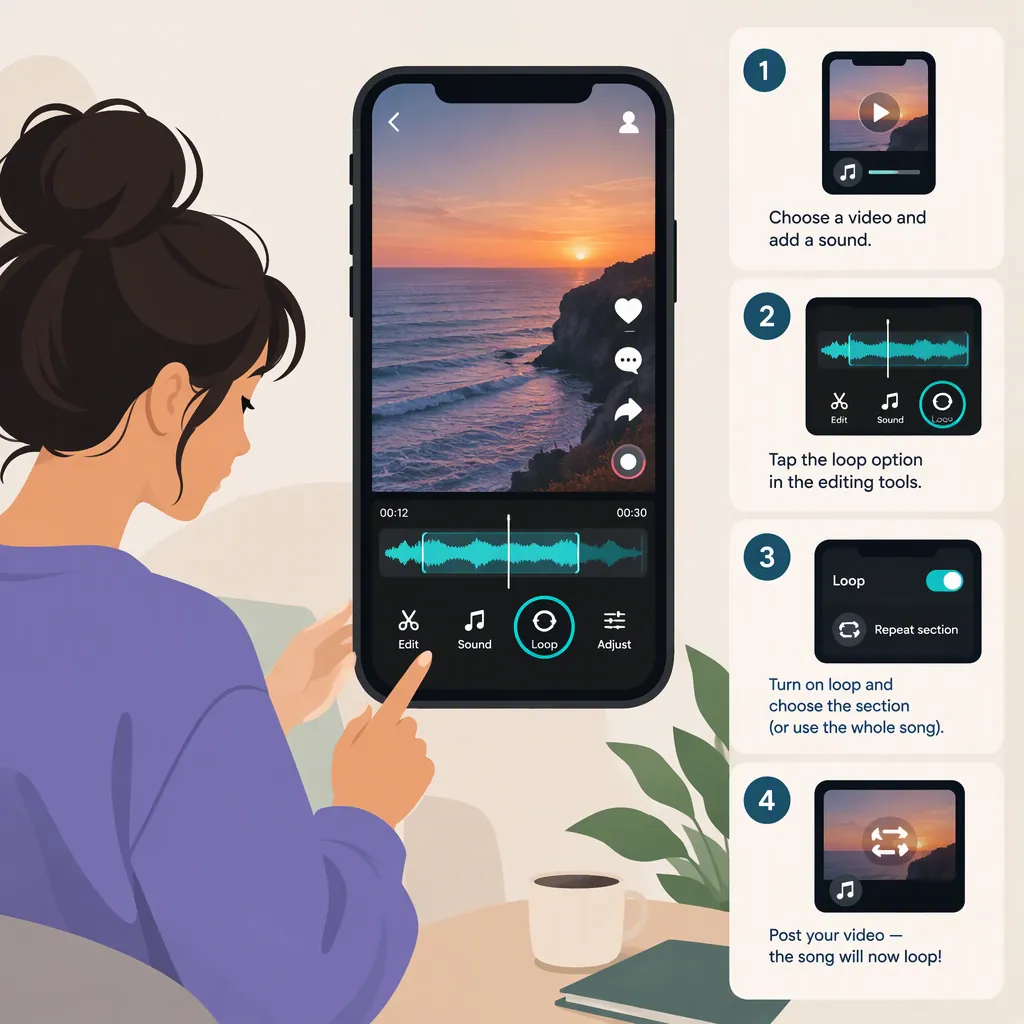
How to Make a Song Loop on TikTok and Set Its Timing
To make a song repeat within a TikTok video, trim it to the passage you want in a timeline editor, arrange repeated copies of that passage, and export the finished video for upload. The reference tutorial describes this external-editor approach. It was published in 2022, so it does not establish which looping controls TikTok offers today. [c1]
The workflow below covers both selecting the song’s start and end points and deciding when the repeated music begins and ends in your video.
Choose Which Kind of Loop You Want
A song repeating inside one video is different from the whole video replaying after it ends. The reference describes TikTok automatically replaying the whole video, while its repeated-audio workflow creates the music loop in an external editor. [c1]
Choose your goal before setting the timing:
- Repeat a short song section throughout a longer video: arrange consecutive copies of that section on an audio timeline.
- Use one specific part of a song: trim the audio to the desired passage; repetition may not be necessary.
- Make the ending connect to the beginning: plan the final audio and visual moments around the opening, then preview the end-to-start transition.
Build the Repeated Audio Segment
The reference’s mobile workflow imports a video into an editor, adds music, trims the audio, and adds the song again to create repetition. [c1] Use that sequence without depending on its older button labels:
- Import your video. Decide where the finished video should end before filling its timeline with music.
- Add audio you have permission to use. Use an audio file you are allowed to include in the exported video.
- Choose the song passage. Listen for a phrase with a clear beginning and ending. Trim away the material outside that passage.
- Repeat the passage. Duplicate the trimmed clip if your editor supports duplication. Otherwise, import the same audio again and trim it to the same source boundaries.
- Place the copies consecutively. Inspect each join for an accidental gap or overlap.
- Trim the last copy. End the repeated audio at your intended video endpoint.
Audio Loop Setup Checklist
- Video endpoint selected.
- Source passage start and end selected.
- Music start position in the video selected.
- Each repeated copy uses the same passage.
- Joins checked for unintended gaps or overlaps.
- Final copy trimmed to the video endpoint.
- Finished audio previewed with the video.
Set the Song Start and End Times
Keep these two timing decisions separate:
- Source timing: where the passage starts and ends in the original song.
- Video timing: where that passage starts playing and where the repeated sequence ends in your video.
The reference supports trimming the audio and describes volume and delay adjustments in its desktop workflow. [c1]
Example: Repeat a Five-Second Passage
For a hypothetical 15-second video, select the passage from 00:20 to 00:25 in the song, then arrange three copies:
| Copy | Position in the video | Passage used from the song |
|---|---|---|
| First | 00:00–00:05 | 00:20–00:25 |
| Second | 00:05–00:10 | 00:20–00:25 |
| Third | 00:10–00:15 | 00:20–00:25 |
This is a timing example, not a TikTok duration requirement.
If you want music to begin after an opening spoken line, place the first copy later on the video timeline. For example, starting at 00:03 in the same 15-second video leaves 12 seconds for music: two complete five-second copies and two seconds of a third copy.
Calculate How Many Copies You Need
For consecutive repeats that fill the remaining video:
- Available music duration = video endpoint − music start time.
- Total copies needed = available music duration ÷ passage length, rounded up to the next whole number.
- Trim the final copy if it extends beyond the video endpoint.
The total includes the first copy. If the calculation gives three copies, you need the original passage plus two additional copies.
When the passage does not divide evenly into the available time, choose between trimming the final repeat and changing the video endpoint. Preview both options before deciding; a precise endpoint may still cut a musical phrase awkwardly.
Fill-In Timing Plan
- Video endpoint: ___
- Selected passage in the song: ___ to ___
- Passage length: ___
- Music begins in the video at: ___
- Available music duration: ___
- Total copies needed, including the first: ___
- Final copy ends at: ___
- End-to-start transition checked: yes / no
Check the Joins, Export, and Preview on TikTok
Repeated clips do not necessarily sound seamless. Before exporting:
- Listen across every join between audio copies.
- Check for clipped syllables, abrupt phrase changes, silence, or unwanted overlap.
- If a join sounds awkward, adjust the passage boundaries and preview again.
- Check whether the music obscures speech or other audio you want to retain.
- If you want the whole video to feel continuous on replay, listen to the ending immediately followed by the beginning.
The reference includes previewing the edited video, exporting it—with MP4 used in its desktop example—and posting the finished video to TikTok. [c1]
Complete the workflow with these checks:
- Review the exported file. Confirm that its audio matches the editing timeline, including the joins and final cutoff.
- Upload the finished video to TikTok. Use the exported version containing your repeated audio.
- Check the pre-publication preview. Confirm that the number of repeats, music start position, and ending still match your plan. Listen for any differences rather than assuming the uploaded version sounds identical.
Evidence limitation: The reference is a third-party tutorial from 2022. It supports the external-editing workflow but does not verify current TikTok menus, account-specific sound availability, or permission to use a particular song. [c1]
FAQ
Can I Loop a Song Directly in TikTok?
The 2022 reference says a direct looping tool was not available then and recommends an external editor. That is not enough to confirm today’s TikTok controls. To avoid depending on an in-app repeat button, arrange the repeated audio in an editor before uploading. [c1]
Does Trimming a Song Make It Loop?
No. Trimming selects the passage; repetition requires adding that passage again. The reference describes trimming the audio and importing the song again as separate steps. [c1]
Is Automatic Video Replay the Same as a Song Loop?
No. In the reference’s description, automatic replay starts the whole video again. A song loop within a single playthrough repeats the selected music passage inside that video. [c1]
How Do I Start the Loop from the Middle of a Song?
Select the desired source start and end points, trim the audio to that passage, and repeat it on the video timeline. For example, a passage from 00:20 to 00:25 in the song can begin at 00:00 in your video. The reference supports the trim-and-repeat method. [c1]
What If the Last Repeat Is Longer than the Remaining Video?
Trim the last copy to the video endpoint, then listen to the cutoff. If it interrupts a word or musical phrase, try a different passage length or adjust the video endpoint. Previewing before export is part of the reference’s workflow. [c1]