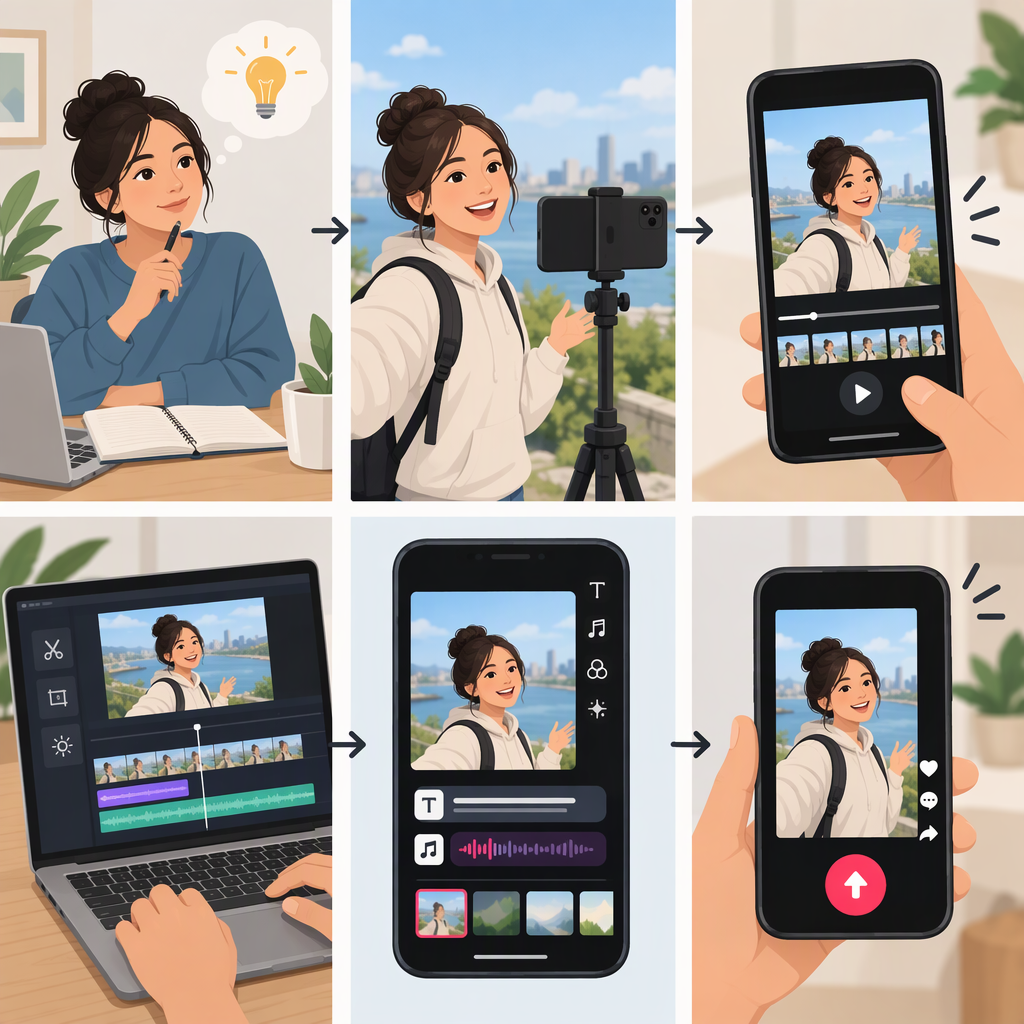
How to Make a Vlog on TikTok
To make a TikTok vlog, choose one moment or topic, plan a short beginning–middle–ending sequence, record clips that show it, then edit and review the video before posting. You can record in TikTok or use footage recorded elsewhere. TikTok’s available tools and interface can vary, so treat the app steps below as a guide and follow the options shown in your version.
Quick Workflow
- Choose one focus for the vlog and what you want viewers to see or understand.
- List a few shots that show the moment in sequence.
- Record in TikTok or upload clips you recorded with your device.
- Put the clips in order and trim anything that distracts from the story.
- Review the video and settings, then publish it or save it as a draft.
1. Choose a Vlog Idea and Plan the Story
Keep the focus specific enough to show in one video: a meal you made, a walk through a place, or one part of your day. Before filming, finish this sentence: “By the end, I want viewers to see or understand ___.”
Then make a simple shot list:
- Beginning: Establish where you are or what you’re about to do.
- Middle: Show the main activity, change, or detail.
- Ending: Show the result or how the moment wraps up.
Illustrative example—not a tested formula: For a vlog about making breakfast, you might film the ingredients, a few steps of cooking, and the finished plate. You don’t need to record every action; choose clips that make the sequence understandable.
2. Record or Upload Your Clips
You can film in TikTok or use footage recorded separately. In TikTok, the Help Center describes starting from Add post (+), choosing a video length, recording, and continuing to edit. Its camera tools also include options such as switching cameras and using a timer. If you’re recording elsewhere, use the upload option shown in the app and select the clips you want to assemble. TikTok’s current help page lists different maximum lengths for videos recorded in the app and videos uploaded, so check the current limits if your vlog is long. (support.tiktok.com)
For clearer footage, use practical choices that suit your setting:
- Hold the phone steadily and frame the subject so it’s easy to see.
- Face a light source when possible; avoid placing a bright window directly behind your subject.
- Listen for background noise and get close enough for speech to be intelligible.
- Capture the shots from your list, plus a few seconds before or after the main action so you have room to trim.
These are general filming suggestions, not TikTok requirements. If you’re speaking while filming, record a short test clip and listen back before capturing the rest.
3. Edit the Vlog into a Clear Sequence
Start with the story, not effects. Put the clips in the order you planned, remove repeated or unnecessary moments, and watch the result once through. If a transition between two clips feels confusing, add a brief establishing shot or reorder the footage.
You can add text, stickers, or other available edits if they help viewers follow the video. TikTok’s Help Center describes adding text after recording or uploading and selecting a cover from the post screen. Feature availability and exact controls may differ by app version or account, so use the editing options available to you. (support.tiktok.com)
If you add music or other material you didn’t create, check that you’re allowed to use it. TikTok says its music licenses outside the Commercial Music Library don’t cover commercial use when content promotes a brand, product, or service; it recommends the Commercial Music Library for that use. That guidance concerns promotional content and doesn’t settle every rights question, so don’t assume that a sound is cleared for every purpose just because it appears in the app. (support.tiktok.com)
4. Review, Post, or Save a Draft
Before sharing, watch the video from start to finish. Check that the sequence makes sense, speech is audible, and text is readable on screen. Add a caption if it helps explain the vlog, and choose a cover frame if that option is available. TikTok describes selecting a cover on the post screen by choosing a frame from the video. (support.tiktok.com)
Review the audience or privacy controls shown before posting and choose who should be able to view the video. Options can depend on your account and settings; TikTok provides separate post-privacy controls. If you’re not ready to share, TikTok says you can choose Drafts from the Post page. Drafts are saved to the profile’s videos tab, are only visible to others when posted, and may be removed if TikTok is uninstalled and reinstalled or the account is moved to another device. (support.tiktok.com)
Final Checklist
- The vlog has one clear focus.
- The clips show a beginning, middle, and ending.
- Unnecessary pauses or repeated shots are trimmed.
- Speech and on-screen text are understandable.
- Any added music or other material is appropriate for your intended use.
- The cover, caption, and audience settings are reviewed.
- You’ve chosen to post the video or save it as a draft.
A good first vlog doesn’t need elaborate effects. Aim for a sequence that’s easy to follow, then add only the edits that help tell that particular story.