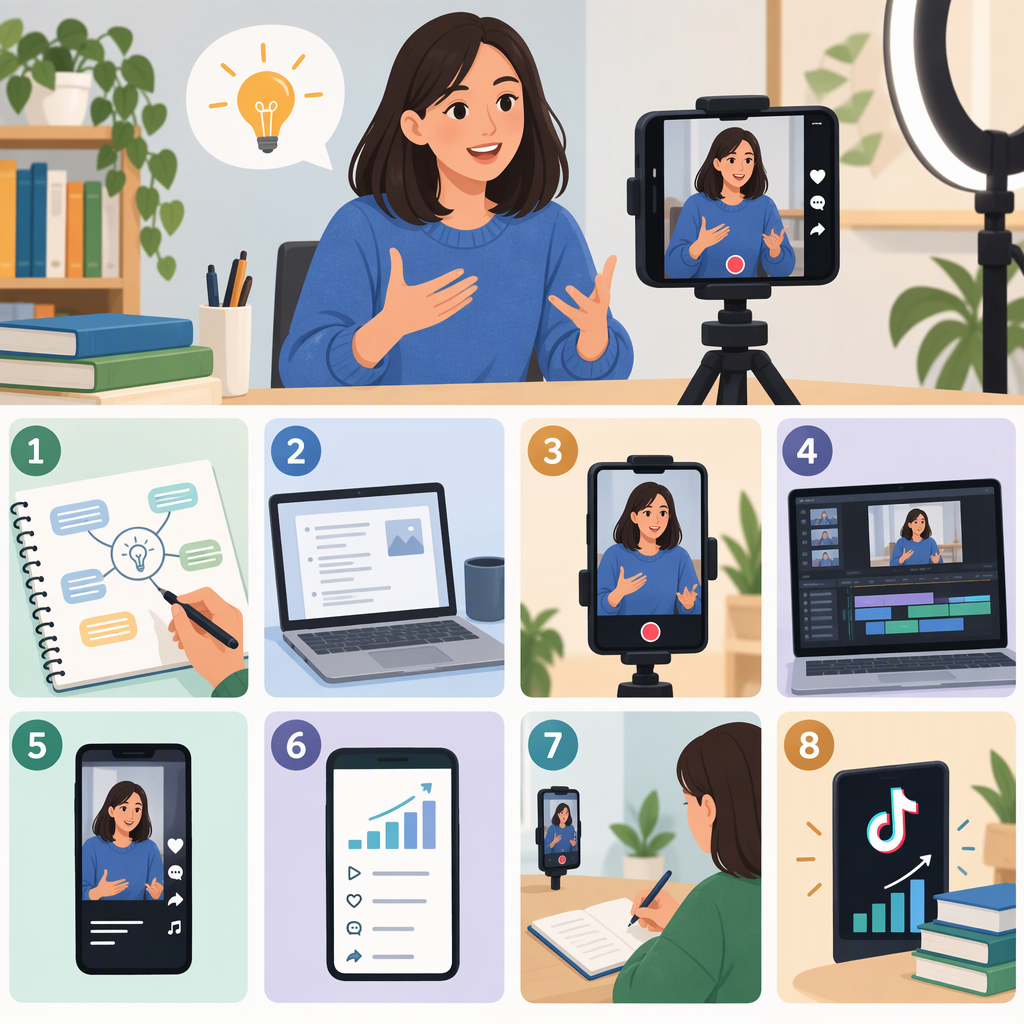
How to Make Educational TikTok Videos
To make an educational TikTok video, choose one specific question, decide what viewers should understand or be able to do afterward, and build the video around that takeaway. Draft a short lesson, record it so the explanation is easy to see and hear, review it for accuracy and clarity, then prepare it for posting. Treat this as a teaching workflow—not a formula for guaranteed views or learning.
1. Choose One Teachable Idea
Start with a question or skill narrow enough to explain in a single video. Define the intended viewer and the useful result before you write a script.
Fill in these prompts:
- Viewer: Who is this for?
- Question: What one question will the video answer?
- Takeaway: What should a viewer understand or be able to do afterward?
- Support: Which factual claims, instructions, or numbers need checking?
For example, a beginner-friendly lesson might answer: “How do I freeze the top row in a spreadsheet?” The takeaway is one action the viewer can try. That is more focused than covering every spreadsheet feature in the same video.
If a claim is uncertain, check a reliable source, clearly qualify it, or leave it out. Don’t present a personal hunch as an established fact.
2. Write a Focused Lesson Script
A simple structure is:
- Name the question. Tell viewers what the lesson covers.
- Explain the key idea or steps. Keep each step necessary to the takeaway.
- Show an example or demonstration. Use one if it makes the instruction easier to follow.
- Recap the result. Restate what the viewer should remember or try.
A fill-in script:
“Here’s how to [do one task]. First, [step one]. Next, [step two]. For example, [brief demonstration]. The key point is [takeaway].”
An opening question or a quick preview of the result may help orient viewers, but treat it as a writing choice—not a proven performance trick. Keep the script focused; if an explanation needs several unrelated points, split it into separate lessons.
3. Record for Clarity
Before recording, decide what viewers need to see: your face, an object, a screen demonstration, or a combination. Then check the draft as if you were seeing the lesson for the first time.
- Audio: Listen for speech that is hard to hear, rushed, or obscured by background sound.
- Visuals: Make sure the relevant action or detail is visible while you explain it.
- On-screen text: Use it to reinforce important terms or steps, not to crowd the screen with a second script.
- Editing: Remove pauses or detours that don’t help explain the takeaway. Keep transitions and effects only if they make the lesson easier to follow.
- Accuracy: Recheck names, numbers, demonstrations, and any claim that viewers might act on.
A useful review question is: Could someone follow the explanation without already knowing the answer? If not, add the missing context, make a step more visible, or simplify the wording.
4. Add Captions and Review Accessibility
Captions can make spoken content easier to access, including for people who are deaf or hard of hearing. TikTok’s Help Center describes both auto-generated captions and creator captions, and says creators can review and edit caption text. Check the transcript for names, technical terms, and other recognition errors before relying on it. (support.tiktok.com)
TikTok’s documented in-app steps include selecting Captions on the preview screen to create creator captions, then previewing and editing the lines. The Help Center also describes choosing a video language for auto-generated captions in More options on the post screen. Labels and availability can change, so consult TikTok’s current Help Center if those controls don’t match what you see. (support.tiktok.com)
Also check that captions are readable over the image and that important visual information is explained aloud or with text where appropriate. Captions support the lesson; they don’t replace a check that the lesson itself is understandable.
5. Prepare to Post
Before posting, review the complete video and ask:
- Does it answer the question promised at the beginning?
- Is the main takeaway clear by the end?
- Are factual claims and demonstrations accurate?
- Can viewers see and hear the essential parts?
- Have you corrected caption errors and removed distracting material?
- Does the post description add useful context without making a claim the video does not support?
Publish using TikTok’s available posting controls and review the audience and other settings you intend to use. This guide avoids step-by-step instructions for controls that may change or differ by account, app version, or region.
6. Choose One Improvement for the Next Video
After posting, compare the lesson you intended to teach with the questions or feedback you receive. If viewers seem confused about one step, consider making that step more explicit in a later video. If the demonstration is hard to see, adjust the framing or show it for longer next time.
Treat feedback as a clue, not proof that viewers learned—or did not learn—the material. Choose one reasonable change for your next lesson and see whether it makes the explanation clearer. Don’t assume a particular posting tactic, length, or edit guarantees reach.
A Quick Planning Worksheet
Before you record, write down:
- Viewer:
- One question or skill:
- Takeaway:
- Opening line:
- Explanation or steps:
- Example or demonstration, if useful:
- Claims to verify:
- Audio, visual, and caption checks:
- One possible improvement to consider later:
This gives you a repeatable process: plan one lesson, explain it clearly, check it before posting, and use feedback to make a thoughtful revision—not to promise a particular outcome.