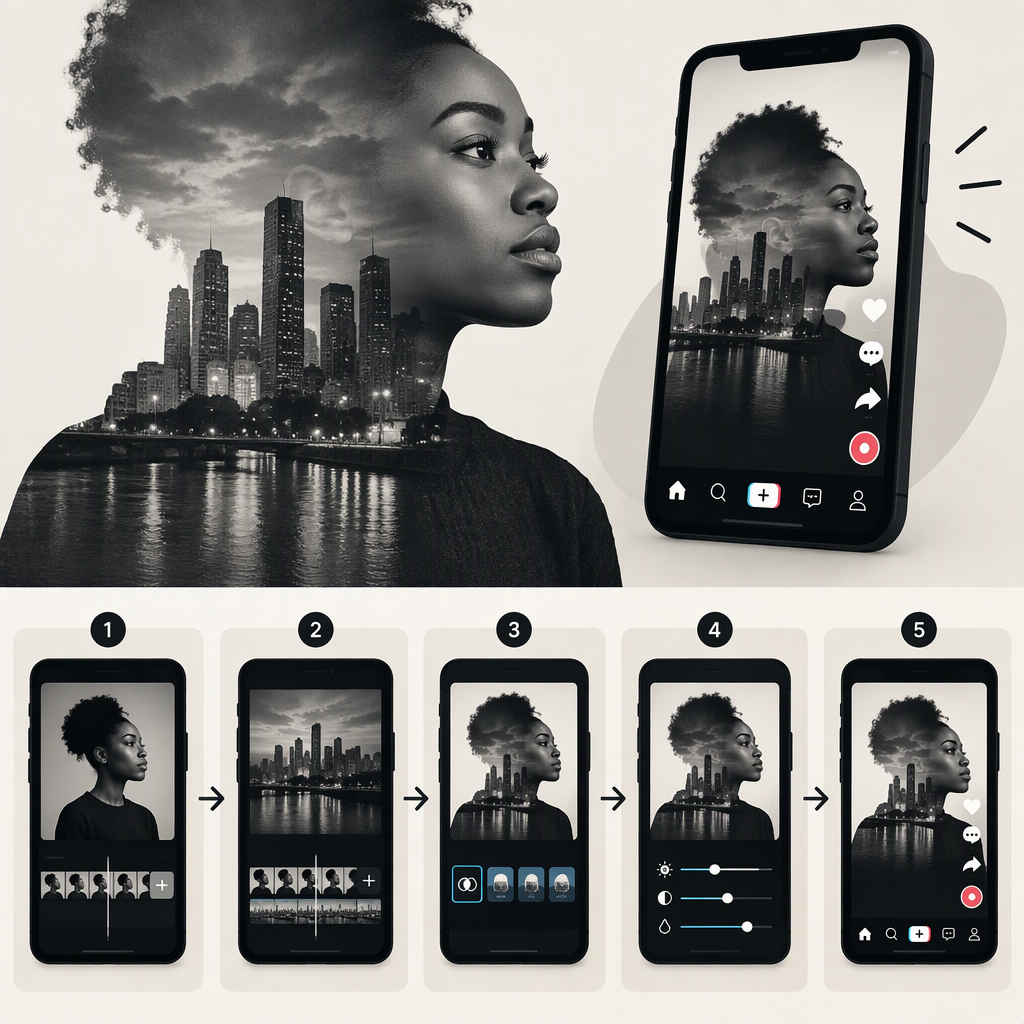
How to Make a Black Double-Exposure Video for TikTok
Short Answer
TikTok has built-in effects and lets you add effects to a video before or after recording or uploading. But TikTok’s public Help Center does not document a dedicated double-exposure compositing tool. For a dependable black-silhouette double exposure, make the composite in a video editor that supports layers and masks, then upload the finished video to TikTok. TikTok’s effects and filters can still be used afterward, but they are not a substitute for the layered workflow below. (support.tiktok.com)
Here, “black double exposure” means a dark or black background with a subject-shaped silhouette filled by a second image or moving clip. If you mean two clips blended across the whole frame and graded dark, see the alternate treatment below.
Make a Black Silhouette Filled with a Second Video
Use an editor with a vertical-video canvas, a timeline with multiple layers, and a subject mask (also called a cutout or alpha mask). The steps below describe the editing operations rather than a particular app’s buttons; exact labels vary by editor. A layer mask limits an image to a selected shape, while opacity controls how much of the layer below shows through. (helpx.adobe.com)
- Choose two clips. Use a clear portrait or full-body shot for the silhouette, ideally with the subject separated from the background. Pick a second clip with visible detail—such as trees, clouds, water, or city lights—that will read inside the subject shape. Keep the second clip about as long as the portrait section.
- Set a vertical canvas. Start a project in a vertical format suitable for a phone-screen post. Place the portrait clip on the timeline and frame the person where you want them in the composition.
- Cut out the subject. Apply the editor’s subject-selection or masking tool to isolate the person from the original background. Refine the mask edge if needed; a small amount of feathering can soften a harsh cutout edge. (helpx.adobe.com)
- Build the black base. Put a solid black layer behind the subject and extend it for the length of the shot. Keep a copy of the subject cutout as a black silhouette layer above that background.
- Fill the silhouette. Place the landscape or texture clip above the black silhouette. Apply the subject mask to the landscape layer so the moving detail appears only within the person’s outline. If your editor supports track mattes or clipping masks, use the subject cutout as the matte.
- Balance the image. Adjust the overlay’s opacity or brightness until its detail is visible without losing the outline. Scrub through the shot: the texture should remain inside the silhouette as the subject moves. Opacity changes transparency; blend modes change how the colors of stacked layers combine. (helpx.adobe.com)
- Preview and export. Watch the full clip at phone size before exporting. Check that the silhouette stays recognizable, the texture is not too busy, and the black background remains black. Export a video file your editor can share to your device; no particular export dimensions or format are specified here because they depend on the editor and TikTok’s current upload options.
Example: Put a side-profile portrait over a black background, then mask a slow-moving cloud clip to the profile. If the clouds obscure the face outline, reduce their opacity or choose a simpler texture; if the whole silhouette looks flat, shift the texture so its brighter detail falls near the face rather than uniformly across the shape. These are creative adjustments, not TikTok-prescribed settings.
Upload It to TikTok and Check the Result
- Open TikTok and tap Add post (+). Choose the option to upload a video from your device, then select the exported composite.
- Review the video in TikTok’s preview. Watch for mask edges, crushed shadows, or texture detail that becomes hard to distinguish on a small screen. TikTok says effects can be added after a video is uploaded, but skip extra filters if they make the black areas muddy or the silhouette harder to read. (support.tiktok.com)
- On the post screen, choose a cover frame that clearly shows the silhouette, add any caption or other post details you want, then post. TikTok’s Help Center documents selecting and saving a video cover before posting. (support.tiktok.com)
If You Meant a Dark Overall Double Exposure
For two full-frame clips blended together, stack one over the other in an editor that supports video layers. Lower the upper clip’s opacity or test a blend mode, then darken the finished composite with exposure or brightness controls. Blend modes have different results: for example, Adobe describes Multiply as a mode that does not make the composite brighter, while Screen belongs to its lightening modes. Try the editor’s preview rather than assuming a mode will create the look you want. (helpx.adobe.com)