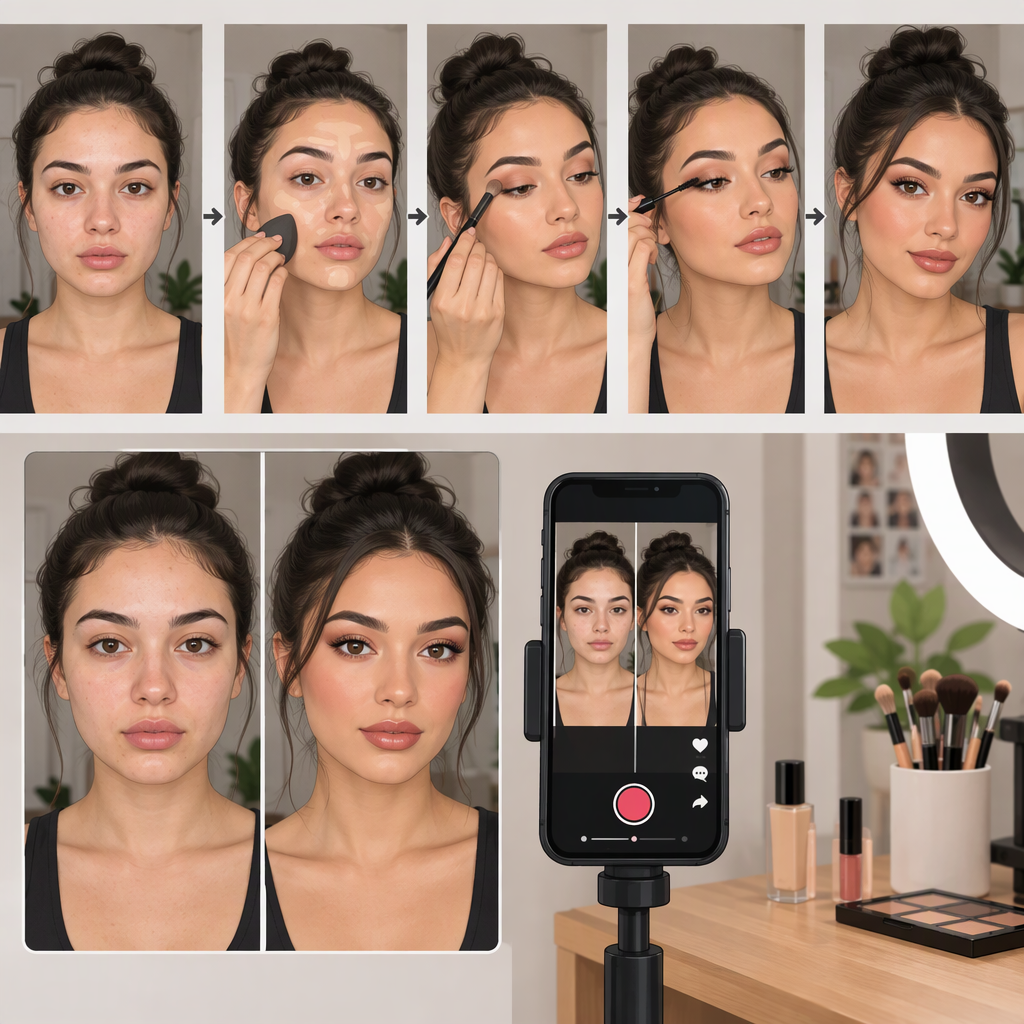
How to Make a Makeup Transformation TikTok
A clear makeup-transformation TikTok starts with a shot plan: show the starting look, make the transition easy to follow, then give viewers a steady look at the finished makeup. Keep the camera position and framing similar for both looks, choose a transition you can repeat, and preview the edit before posting. These are practical suggestions—not tested techniques or guarantees of how a video will perform.
1. Plan the Transformation
Before filming, jot down three moments:
- Starting look: Show your face clearly before the transformation. Decide where you’ll look and how you’ll frame the shot.
- Transition cue: Choose a simple action that signals the change, such as briefly covering the lens with your hand.
- Finished look: Return to roughly the same framing and hold the shot so the makeup is visible.
For example, you could record a short starting-look shot, cover the lens, stop recording, complete your makeup, then record a reveal with your hand moving away from the lens. This is an illustrative sequence, not a guaranteed effect. A straightforward cut may take fewer steps; a more elaborate transition may need additional takes or editing.
2. Set up and Film Both Looks
- Keep the shot consistent. If possible, leave the camera in the same position and use similar framing for both looks. This makes the before-and-after easier to compare.
- Check what the camera sees. Before recording each part, confirm that your face is in frame and the makeup is visible.
- Repeat the cue. If the transition depends on a hand movement, turn, or other action, try to make that action similar at the end of the first clip and the start of the reveal clip.
- Record a spare take if useful. A second version gives you another option while editing; it doesn’t require adding a more complicated effect.
In TikTok, the Help Center describes recording through the Add post (+) screen and selecting a video length before recording. It says videos recorded in the app can be up to 10 minutes, while uploaded videos can be up to 60 minutes. Those are maximums, not recommended lengths for a transformation; choose the length that fits your sequence. Available controls and labels may change. (support.tiktok.com)
3. Choose a Transition You Can Repeat
A transition only needs to make the change understandable. Try one of these approaches:
- Simple cut: End one clip on an action or pose, then cut to the finished look.
- Lens-cover cue: Cover the lens at the end of the first look and begin the reveal with a similar hand position before moving it away.
- Movement cue: End with a small turn or movement, then begin the reveal with a similar motion.
These are practical filming options, not platform-endorsed or tested methods. If a transition makes the reveal hard to see, simplify it. The finished makeup—not the effect—should remain clear.
4. Edit, Preview, and Prepare to Post
- Trim the clips. Remove pauses around the transition so the change is easy to follow.
- Check the join. Watch the cut or transition and see whether the starting and finished shots line up well enough for your intended effect.
- Review the reveal. Confirm that the finished look stays on screen long enough for you to see it clearly.
- Use text or sound only if it helps. A short label such as “before” or “after” can clarify the sequence. Audio is optional; if you add a sound, check that it is available for your intended use. TikTok says that content promoting a brand, product, or service should use music from its Commercial Music Library or otherwise follow the applicable music-use requirements. (support.tiktok.com)
- Preview the whole video. Check the image, transition, text, and audio before following the current posting flow in TikTok. TikTok’s Help Center describes adding effects, text, stickers, or emojis after recording or uploading, though exact controls may vary as the app changes. (support.tiktok.com)
Quick Checklist
- Is the starting look visible?
- Can you follow the transition?
- Is the finished makeup easy to see?
- Are text and audio intentional and suitable for your use?
- Have you previewed the complete edit?
A successful edit for this task is one where the viewer can understand the change from the video itself. No particular transition, duration, or editing choice guarantees reach or engagement.