How to Make a TikTok Story a Regular Post
Can You Turn a TikTok Story Directly into a Regular Post?
TikTok’s public Help Center documents posting a Story and creating a regular video or photo post, but it does not document a control that converts an existing Story directly into a regular post. The practical route is to publish the same media again as a new post—ideally using the original photo or video saved on your device. TikTok says Stories stay visible for 24 hours; Highlights keep Stories visible on your profile longer, but are not described as converting them into regular posts. (support.tiktok.com)
Publish the Story Media as a Regular Post
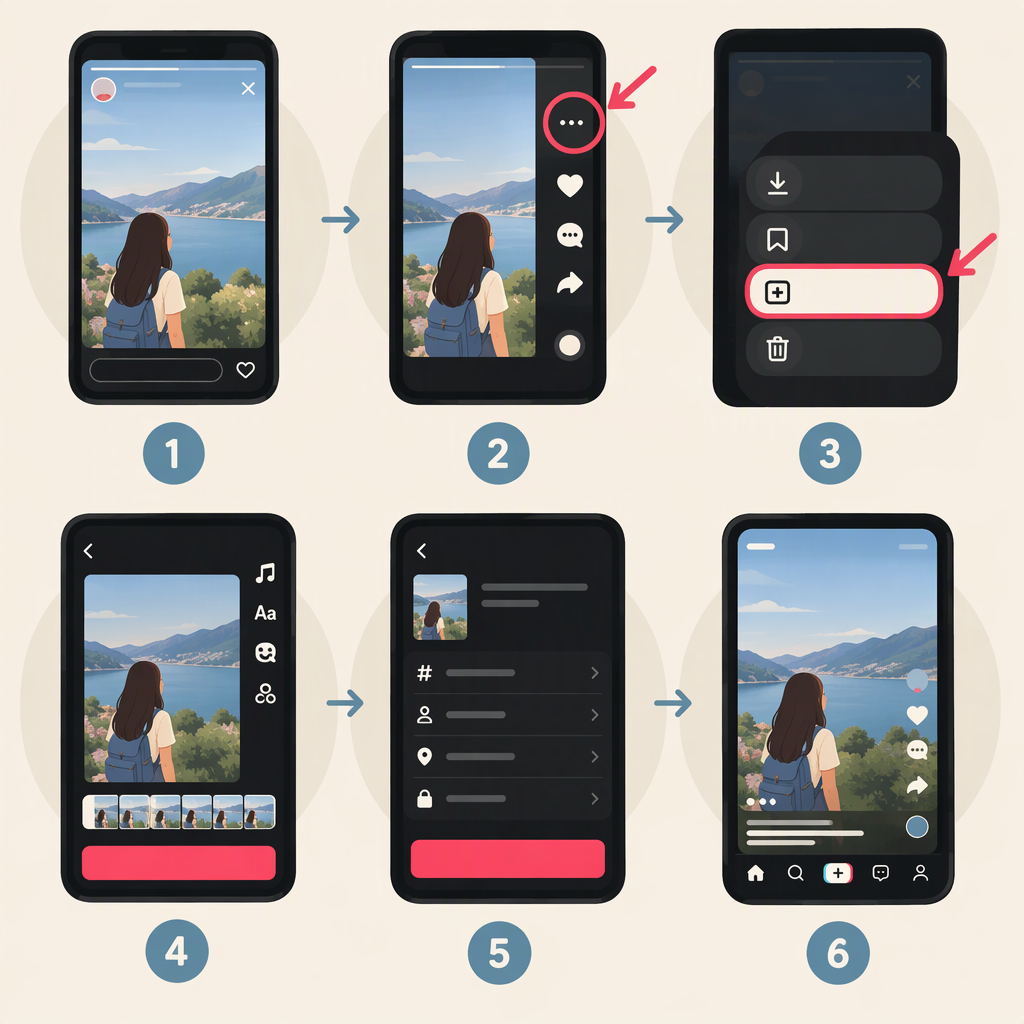
- Find the original media. Check your phone’s Photos or Gallery, or wherever you keep the photo or video you used for the Story. Reusing the original file is the clearest documented path; TikTok’s Help Center does not give a complete, general procedure for downloading an already-published Story for reposting.
- Start a new post. In the TikTok app, tap Add post (+). For a video, choose Upload and select the video from your device. For a photo post, choose Photo, then Upload, and select the photo or photos. (support.tiktok.com)
- Edit and continue. Review the media, make any edits you want, then tap Next to reach the post screen. TikTok’s posting instructions list options such as adding a caption, hashtags, tags, and location before publishing. (support.tiktok.com)
- Choose the post’s audience, then publish. Review the privacy setting on the new post and tap Post when ready. TikTok says you can set visibility for each post; available choices depend on account privacy and may also be affected by age or location. (support.tiktok.com)
The result is a new regular post using that media—not a conversion of the original Story. Recheck the edit and preview: the documentation does not say that Story-specific text, stickers, sound, or other edits automatically transfer when you select the original file for a new post.
If the Story Is Still Live—Or Has Expired
- Still visible: TikTok says you can find Stories from your profile, inbox, or Following feed, and that they remain visible for 24 hours. If you no longer have the original file, check the Story and its available in-app options; TikTok’s public instructions do not specify a general save-to-device flow for an already-posted Story. (support.tiktok.com)
- Expired: TikTok documents Highlights as a way to keep Stories on your profile beyond 24 hours, and says Highlight visibility matches the original Story’s visibility. That is not the same as making a regular post. Its public Story instructions do not establish that every expired Story can be retrieved as a file and reposted, so look for the original media or an existing copy on your device first. (support.tiktok.com)
Before You Publish
Check the audience again. TikTok provides separate visibility choices for posts and explains that settings can be changed on a new post. Don’t assume the Story’s audience carries over: select the audience you want on the post screen. Public accounts may see choices such as Everyone, Friends, or Only you; private accounts may see Followers, Friends, or Only you. Age and location can affect available settings. (support.tiktok.com)
Review sound and edits. Choose or confirm the sound and editing on the new-post flow. TikTok’s instructions show that sound and editing can be added during creation, but do not promise that Story edits or audio will be preserved when the original media is reused. (support.tiktok.com)
In short: use the original media to create a new post, then review its preview and privacy settings before tapping Post. A Highlight can keep a Story visible longer, but TikTok’s public documentation does not describe it as a Story-to-post conversion.