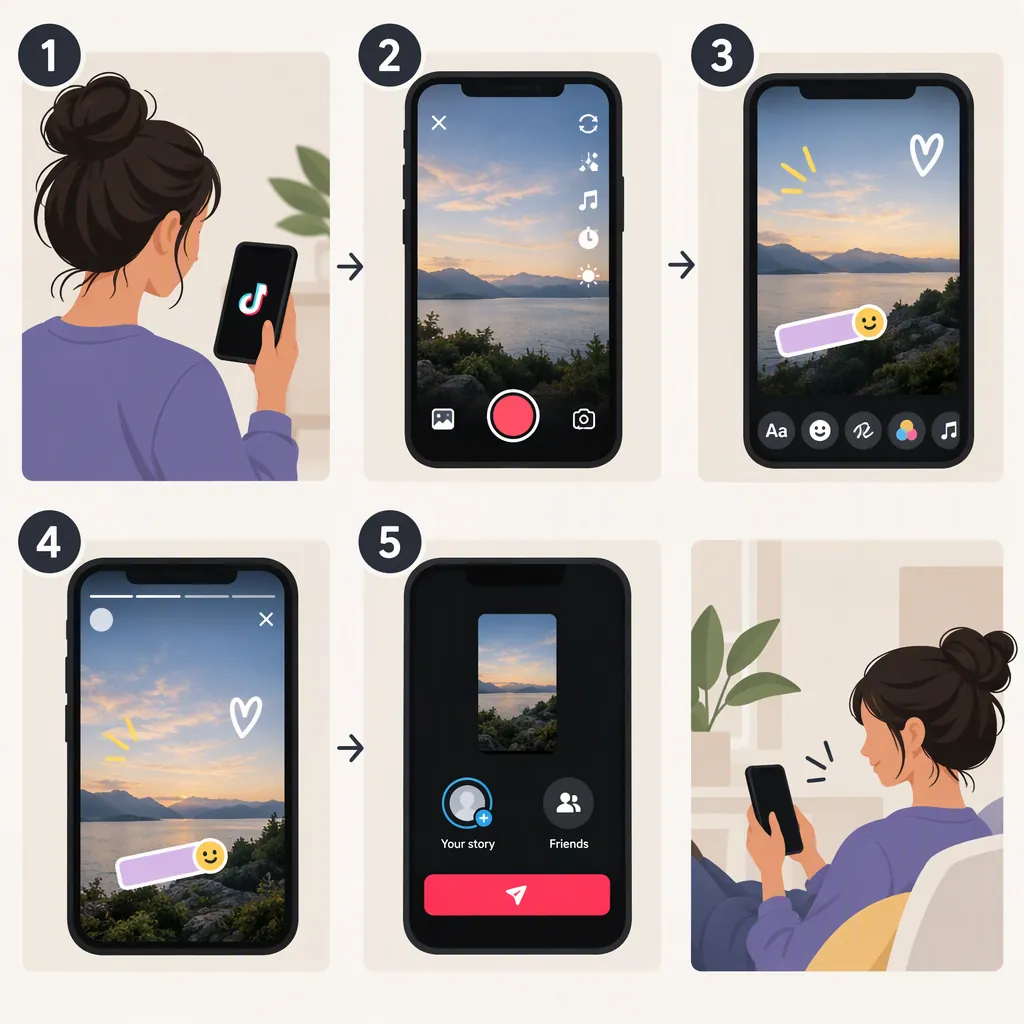
How to Create a Story on TikTok
To create an original TikTok Story, plan one clear idea, record your video, review the picture and sound, and use a Story publishing option if your app offers one. Before sharing, confirm that the destination is a Story rather than a regular video post.
Publishing instructions have a historical limit: RouteNote’s March 21, 2022 guide describes a bottom-center post button, Quick camera mode, and Story editing tools. It does not verify today’s interface, availability, video-length limits, or final publishing button. The production steps below are practical creative guidance; the app workflow is a 2022 reference, not a verified current walkthrough. [r1]
Plan One Clear Idea
Choose something you can show in a self-contained video: one drawing technique, one step in a project, or one observation. Give the viewer enough context to understand the clip without seeing an earlier post.
Use this brief before recording:
- Subject: What will appear in the video?
- Main point: What single thing should the viewer understand?
- Opening: What image or sentence introduces the subject?
- Middle: What action demonstrates the point?
- Ending: What result or takeaway completes the video?
These are creative recommendations, not TikTok format or timing requirements.
Example: Turn a Drawing Idea into a Recording Plan
Idea: Show how closely spaced pencil lines make one part of a drawing look darker.
| Part | Shot to record | Suggested on-screen text |
|---|---|---|
| Opening | Show a sheet of paper with two small outlined boxes. | “One pencil, two shades” |
| Demonstration | Record a close-up as you draw widely spaced lines in the first box and closely spaced lines in the second. | “Closer lines create a darker area” |
| Result | Show both boxes together, keeping the difference visible. | “Compare the spacing” |
Keep the paper in the same position across shots so the comparison is easy to follow. If you add narration, explain the same single point rather than introducing another technique.
This is a sample creative plan, not a TikTok feature requirement or prescribed video length.
Record and Review Your Original Video
Prepare the scene before recording:
- Make the subject easy to see. Choose lighting that reveals the main action, and remove distracting objects from the frame.
- Set up the camera. Keep it steady and check that your hands or tools will not block the important detail.
- Check the sound. If you are speaking, choose a quiet place and make a short test recording.
- Record the planned shots. Capture the opening, demonstration, and result using your own footage.
- Review picture and audio separately. First check whether the action is clear; then listen for understandable speech and distracting noise.
If the video relies on a spoken explanation, consider adding readable text for the key point using an editing tool available to you. Keep text away from the detail viewers need to watch.
For the drawing example, the review question is simple: Can someone see the difference between the two boxes and understand what caused it? If not, reframe or re-record the demonstration before publishing.
Create and Publish the Story: Historical Workflow Reference
Use this sequence only where the controls match your app. The documented entry point and camera mode come from RouteNote’s 2022 guide. [r1]
- Open the creation screen. The guide says to tap the post button at the bottom center of TikTok. [r1]
- Check for the relevant camera mode. It describes Quick camera mode as the way to make a Story video or photo. If that mode is missing, do not assume another control does the same thing. [r1]
- Record your planned video. Use the recording controls actually available on your screen. If you recorded outside TikTok, this source does not establish a current upload-to-Story workflow.
- Edit and preview. The guide reports that Stories had the same sounds, editing tools, filters, and effects as regular TikTok posts. Use the tools your app provides, then review the finished video. [r1]
- Confirm the publishing destination. Proceed only if the screen clearly identifies the destination as a Story. A general posting button is not enough to confirm that.
- Follow the app’s current publishing instructions. If the destination and final action are clear, use the displayed control to publish. If either is unclear, consult the app’s help before tapping. The historical source does not establish the final button’s current label or position.
Steps 5 and 6 are a cautious decision process, not a claim about a verified TikTok interface.
Pre-Publish Checklist
- The selected destination explicitly identifies a Story.
- The video communicates one clear idea.
- The main action is visible, text is readable, and speech is understandable.
- No private information appears in the frame or audio.
- Anyone featured is comfortable with the content being shared.
- Any music or other material is content you are permitted to use.
If You Cannot Find the Story Option
Do not publish through an unfamiliar control just to test whether it creates a Story.
- Inspect the creation screen for a clearly identified Story option.
- If it is absent or ambiguous, stop before publishing.
- Consult the help information available in your app for current instructions.
- Keep your recording for later, or intentionally choose another publishing format.
RouteNote reported that not everyone had access during the 2022 rollout. That does not explain why an option might be missing from an account today. [r1]
A regular TikTok video post should not be treated as a confirmed Story.
FAQ
How Long Does a TikTok Story Last?
RouteNote’s March 2022 guide describes Stories as disappearing after 24 hours. That is a historical description, not verification of the current behavior. Avoid sharing sensitive material on the assumption that it will disappear. [r1]
Can I Use a Photo Instead of an Original Video?
The 2022 guide describes Quick camera mode as supporting either a video or a photo for a Story. Check which options your app currently offers. For the original-video workflow above, record your own action or demonstration rather than substituting someone else’s finished video. [r1]
Can I Edit a TikTok Story Before Posting?
The historical guide says Stories offered the same sounds, editing tools, filters, and effects as regular posts. It does not establish a current tool list. Use the controls available in your app and preview the result before sharing. [r1]
Which Button Publishes the Story?
The supplied guide identifies the historical creation entry point and Quick camera mode, but it does not establish an exact final publishing button label. Confirm that your screen identifies a Story destination, then follow the app’s current instructions. If the destination is unclear, stop rather than risk posting in the wrong format. [r1]