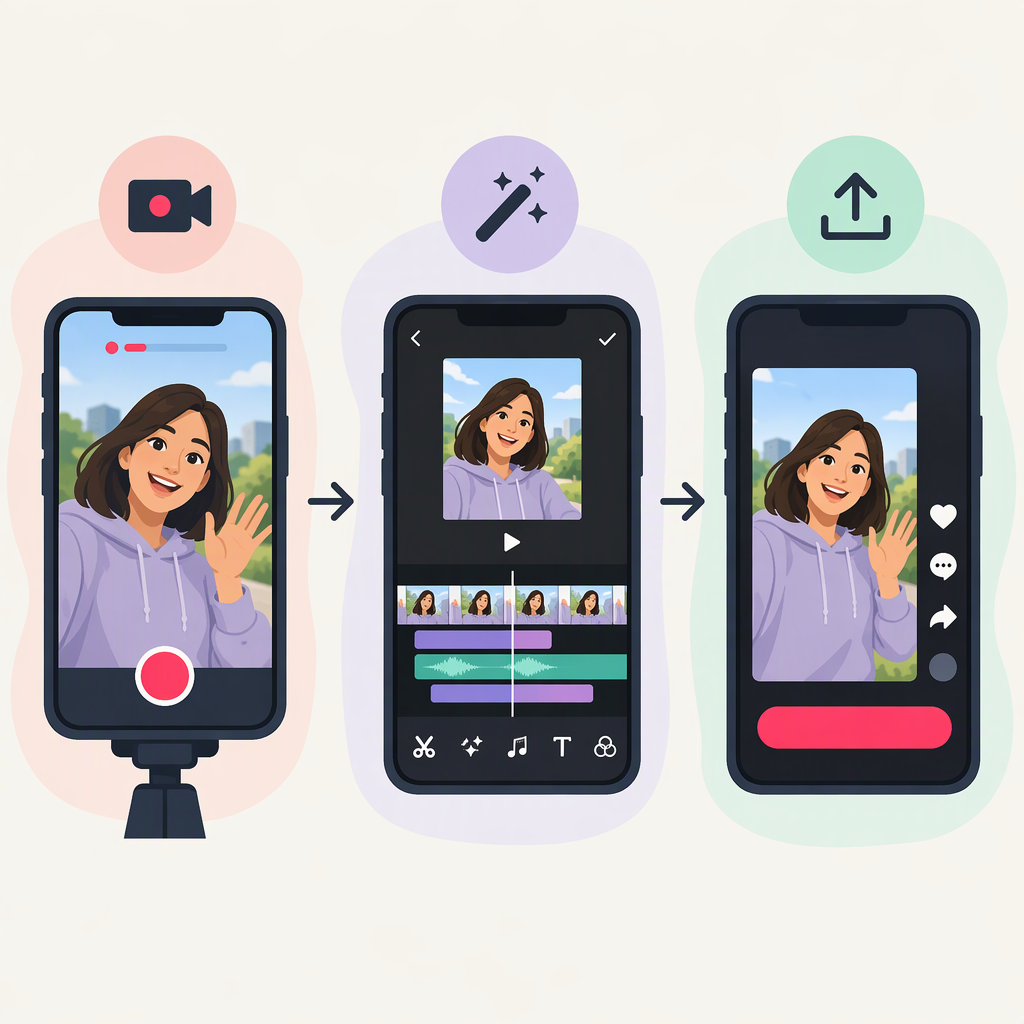
How to Make a Reel on TikTok: Record, Edit, and Post a Video
Short answer: TikTok’s Help Center describes this as creating and posting a video—not making a “Reel.” To make one in the TikTok app, tap Add post (+), record a clip or upload an existing video, edit it, tap Next, review the post and its audience, then tap Post. “Reel” is the wording in your search; follow TikTok’s video-posting workflow. (support.tiktok.com)
This walkthrough covers the TikTok mobile app. TikTok Studio also offers video uploads in a web browser, but its tools can vary across app and web experiences. (support.tiktok.com)
Choose How to Start
- Record in TikTok if you want to capture the video in the app. Tap Add post (+), choose a video length, and tap Record. Tap again to stop, or let the recording stop when it reaches the selected limit. TikTok’s camera tools also include options such as a timer and camera flip. (support.tiktok.com)
- Upload an existing clip if you have already recorded your original video. On the app’s creation screen, choose Upload, select the clip, and continue to editing. TikTok documents uploading a video from your device as part of its post-creation flow. (support.tiktok.com)
Which should you pick? Recording in TikTok puts capture and editing in the same workflow. Uploading lets you start with a clip you already have. Either way, preview the result before you post.
Create and Edit Your Video in the App
- Open the creation screen. Tap Add post (+) at the bottom of TikTok. Choose a video length to record, or select Upload to pick an existing clip. The available screen details may vary; TikTok’s published camera instructions are for its app. (support.tiktok.com)
- Record or select your clip. If recording, tap Record to start and stop. If uploading, choose the video from your device and continue.
- Make only the edits you need. TikTok documents adding effects, text, stickers, or emojis after recording or uploading. For text, tap Text, enter it, position it, and tap Done. These are optional; a straightforward clip does not need decorative edits. (support.tiktok.com)
- Preview the video. Check that the clip is the one you intended, that any text is readable, and that the opening and ending look right. If you want to choose the preview image, TikTok says to tap Select cover on the post screen, position the frame, and tap Save. (support.tiktok.com)
- Continue to the post screen. Tap Next when you’re ready. TikTok’s documented creation flow proceeds from recording or uploading to editing and then to Next. (support.tiktok.com)
Review the Audience and Publish
Before posting, check who can view the video. TikTok says post visibility can be set for each post. For a public account, the choices listed are Everyone, Friends (followers you follow back), or Only you; for a private account, they are Followers, Friends, or Only you. The available choices can depend on your account and, in some cases, your age or location. (support.tiktok.com)
Add a description or other post details if you want, then review the audience setting and tap Post. TikTok’s documented post-creation flow includes adding a description and then proceeding to post; the exact screen can differ by feature or account. (support.tiktok.com)
Check that it appears: After posting, open your profile and look for the video. If it appears there, open it to confirm you posted the intended clip and that it is visible to the audience you selected. That check confirms it appears on your profile; it does not guarantee that every intended viewer can see it.
If You’re Not Ready to Publish
Save it as a draft from the post page instead of tapping Post. TikTok says drafts are saved to the videos tab on your profile and are only available to others when posted. Its Help Center also notes drafts may be lost if TikTok is uninstalled and reinstalled or the account is moved to another device, so don’t treat a draft as your only copy. (support.tiktok.com)