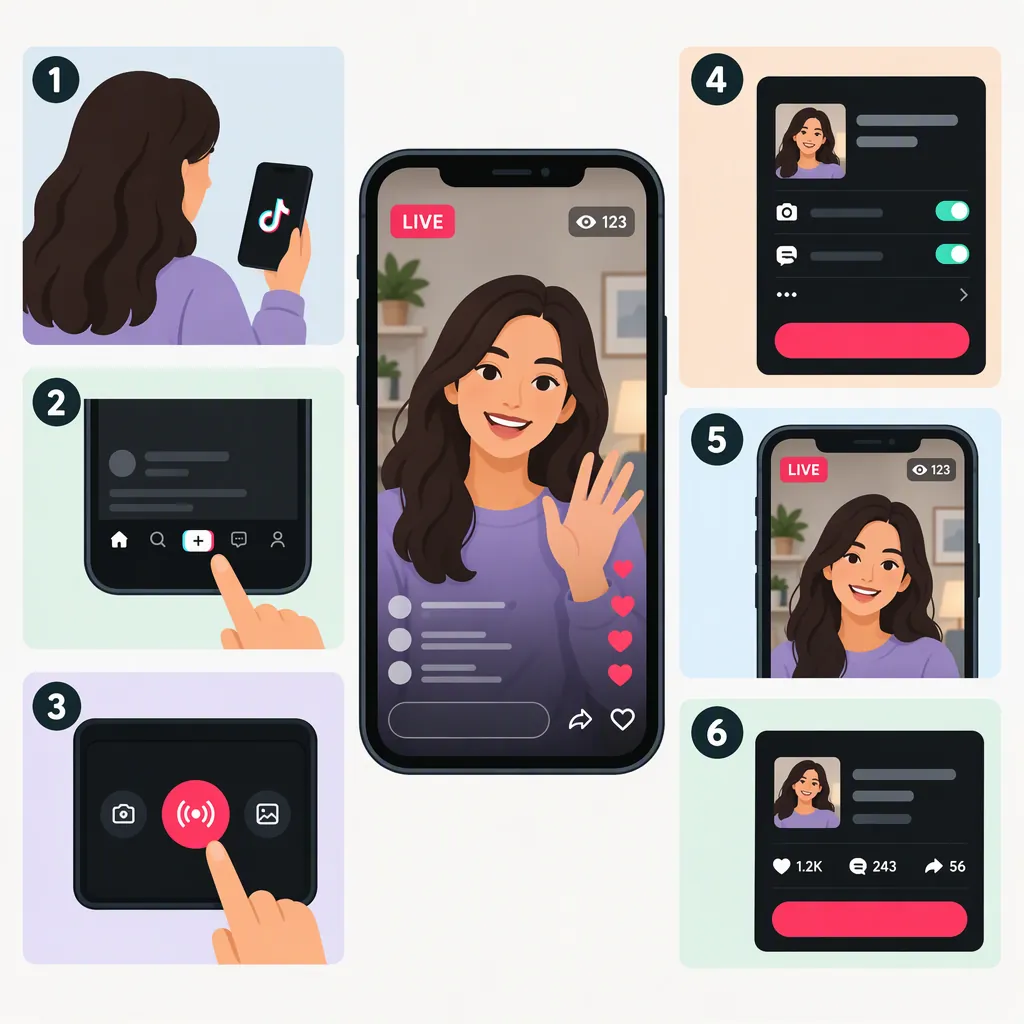
How to Make a Live Video on TikTok
To make a live video on TikTok, open the app, tap the plus (+) button, and select LIVE. Add a title, review the available settings, and tap Go LIVE when you are ready. You need LIVE access first. The provided guide describes this workflow, but your account’s available options and current eligibility requirements may differ. [c1]
Check Your TikTok Live Access
A TikTok LIVE is a real-time broadcast rather than a video you record, edit, and upload for later viewing. Viewers can interact with you during the session. [c1]
Before planning your broadcast, tap the plus (+) button in TikTok and look through the creation options for LIVE. The provided Restream guide lists a minimum age of 18 and a follower threshold of 1,000, while noting that the follower requirement may vary by region. Treat those figures as secondary-source guidance, not a guarantee that your account qualifies. Check the current requirements shown in TikTok before relying on them. [c1]
Source limitation: This article relies on one third-party guide, not an official TikTok reference. It cannot independently confirm current eligibility rules or the exact interface for every account.
Start a Live Video on Your Phone
The provided guide describes the following mobile workflow. Follow the labels available in your version of the app. [c1]
- Open TikTok and tap the plus (+) button at the bottom of the screen.
- Select LIVE. Swipe through the creation options if it is not immediately visible.
- Set up the broadcast. Add a title and, where offered, choose a cover image and topic.
- Review your settings. Check the available interaction and moderation controls before broadcasting.
- Tap Go LIVE once your camera, audio, and content are ready.
Use a title that accurately describes what you will do, such as “Sketching a Leaf: Demo and Questions.” Avoid promising a result you do not intend to deliver.
Plan an Original Live Session
Choose one manageable activity: demonstrate a technique, explain a process, or answer questions about a topic you know. Build the session around your own explanation and materials rather than trying to fill time without a plan.
The source recommends preparing a short topic outline and creating opportunities for viewer interaction, including Q&A. [c1] The example below is a suggested production plan, not a TikTok requirement. Adapt it to your subject and comfort level.
Simple Live Session Outline
Topic: Demonstrate one technique using your own materials.
Opening: Explain what you will make or show and what viewers can ask about.
Main demonstration: Break the process into three steps and explain your choices as you work.
Question breaks: Pause between steps to answer relevant viewer questions.
Recap: Summarize the process and clarify any unanswered points.
Closing: Tell viewers the session is ending, then end the broadcast using the available controls.
Check Picture, Sound, and Privacy
Before starting, stabilize your phone, check the lighting, and listen for distracting background noise. The source recommends a phone support, a less distracting background, and an internet connection check. [c1]
As a practical precaution, inspect the camera view for private information, including documents, addresses, or screens. If you plan to demonstrate something on a desk, rehearse the framing so the action stays visible.
Review available moderation settings, too. The guide describes tools for filtering comments and muting or blocking problematic viewers; availability and labels may differ in your account. [c1]
Pre-Live Checklist
- Confirm that LIVE is available on your account.
- Write a clear, accurate broadcast title.
- Place the phone on a stable support.
- Check that your face or demonstration area is visible.
- Make a short local test recording to check framing and sound.
- Remove private information from the camera view.
- Check your internet connection.
- Review available moderation controls.
- Keep your session outline nearby.
Handle Missing Live or Desktop Options
If LIVE is missing, first review the current eligibility information available in TikTok. The source identifies unmet eligibility requirements as a possible reason and suggests reporting the problem to TikTok if you believe you qualify. It does not establish a guaranteed workaround. [c1]
For desktop broadcasting, the guide describes TikTok LIVE Studio and encoding software used with a TikTok server URL and stream key. It also warns that mobile LIVE access does not necessarily include desktop or third-party streaming access. Do not assume that installing software will unlock these options. [c1]
If your account provides a stream key, keep it private. The guide explicitly warns against sharing it. [c1]
FAQ
Is a TikTok Live the Same as Uploading a Video?
No. A LIVE broadcasts in real time and supports viewer interaction during the session. An uploaded video is recorded and published for later viewing. [c1]
Can I Go Live with Fewer than 1,000 Followers?
The provided guide lists 1,000 followers but notes regional variation. It does not establish that every account below that threshold is ineligible or that an exception is guaranteed. Check your account’s current LIVE options and requirements in TikTok. [c1]
Do I Need a Computer to Make a TikTok Live?
No. The guide describes starting a LIVE directly from the mobile app when your account has access. Desktop methods are separate options and may require additional access. [c1]