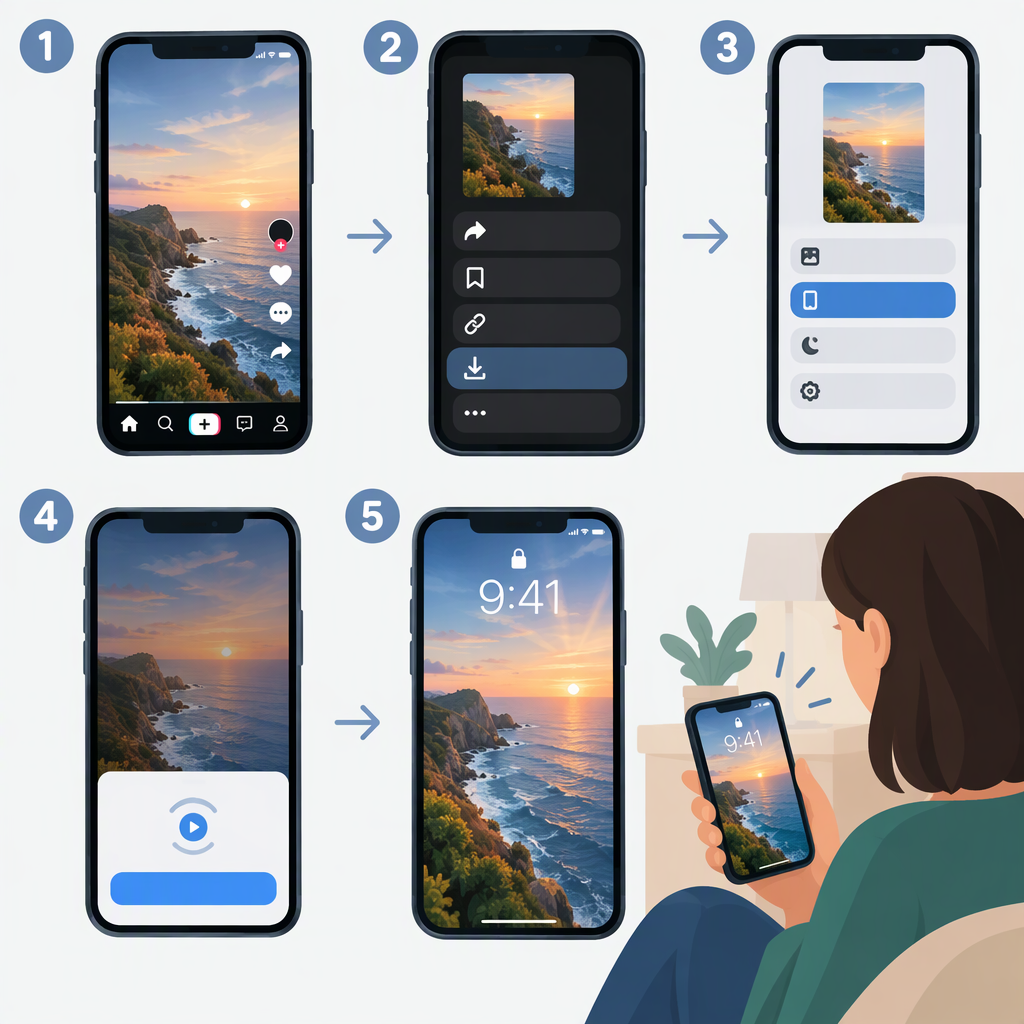
How to Make a TikTok Video Your Live Wallpaper
You can turn some TikTok videos into live wallpapers, but the steps depend on your phone. On iPhone, the video needs to be available as a Live Photo, which you can set as a Lock Screen wallpaper on iOS 17 or later. On Android, TikTok’s Live Wallpaper companion app provides a route for setting an eligible video as wallpaper. If TikTok does not offer a way to save or convert a video, don’t try to bypass that restriction.
iPhone: Set a TikTok Live Photo as Your Lock Screen
This method applies when TikTok offers the video as a Live Photo and your iPhone runs iOS 17 or later. Apple’s instructions apply to Live Photos; TikTok’s Help Center confirms that eligible downloads can be converted to Live Photos, though its public instructions do not specify the current menu label for doing so. (support.tiktok.com)
- In TikTok, open the video and tap Share.
- If the option appears, tap Live Photo or Save as Live Photo. The wording or availability may differ. Check the Photos app to see whether it saved as a Live Photo.
- Open Settings on your iPhone and tap Wallpaper.
- Tap Add New Wallpaper, then Photos and Live Photo. Choose the Live Photo you saved.
- Make sure the playback control is on, customize the wallpaper, and tap Add. Choose Set as Wallpaper Pair or Customize Home Screen.
Apple says a Live Photo wallpaper can play when you wake the iPhone. The animated effect is for the Lock Screen; if you customize the Home Screen separately, set its appearance there. (support.apple.com)
Android: Use TikTok’s Live Wallpaper App
TikTok’s Google Play listing describes a workflow using its companion app, listed as TickTock-TikTok Live Wallpaper and published by TikTok Pte. Ltd. The labels below follow that listing; menus can vary by phone. (play.google.com)
- Install the TikTok-published TickTock-TikTok Live Wallpaper app from Google Play.
- In TikTok, open the video and tap Share. If available, choose the option to save it as a Live Photo.
- Open the companion wallpaper app and tap Go set wall pictures.
- Choose the Live Photo from the album, then set it as your wallpaper and follow your phone’s on-screen prompts.
The Play listing says the companion app is needed to manage the wallpaper and that deleting it removes the live wallpaper. Available screens and final confirmation prompts can depend on your Android device. (play.google.com)
If You Don’t See the Option or Can’t Save the Video
- TikTok doesn’t offer a download or Live Photo option: TikTok says that if a video’s download option is missing, the creator does not allow downloads; private videos also can’t be downloaded. Don’t use another tool to get around those limits. Try a video you’re allowed to save, or ask the creator for permission. (support.tiktok.com)
- The video downloads, but does not appear in Photos: TikTok advises checking the device’s download folder or TikTok album. On iPhone, check that TikTok has permission to access Photos. (support.tiktok.com)
- You’re trying to use your own TikTok post: Check TikTok’s Settings and privacy → Privacy → Downloads setting. TikTok says private accounts and accounts belonging to users under 16 have downloads turned off by default and cannot turn them on. (support.tiktok.com)
- Your phone does not offer the wallpaper choice shown here: Wallpaper controls differ across devices. For example, Google’s Pixel instructions use Wallpaper & style and let you choose the Lock Screen or Home Screen; other Android phones may have different menus. (support.google.com)
If there is no allowed way to save or convert a particular video, use a different video you have permission to use—or choose a still image instead.